Want a verse on every screen? Psalmo is free.
The lock screen is the most-seen surface on your phone. You glance at it every time the screen wakes — to check the time, to dismiss a notification, to weigh whether the next text is worth opening. Each glance is a small chance to be met by something better than a sales push or a stranger’s takedown of someone you’ll never meet.
To put a Bible verse on your iPhone lock screen, install a Bible widget app like Psalmo, long-press the lock screen, tap Customize, and add the widget to one of the four slots above or below the clock. The whole setup takes about five minutes on any iPhone running iOS 16 or later — that’s the iPhone 8 / 2nd-gen SE and newer. The verse refreshes automatically once a day.
This guide walks through the full setup: what you need, the four-step install, which of the three lock-screen widget shapes to pick, what to do on Android, and a curated list of verses worth seeing every time the screen wakes up.
What you’ll need
Apple introduced lock-screen widgets in iOS 16 (released September 2022). If you can update to iOS 16, you can put a Bible verse on your lock screen. The full requirements:
- An iPhone running iOS 16 or later (iPhone 8 / 2nd-gen SE or newer)
- A free Bible widget app — we’ll use Psalmo, which doesn’t require an account
- About five minutes
- (Optional) a moment to think about which kinds of verses you’d like
That’s the whole list. No subscription is required to put a verse on your lock screen — Psalmo’s daily verse widget works on the free tier alongside three free themes.
How to Add a Bible Verse Widget to Your iPhone Lock Screen
The flow is short: install Psalmo, long-press your lock screen, tap Customize, and add a Psalmo widget. Each step in plain language below.
Step 1 — Install Psalmo
Open the App Store, search Psalmo, and tap Get. The app is free and asks for no account or email at install. When it opens for the first time, it asks which kinds of scripture you’d like — Faith, Peace & Anxiety, Strength, Gratitude, Healing, and so on. Pick three or four to start. You can change the list anytime.
The first thing the app does after onboarding is fetch today’s verse. Wait for it to finish so the lock-screen widget has something to display when it wakes up. This takes a second.
Step 2 — Long-press your lock screen
Wake your phone but don’t unlock it. Press and hold any empty area of the lock screen. After about a second, the screen pulls back and reveals a row of saved lock screens at the bottom plus a Customize button.
Tap Customize, then choose Lock Screen (not the wallpaper option underneath).
You’ll now see four widget slots: one row above the clock, and one row below. Tap any of them.
Step 3 — Choose a widget shape
The widget gallery opens. Scroll until you find Psalmo, or type “Psalmo” into the search bar at the top of the gallery. You’ll be offered three shapes:
| Shape | Where it fits | What appears |
|---|---|---|
| Rectangular | The wide slot below the clock (one fits) | Verse + reference, two lines of text |
| Circular | Either of the two slots above the clock | Just the reference, e.g. Ps 46:10 |
| Inline | The thin band immediately under the time | Today’s verse, one line, very small |
The rectangular slot below the clock is what most people pick first. It shows enough text to read at a glance and doesn’t fight your wallpaper.
Step 4 — Pick the verse categories
Once the widget is placed, open Psalmo and head to Categories. Toggle on the topics you’d like the lock-screen verse to draw from. Faith, Peace, Strength, and Gratitude are sensible defaults; if you’re going through a particular season, narrow further (Anxiety, Healing, Family, Forgiveness).
The widget rotates daily by default — a new verse each morning at midnight. Switch to hourly rotation in Settings → Widget if you’d prefer.
Which lock-screen widget shape should you pick?
All three are the same Bible verse lock screen widget under the hood — the choice is placement and how much text stays visible. Three real-world heuristics:
Pick rectangular if you want to read the verse as you check the time. It’s the most “present” of the three — full text in the wide slot under the clock.
Pick circular if your wallpaper is busy and you’d rather see a small reference token than full text. The circular widget shows just the book and chapter:verse — tap it to open the app for the full reading.
Pick inline if you want scripture without it being the visual focus of your phone. The inline widget reads almost like a date stamp — easy to miss, easy to live with.
You can also stack two: an inline widget under the clock for the verse, and a circular widget above for a category icon.
What about Android?
Android removed lock-screen app widgets in Android 5.0, back in 2014, and has never restored them. There’s no Psalmo lock-screen widget for Android — and no third-party app can re-add this functionality without rooting the phone.
What you can do on Android:
- Add a Psalmo widget to your home screen instead. It’s the first thing you see after unlocking.
- Set the daily verse as a notification (Psalmo offers this in settings). The verse appears on your lock screen via the standard notification system, without needing a widget.
- Use Psalmo’s Lock Apps feature, which gates Instagram, TikTok, X, YouTube, and Snapchat behind today’s verse — different mechanic, similar discipline.
How to Get a Bible Verse on Your Lock Screen Without an App
Two app-free methods work, each with a real trade-off.
Verse wallpaper. Save an image with a verse on it — a screenshot, a photo you made in an editor — and set it as your lock-screen wallpaper: Settings → Wallpaper → Add New Wallpaper, then pick the photo. Free and permanent. Also static: the same verse greets you in October that greeted you in March, and by then your eyes slide right past it.
A general widget maker. Widgetsmith and similar apps let you build a text widget and type a verse into it. It sits on the lock screen like any other widget. The catch is rotation: a new verse means opening Widgetsmith and retyping it by hand. Most people do that exactly twice.
Both are honest options for a single verse you want in front of you long-term. If you want a verse that changes every morning without you touching anything, that’s the job of a dedicated widget — the five-minute setup above.
Common mistakes when setting up lock-screen scripture
A handful of things go wrong, in roughly this order of frequency:
The widget shows yesterday’s verse. iOS sometimes throttles widget refreshes for apps that haven’t been opened recently. Open Psalmo for two seconds; the timeline rebuilds and the widget catches up.
The widget is blank or shows ”—”. Almost always a fresh-install issue. Open Psalmo once and let it download today’s verse; the widget will fill in within a minute.
The widget vanished after an iOS update. Lock-screen widget setups occasionally get dropped during major iOS upgrades. Long-press the lock screen and re-add the Psalmo widget — your category settings persist, so it’s a thirty-second redo.
The text is truncated mid-sentence. Some longer verses get cut by the rectangular widget’s two-line cap. Switch to a category with shorter verses (Psalms is reliably short), or use the inline widget for full single-line display.
How Psalmo Helps with Lock-Screen Scripture
Psalmo is built around the idea that a Bible app shouldn’t ask you to open it to do its job. The widget is the product; the app is the settings panel.
For the lock screen specifically, Psalmo offers all three iOS 16 widget shapes — rectangular, circular, and inline — with the verse drawn from whichever categories you’ve enabled. The free tier includes the daily verse widget and three themes (Classic, Dark, Minimal). Premium adds twelve more aesthetic themes (Marble, Sunrise, Stained Glass, Night Sky, Gold Leaf, and others), custom photo backgrounds for the widget, and AI prayer & reflection features.
A few pieces of Psalmo that pair well with the lock-screen widget:
- Daily verse notification at a time you choose, in case you miss the lock-screen glance
- Verse categories so the rotation matches what you’re carrying (Anxiety, Grief, Strength, Gratitude)
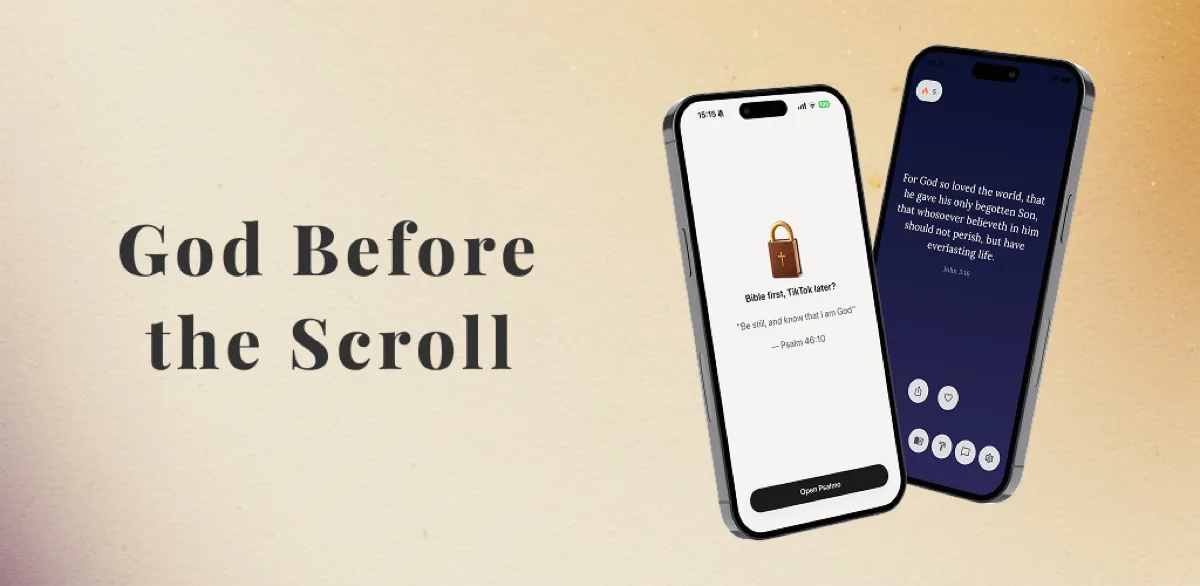
- Lock Apps — gate Instagram, TikTok, X, YouTube, and Snapchat behind today’s verse, so the first thing you read on the phone is scripture rather than a feed
The point isn’t more scripture. It’s God’s Word on your lock screen, placed where you actually look — the same verses, met a dozen more times a day.
Seven Bible Verses Worth Putting on Your Lock Screen
If you’d rather start with a curated rotation than dig through categories, these seven hold up well as a daily seven-day cycle. Most are short enough for the rectangular widget without truncation.
- Psalm 46:10 (KJV) — “Be still, and know that I am God.”
- John 3:16 (KJV) — “For God so loved the world, that he gave his only begotten Son, that whosoever believeth in him should not perish, but have everlasting life.”
- Psalm 23:1 (KJV) — “The LORD is my shepherd; I shall not want.”
- Philippians 4:13 (KJV) — “I can do all things through Christ which strengtheneth me.”
- Proverbs 3:5 (KJV) — “Trust in the LORD with all thine heart; and lean not unto thine own understanding.”
- Psalm 27:14 (KJV) — “Wait on the LORD: be of good courage, and he shall strengthen thine heart.”
- Psalm 55:22 (KJV) — “Cast thy burden upon the LORD, and he shall sustain thee.”
You can pin Psalmo to draw only from this list (Settings → Custom Verses).
Frequently Asked Questions
Do I need a paid subscription to put a Bible verse on my iPhone lock screen?
No. Psalmo is free to download, and the daily verse widget — including the lock-screen widget on iOS 16+ — works on the free tier. The premium tier unlocks all 15 themes, custom photo backgrounds, and AI prayer features, but the basic lock-screen verse does not require a subscription.
Which iPhones support lock-screen widgets?
Lock-screen widgets are an iOS 16 feature, supported on iPhone 8, iPhone SE (2nd generation), and every newer model. Older iPhones running iOS 15 or earlier can still use Psalmo’s home-screen widgets, but not the lock-screen ones.
Will my iPhone show a Bible verse on the lock screen even when locked?
Yes. Lock-screen widgets show their content while the phone is locked — that’s the entire point. You don’t have to unlock to see today’s verse. The widget refreshes automatically once a day at midnight by default, or hourly if you change the rotation in Psalmo’s settings.
Does the lock-screen widget drain my battery?
No. The widget refreshes once a day on iOS via Apple’s WidgetKit Timeline API — there is no constant network polling and no background process running. Power consumption is negligible.
Can I choose which verses appear on my lock screen?
You choose by category, not by individual verse. In the Psalmo app, head to Categories and toggle on the topics you’d like (Faith, Anxiety, Strength, Gratitude, Healing, etc.). The widget pulls only from the categories you’ve enabled.
How do I get a Bible verse on my lock screen without downloading an app?
Set an image with a verse on it as your lock-screen wallpaper (Settings → Wallpaper → Add New Wallpaper). It’s free but static — the verse never changes unless you swap the image yourself. A widget app rotates automatically, showing a new verse each day without any manual step.
Can I put multiple Bible verses on my lock screen?
One verse displays at a time, but you can run two widgets at once — a rectangular one below the clock and an inline one above it — each pulling from a different category. And because the widget rotates daily (or hourly), you effectively get many Bible verses on your lock screen over time without changing anything.
If you’d like to try it, Psalmo is free on iOS and Android — daily verse, fifteen aesthetic themes, and a quiet way to keep the Word on every screen you check.