Want a verse on every screen? Psalmo is free.
Android home screens are quietly the most flexible canvas in mobile. Pixel devices, Samsung Galaxies, OnePlus phones, and a hundred other manufacturers all run the same widget API, and yet the setup flow looks different on every one of them. The good news: a Bible verse widget for Android is a five-tap install on every modern Android phone, regardless of which launcher your manufacturer ships. The slightly less good news: there’s one Android-specific gotcha (lock-screen widgets) that you should know about up front so you don’t waste time hunting for a setting that doesn’t exist.
To add a Bible verse widget to your Android home screen, install Psalmo from Google Play, long-press an empty area of your home screen, tap “Widgets”, find Psalmo, then drag the size you want onto a free spot. Setup takes two to three minutes on Pixel, Samsung One UI, and most other Android launchers.
This guide covers the setup on both Pixel and Samsung (the two flows differ slightly), the three widget sizes and what each shows, the lock-screen question (short answer: Android doesn’t support it, but there’s a workaround), and a fix list for the days when the widget doesn’t update.
What you’ll need
Android home-screen widgets have been around since Android 1.5 (yes, really — 2009). Any phone made in the last decade can run a Bible verse widget. The full requirements:
- An Android phone running Android 7.0 or later (anything from 2016 onward; Material You theming requires Android 12+)
- A free Bible widget app — we’ll use Psalmo, which displays the daily verse without an account
- About three minutes
- (Optional) a moment to think about which size widget you’d like
That’s the whole list. No subscription, no signup. Psalmo’s daily verse widget is on the free tier alongside three default themes (Classic, Dark, Minimal) and works on all modern Android distributions.
How to add a Bible verse widget to your Android home screen
The flow has slight wording differences across manufacturers. The general shape is the same: install the app, long-press the home screen, find Widgets, drag Psalmo’s widget onto your screen.
Step 1 — Install Psalmo from Google Play
Open the Play Store, search Psalmo, and tap Install. The app is free and asks for no email or account at install. When it opens for the first time, it asks which scripture categories you’d like — Faith, Peace & Anxiety, Strength, Gratitude, Healing, Morning Verses, and roughly ten more. Pick three or four to start.
The app fetches today’s verse on first launch. Wait the second it takes so the widget has something ready when you place it.
Step 2 — Long-press your home screen
Press and hold any empty area of your home screen for about a second. A menu pops up at the bottom of the screen with options like Wallpapers, Widgets, and Home settings. Tap Widgets.
On Pixel and most stock Android launchers, the widget picker shows widgets grouped by app, alphabetically. On Samsung One UI, the picker is a horizontal scroll of app-grouped widgets. On OnePlus, it’s a vertical list. The mechanics are identical even if the design isn’t.
Step 3 — Find Psalmo and pick a size
Scroll until you find Psalmo, or use the search field at the top of the widget picker. Tap to expand. Three sizes appear:
| Size | Grid | What appears |
|---|---|---|
| Small | 2×2 cells | Verse reference + first line |
| Medium | 4×2 cells | Full verse, reference, and theme background |
| Large | 4×4 cells | Full verse, reference, theme, plus the day’s reading prompt |
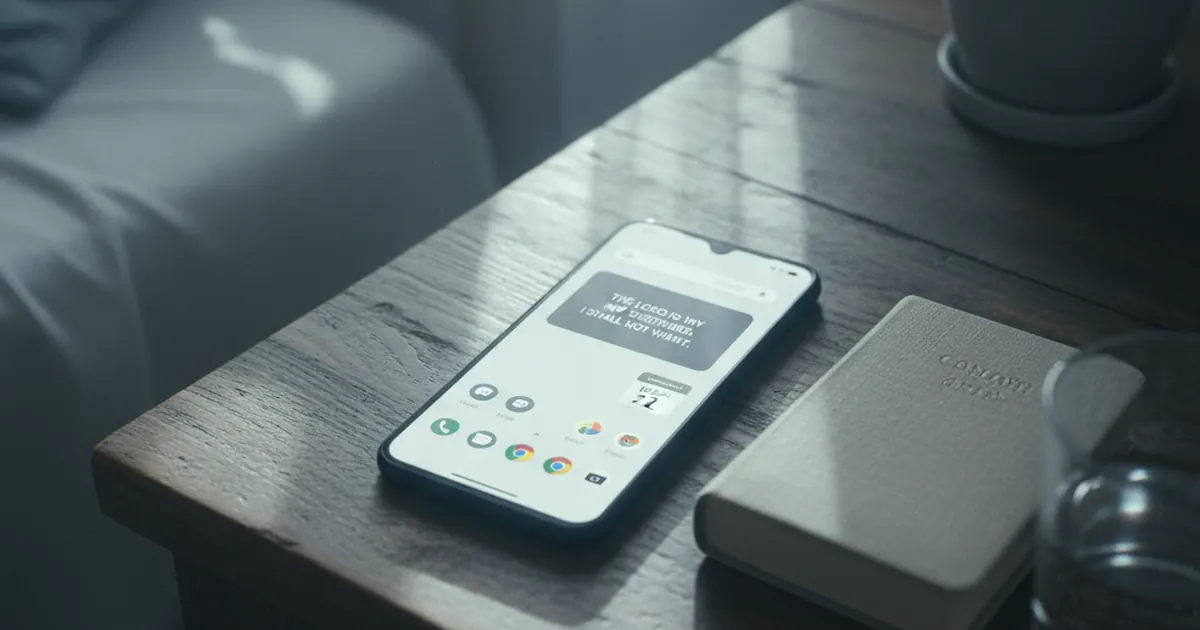
On Pixel, medium is the most common pick — it shows the full verse without truncation while leaving the rest of the screen for app shortcuts. On Samsung phones with denser default grids (5×5 or 5×6), the same medium widget looks slightly more compact; nothing about the content changes.
Step 4 — Drag the widget onto a free spot
Press and hold the widget size you want. The picker collapses and the home screen appears with a faint placement preview. Drag the widget to a free area of any home screen page. Lift your finger to drop it. Done.
You can resize and reposition by long-pressing the placed widget. On Pixel and One UI, you’ll see resize handles you can drag; the widget snaps to the home-screen grid.
Step 5 — Pick scripture categories
Open Psalmo and head to Categories. Toggle on the topics you’d like the widget to draw from. Faith, Peace, and Gratitude are sensible defaults. The widget rotates once a day at midnight by default, with an hourly option in Settings → Widget.
Pixel vs Samsung: small differences worth knowing
The setup steps above work on every modern Android phone. Two small flow differences worth flagging:
Material You theming (Android 12+): Pixel phones running Android 12 or later auto-tint widgets with colors pulled from your wallpaper. Psalmo’s widget supports Material You, so the widget background blends with your phone’s color scheme on Pixel. Samsung One UI doesn’t apply Material You themes the same way; the widget shows in its own theme.
Edge panels (Samsung): Galaxy phones have an Edge Panel that swipes in from the side and can host widgets independently of your main home screen. If you’d like the verse accessible from any app via a swipe, drag a Psalmo widget to the Edge Panel via Settings → Display → Edge panels → Apps. Pixel doesn’t have a direct equivalent.
Glance Widgets API: Some 2025+ launchers (Niagara, Smart Launcher Pro) support Android’s newer Glance Widgets API, which renders Compose-based widgets. Psalmo’s widget uses the older RemoteViews API for maximum compatibility, so it works on every Android launcher rather than only on the Glance-aware ones.
What about a Bible verse on the Android lock screen?
Short answer: Android doesn’t support third-party lock-screen widgets, and hasn’t since Android 5.0 (Lollipop, released November 2014). This is a platform-level decision by Google, not a limitation of any single Bible app. No app you can install — Psalmo, YouVersion, Bible Widgets, or anything else — can put a custom widget on your Android lock screen without rooting your phone.
Three workarounds people use:
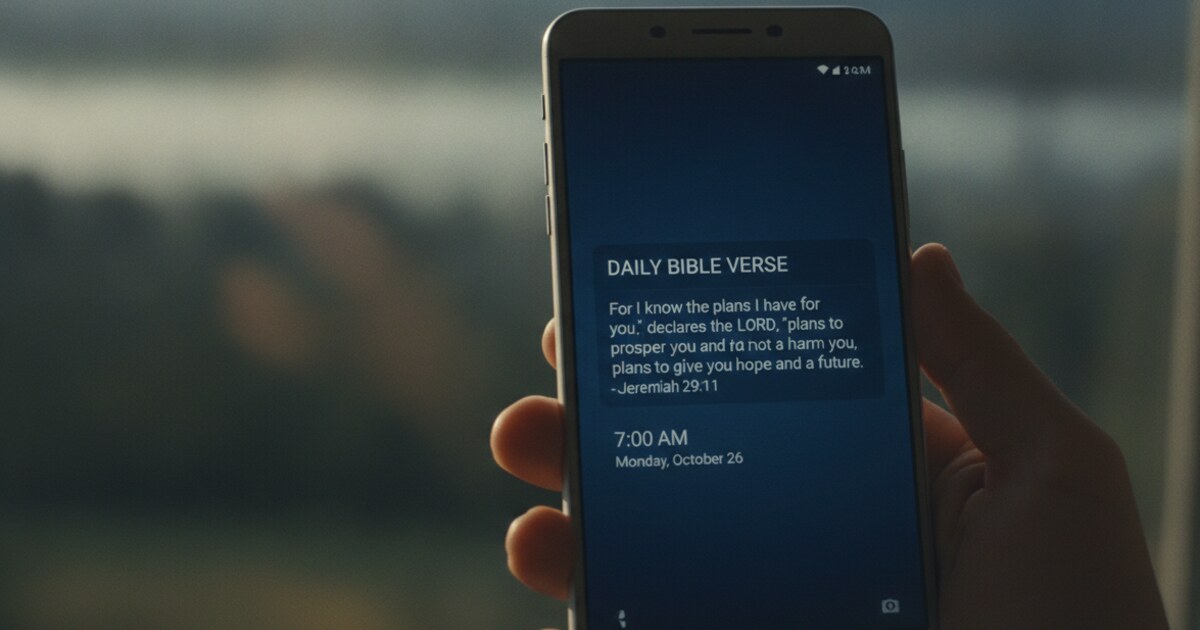
Daily verse notification. Psalmo can send today’s verse as a notification at a time you choose. The notification appears on your lock screen via Android’s standard notification system. Set the notification time to your morning unlock window in Settings → Notifications, and you’ll see scripture on the lock screen via the notification system every day.
Always-On Display verse (Pixel and Samsung). Some Pixel and Galaxy phones support an Always-On Display that shows a small amount of content even when the phone is asleep. The standard AOD shows the time and notifications, so a Psalmo notification will appear there during its display window. This is the closest Android gets to a “lock-screen widget” experience.
Widget on first home-screen page. If your lock screen unlocks directly to your main home screen (the default on Pixel and Samsung), placing a medium Psalmo widget at the top of that page means the verse is the first thing you see when the phone wakes. Functionally similar to a lock-screen widget, separated by exactly one swipe.
If you’d specifically like a true lock-screen widget for scripture, you’ll want an iPhone — Apple shipped lock-screen widgets in iOS 16. Our iPhone lock-screen guide walks through that flow.
Common reasons your Android Bible widget isn’t updating
Four issues account for most of the “widget broken” reports:
The widget shows yesterday’s verse. Android’s WorkManager occasionally delays scheduled refreshes when the device is in Doze mode (battery-saving sleep). Open Psalmo for two seconds; this triggers an immediate widget refresh.
The widget went blank after rebooting. Some manufacturer skins (mostly older Xiaomi MIUI builds and a handful of OEM launchers) drop widget data on reboot. Long-press the placed widget, remove it, and re-add it from the widget picker. Your category settings persist in the app.
The widget hasn’t updated for several days. Battery optimization is the usual culprit. On most Android phones, head to Settings → Apps → Psalmo → Battery → Unrestricted (Pixel) or Settings → Battery → Background usage limits → Never sleeping apps → Add Psalmo (Samsung). This lets WorkManager run on schedule.
The widget background looks wrong on Pixel. This is Material You over-tinting, which sometimes washes out the widget’s intended theme. Switch off Material You for Psalmo by long-pressing the widget, tapping Edit, and toggling the Material You option off (visible on Android 12+).
If none of these apply, force-stop Psalmo from Settings → Apps → Psalmo → Force stop, reopen it, and the widget refreshes within a minute.
How Psalmo helps with home-screen scripture on Android
Psalmo is a cross-platform Bible widget app — same app on iOS and Android, same categories, same themes, same daily verse rotation. On Android specifically, Psalmo offers all three home-screen widget sizes (small 2x2, medium 4x2, large 4x4), with Material You support on Pixel and standard themes on Samsung and other launchers. Fifteen verse categories ship in the app: Faith, Peace & Anxiety, Love, Strength & Courage, Gratitude, Healing, Wisdom, Family, Forgiveness, Hope, Prayer, Protection, Work & Purpose, Morning Verses, and Evening Verses. Two public-domain translations (King James Version and World English Bible) are switchable in settings. The free tier includes the daily verse widget plus three default themes (Classic, Dark, Minimal). Premium adds twelve more aesthetic themes — Marble, Sunrise, Stained Glass, Night Sky, Gold Leaf, Watercolor, and others — plus custom photo backgrounds and AI prayer & reflection features. The widget refreshes once a day at midnight via Android’s WorkManager API, with an hourly option for readers who want fresher rotation.
A few pieces that pair well with the home-screen widget:
- Daily verse notification — the closest you’ll get to a lock-screen verse on Android
- Verse categories so the rotation matches the season you’re in
- Lock Apps — gate Instagram, TikTok, X, YouTube, and Snapchat behind today’s verse, on Android. Our companion guide on apps that lock social media until Bible reading covers the broader category, but Psalmo’s the only cross-platform option
Same app whether you switch to iOS later or share the setup with someone on iPhone — the categories and verse history move with your account.
Frequently asked questions
Does Android support Bible verse widgets the same way iPhone does?
Mostly. Android home-screen widgets and iPhone home-screen widgets work similarly — same three sizes (small, medium, large), same daily refresh, same long-press setup flow. The key difference is the lock screen: iOS supports lock-screen widgets (added in iOS 16), but Android removed third-party lock-screen widget support in Android 5.0 (2014) and hasn’t restored it.
What’s the best Bible verse widget app for Android?
The leaders are Psalmo (cross-platform, free Lock Apps + widget), Bible Widgets by HRD (Android-native, theme-heavy), and YouVersion’s Verse of the Day widget (bundled with the YouVersion Bible app). Psalmo is the broadest fit if you want widgets plus the option to gate distracting apps behind scripture.
Can I put a Bible verse on my Samsung Galaxy lock screen?
Not as a widget. You can use Psalmo’s daily verse notification, which appears on your Galaxy lock screen via the standard notification system. You can also drag a Psalmo widget to your Samsung Edge Panel for one-swipe access from any app, including the lock screen.
Does the Android Bible widget drain my battery?
No. Android widgets refresh on a WorkManager schedule, typically once a day for daily-verse content. There’s no constant network polling and no background process running between refreshes. Battery impact is negligible.
How do I set the widget to refresh hourly instead of daily?
Open Psalmo and go to Settings → Widget → Rotation → Hourly. The widget will pick a new verse from your enabled categories every hour. The tradeoff is slightly higher (still negligible) battery use and the loss of the “daily anchor” effect — most readers stick with daily for that reason.
Can I use Psalmo’s widget without paying?
Yes. The daily verse widget in all three sizes is on the free tier, alongside three default themes (Classic, Dark, Minimal). Premium adds twelve more aesthetic themes, custom photo backgrounds, and AI prayer & reflection features.
If you’d like to try it, Psalmo is free on Android (and on iOS if you switch later). Daily verse widget in three sizes, fifteen categories, and a quiet way to keep scripture on the surface you check most.