Want a verse on every screen? Psalmo is free.
Best Apps to Stop Doomscrolling in 2026
The session starts the same way every time. You open Instagram for 30 seconds, then look up 40 minutes later with no memory of how you got there. Doomscrolling works because infinite feed design exploits the same dopamine loop as slot machines: unpredictable rewards, no natural stopping point, a feed tuned to surface the most emotionally activating content first. The apps that break the loop don’t all work the same way. Some intercept the tap before it lands; others interrupt mid-session or enforce a hard stop after a time limit. This guide covers 5 apps to stop doomscrolling, organized by exactly when they intervene.
The best apps to stop doomscrolling pair an interruption with timing. One Sec and Psalmo intercept the tap before the app opens. ScreenZen catches you mid-session. Opal and Freedom enforce hard limits that hold when motivation drops. The right fit depends on when your scroll is hardest to resist.
Why Doomscrolling Apps Don’t Hold
Most app blockers fail because they treat doomscrolling as a willpower problem. Infinite scroll was designed to defeat willpower.
Infinite scroll was patented by Aza Raskin in 2006. Raskin later said he regrets the invention, estimating it costs billions of collective hours every year. He designed the mechanism in an afternoon and has spent years warning about it since. Asurion’s 2023 survey found Americans check their phones 96 times a day, roughly once every 10 minutes of waking life. DataReportal’s 2025 report puts average daily screen time at 4 hours 37 minutes. APA’s 2023 stress report found 37% of adults linked regular news and social media consumption to elevated anxiety. The scroll isn’t relaxing. It’s a cortisol drip with no off switch, until you add one externally. Apps that work don’t fight willpower. They change the moment the pattern fires: before the tap, during the session, or after a timer you set in advance runs out. The difference between an app that holds and one that collects dust is whether the intervention catches you at the right moment.
An app you only activate when you’re already motivated offers little when the instinct hits hardest. The apps that hold fire automatically, before the motivation question arises.
Apps to Stop Doomscrolling Before You Open Them
These two apps target the 96-times-a-day phone check: the moment a habit fires and your thumb is already moving before your brain catches up.
1. One Sec: Best Friction App
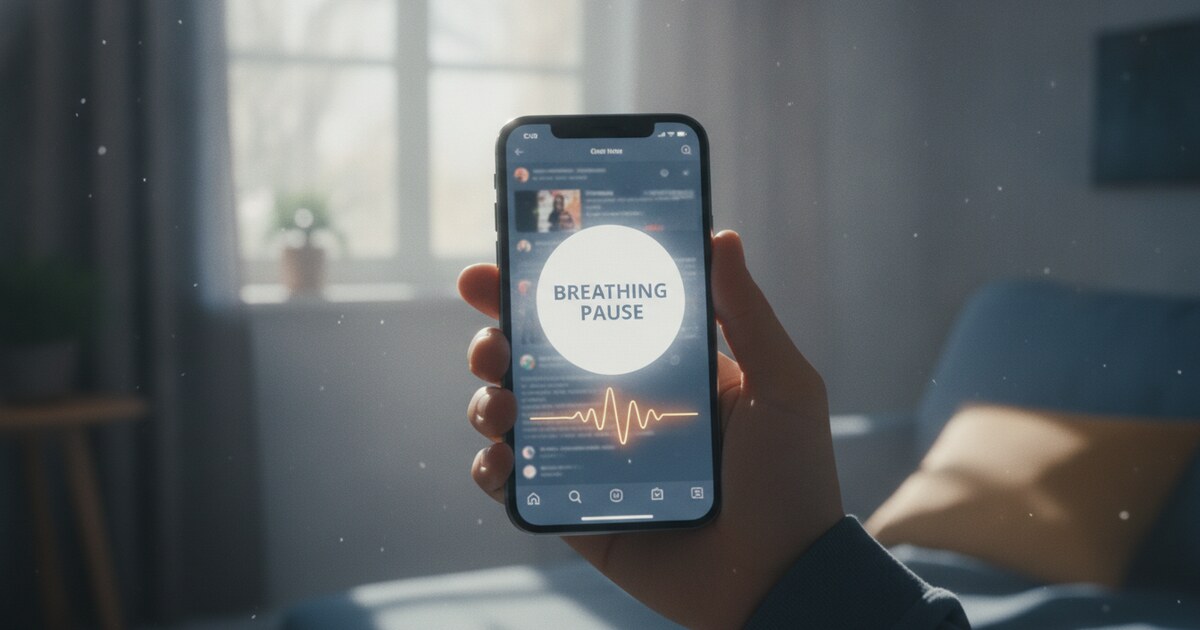
One Sec places a 1-second breathing pause before any app you designate. When you tap Instagram, it intercepts the launch, shows a breath animation, and asks whether you actually want to open the app.
The company publishes data showing a 57% reduction in app opens over several weeks of use. Not everyone hits that number, but the mechanism works on a real behavioral lever: the pause interrupts the autopilot long enough for the prefrontal cortex to catch up.
One Sec works on iOS, Android, macOS, Windows, Linux, and all major browsers. The free tier covers one app. Paid plans start at €14.99 per year, with a one-week trial available before paying.
For doomscrolling that starts as a compulsive tap rather than an intentional session, the brief pause is often enough to break the reflex.
Source: one-sec.app
2. Psalmo: Best for a Faith-Based Approach
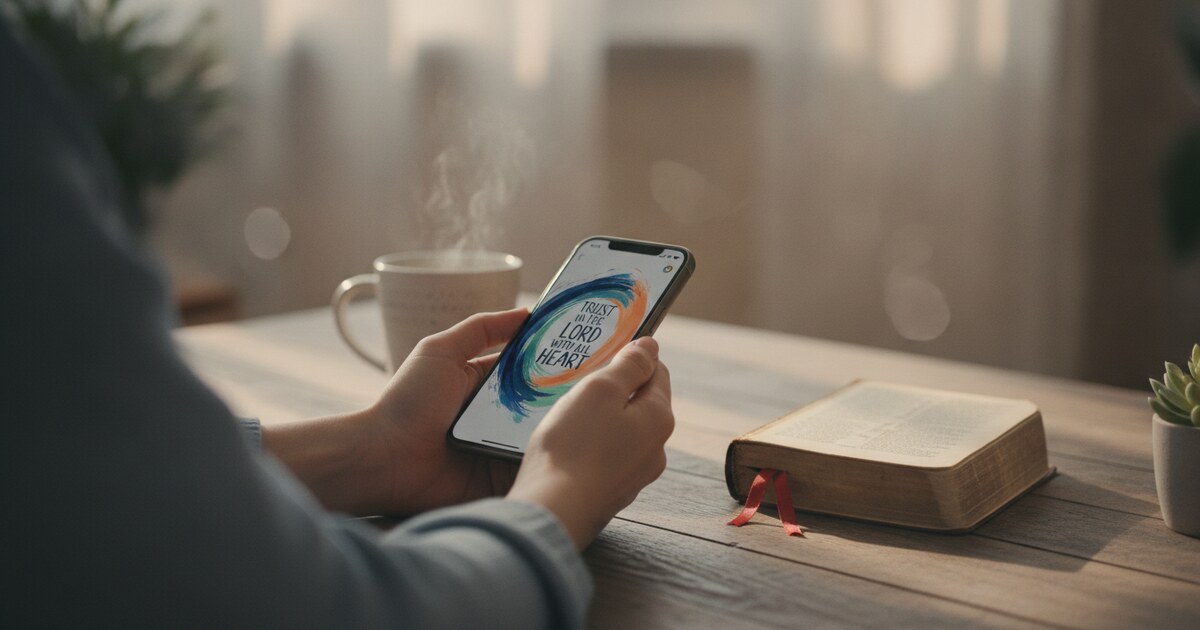
Psalmo gates the apps you doomscroll on behind a Bible passage. Pick Instagram, TikTok, or any app you tend to lose time in, and opening it shows you Scripture first. You read (1, 3, or 10 verses, or a whole chapter, your choice), then the app unlocks for a window you set (15 minutes to 4 hours). When the window closes, the app locks again.
The reading requirement adds real friction, but the replacement isn’t a breath animation. It’s Scripture. For anyone who wants a daily pause that carries spiritual weight, that distinction matters.
The free plan covers up to 3 apps with one schedule. Blocking runs always-on or on a schedule. Home-screen widgets are included on both iPhone and Android, and lock-screen widgets work on iPhone. No account required.
Psalmo is a faith-based app. If you need a faith-neutral friction tool, One Sec is the better fit. If you want daily Scripture wired into the moment you’d otherwise open a social app, Psalmo is worth a download. See Christian App to Stop Scrolling for a deeper comparison of faith-based options in this category.
Source: psalmo.app
Mid-Session: Interrupting the Scroll in Progress
Once you’re inside the feed, most apps have no way to reach you. ScreenZen is the exception.
3. ScreenZen: Best Mid-Session Nudge
ScreenZen interrupts you at intervals during a session, not just at the door. After a customizable check-in window, it surfaces a prompt asking whether you’re still getting something from this. You can dismiss it and keep scrolling, but the break in rhythm does a lot of the work.
Available on iOS, Android, and macOS. The app positions itself as “no subscription,” which is its main marketing claim. It carries a 4.8-star average across 30,000-plus ratings, and the New York Times has covered it as one of the low-friction options for people who resist hard blockers.
ScreenZen uses session check-ins rather than blocking. That’s a different intervention from One Sec’s door-level friction, and it’s the only tool in this list that interrupts you after you’re already inside a feed.
Source: screenzen.co
Hard Limits: When Willpower Runs Out
Opal and Freedom enforce hard blocks rather than friction. Once a session is active, the blocked app won’t open. For anyone who has already bypassed Screen Time passcodes or dismissed One Sec mid-animation, this is the layer that holds when nothing else does.
4. Opal: Best for Hard Blocking
Opal uses VPN-level enforcement on iPhone and Mac. Once you activate a session and enable Hard Mode, you can’t exit without waiting. The free plan lets you run one blocking rule. Pro starts at $99.99 per year, adding Hard Mode, unlimited rules, and historical screen-time tracking.
The one-rule free limit means Opal works well for blocking one specific app on a daily schedule (TikTok from 10pm to 8am, for example). It supports iPhone, iPad, Mac, and Android. A one-week free trial is available on the annual plan.
Opal’s strength is enforcement. For anyone who has already burned through Screen Time passcodes or deleted blocking apps mid-session, Opal’s VPN layer means the blocked app simply won’t load.
Source: opalapp.com/pricing
5. Freedom: Best Cross-Platform Scheduler
Freedom blocks apps and websites across all your devices at once. A session set on your phone also fires on your Mac and Windows machine. The free tier includes multi-device sync, unlimited blocklists, and full blocking features. Premium, at $3.33 per month billed annually, adds scheduled recurring sessions and Locked Mode, which prevents quitting active sessions.
The scheduling matters. Freedom lets you pre-commit: Saturday mornings, Instagram and TikTok are blocked from 7am to 10am. The block fires without any action from you at the moment you’d otherwise open the app. You set the rule when your judgment is clearest.
For people who doomscroll most during specific windows (evenings, commutes, the post-lunch lull), pre-scheduled blocking removes the in-the-moment decision entirely.
Source: freedom.to/pricing
Matching the App to Your Scrolling Pattern
Different scroll patterns need different interventions.
If you open apps on autopilot (dozens of short, impulsive checks throughout the day): Start with One Sec. The friction is light, the free tier covers one app, and you can test it on your worst offender before spending anything.
If you want the habit to build into something: Psalmo pairs the interruption with daily Scripture. The free plan covers up to 3 apps and works on both iPhone and Android.
If you’re a session binge-scroller (you open deliberately but can’t stop once you’re in): ScreenZen is the only tool here that interrupts you after you’re already inside the feed.
If your worst scrolling happens late at night or on weekends: Opal or Freedom with a scheduled block. Set the rule in the morning when your judgment is clear. By midnight, it doesn’t matter how much you want to turn it off.
Most people who solve doomscrolling combine two layers: a friction tool for the impulsive taps and a hard block for the worst-case window. For a fuller 7-step approach, see How to Break Phone Addiction.
Frequently Asked Questions
What is the best free app to stop doomscrolling?
One Sec’s free tier covers one app with the breathing-pause interruption. ScreenZen positions itself as a no-subscription option. Freedom’s free plan includes multi-device blocking across all your devices. All three are solid starting points without paying anything.
Does blocking apps actually stop doomscrolling?
Hard blockers (Opal, Freedom) stop you from opening a specific app. They don’t change the habit loop underneath. Apps that combine interruption with a replacement action (a breath, a verse, a check-in prompt) tend to produce more durable behavior change than pure blockers alone.
Can these apps block just YouTube Shorts or Instagram Reels?
None of the apps here block specific features inside an app. They block the entire app or website. Blocking Instagram also blocks DMs and Stories, not just Reels. Check each app’s documentation for specifics on what’s covered.
Does Psalmo work on Android?
Yes. Psalmo’s home-screen widgets and app-blocking work on both iPhone and Android. Lock-screen widgets are iPhone only, on iOS 16 and later.
How long does it take to stop doomscrolling?
Phillippa Lally’s 2010 UCL study found habit change takes 66 to 254 days, with a median around 66 days. Most people using friction apps notice fewer compulsive opens within the first two weeks. Lasting change takes longer. See How to Stop Doomscrolling as a Christian for a practice-based approach that addresses the longer arc.
Psalmo is free to download on iOS and Android. Pick the apps that pull you away from what matters, add a Bible verse before you open them, and the habit shift starts from day one.