Want a verse on every screen? Psalmo is free.
Bible Widget for iPad: Home Screen and Lock Screen Guide
Your iPad’s screen is larger than your iPhone’s, and that changes how Bible verse widgets play out in practice. A medium widget on a 6.1-inch iPhone fills about half a home-screen row. The same widget on a 10.9-inch iPad Air sits in a wider grid, where you can run two medium widgets side by side without pushing your app icons off the screen. That extra real estate makes the iPad one of the better devices for keeping Scripture visible throughout the day.
This guide covers how to add a bible widget for iPad to both your home screen and your lock screen, explains what’s different from the iPhone setup, and covers a few iPad-specific situations most guides skip entirely.
Adding a bible widget for iPad works the same as iPhone: install Psalmo (or any compatible app), long-press your home screen, tap +, search for the app, pick a size, and tap Add Widget. Lock-screen widgets require iPadOS 17 or later (released September 2023). All three widget sizes (small, medium, large) are available on iPad.
How Bible Verse Widgets Work on iPad
Bible verse widgets on iPad run on Apple’s WidgetKit framework, the same system powering iPhone home-screen widgets since iOS/iPadOS 14 in September 2020. The underlying widget code is identical across both devices; what changes is the canvas. A standard 10th-generation iPad uses a 6-column home-screen grid in portrait mode, versus the 4-column grid on most iPhones. The 12.9-inch iPad Pro uses an 8-column grid. That extra width lets you place two medium widgets side by side, which the iPhone can’t do without a widget stack. Each size delivers a different text volume: the small widget fits 6-8 words of a verse; the medium fits 18-22 words plus the scripture reference, which is enough for most short Psalms and New Testament letters; the large widget fits 30-40 words, making it genuinely readable on iPad in a way it rarely is on a compact phone screen. Psalmo refreshes the verse daily at midnight via WidgetKit’s timeline system, batched by the OS to protect battery life.
Widget content refresh runs on a schedule the app controls, not a timer you set. If you switch verse categories inside Psalmo, the widget updates within one refresh cycle, typically within a few hours. You can trigger an early update by long-pressing the widget and tapping Edit Widget, which forces WidgetKit to reload the timeline.
One thing that catches iPad users off guard: StandBy mode (the iPhone landscape-charging display with a large clock and widget panel) is not available on iPad. If you want an always-visible Scripture display while the iPad charges, set Auto-Lock to “Never” under Settings, General, Display and Brightness, and keep a large Psalmo widget centered on your home screen.
For a comparison of how the same setup works on iPhone, see our guide to adding a Bible verse widget to your iPhone home screen.
How to Add a Bible Verse Widget to Your iPad Home Screen
The steps are identical to iPhone, just on a bigger screen:
- Install Psalmo from the App Store on your iPad. Open the app once to choose your verse category (Faith, Peace, Strength, Hope, Healing, or any of the 15 available categories) and your preferred theme. The widget pulls both settings from the app.
- Long-press any empty area on your home screen until the apps start wiggling. The + button appears in the top-left corner.
- Tap the + to open the widget gallery, then type “Psalmo” in the search bar.
- Swipe through the three sizes. On most iPads, medium or large is the better choice: the screen is wide enough that even the large widget doesn’t dominate the layout.
- Tap Add Widget, then drag it to your preferred spot. In landscape mode, two medium widgets sit cleanly side by side on any iPad 10.9 inches or larger.
- Tap Done to exit jiggle mode. The widget shows today’s verse right away. If it’s blank, open Psalmo once to register the WidgetKit timeline.
You can also place a Psalmo widget in the Today View panel by swiping right from your leftmost home screen page. Some users prefer this placement to keep the main home screen less crowded while still having Scripture one swipe away.
How to Add a Bible Widget to Your iPad Lock Screen
Lock-screen widget support requires iPadOS 17 or later, released September 18, 2023. Apple brought lock-screen customization to iPhone with iOS 16 in September 2022, but iPad didn’t get the same feature until a full year later with iPadOS 17. Older iPad models that can’t run iPadOS 17 don’t have a customizable lock screen at all.
Check your version at Settings, General, About, iPadOS Version before starting.
Steps for iPadOS 17 and later:
- Long-press your lock screen until the Customize button appears at the bottom of the display.
- Tap Customize, then select Lock Screen from the choices that appear.
- Tap the widget area below the clock (the row of rectangular placeholder slots beneath the time).
- In the widget picker, search “Psalmo” and tap the rectangular widget.
- Tap Done in the top-right corner, then tap Set as Current if prompted.
On an iPad’s larger lock screen, the rectangular slot below the clock is more prominent than on a compact iPhone. You’ll see a short verse fragment (roughly 8-12 words) and the scripture reference. The circular slot above the clock is also available but shows only an icon and a short label on iPad — the rectangular slot below the clock gives you actual verse text.
Android users looking for a lock-screen equivalent should read our guide on Bible verses on Android lock screens, which covers why the platform handles this differently.
Choosing the Right Widget Size for Your iPad
The three Psalmo home-screen widget sizes land differently on iPad than on iPhone, which is worth knowing before you place one.
| Widget size | Verse text shown | Best use on iPad |
|---|---|---|
| Small | 6-8 words | Tight home-screen layouts; verse fragment as a visual anchor |
| Medium | 18-22 words + reference | Default choice; fits a full short verse; works in two-up layout |
| Large | 30-40 words + reference | Desk or bedside stand; handles longer verses like Romans 8:28 |
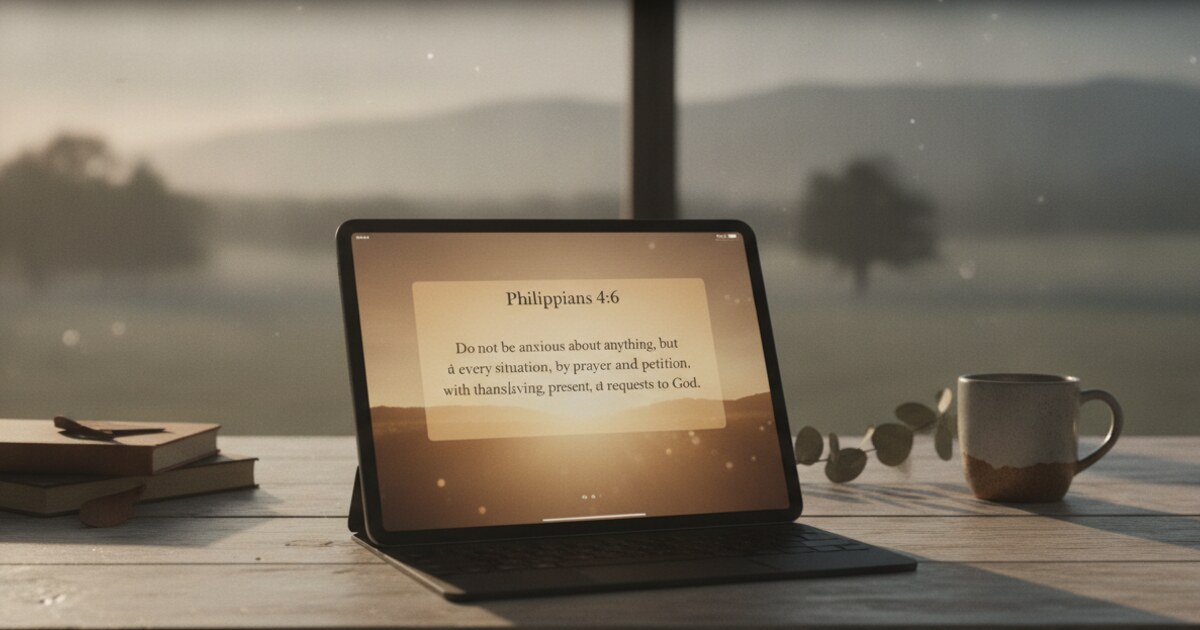
The large widget is where iPad genuinely outperforms iPhone. On a 10.9-inch or 12.9-inch screen, a large Psalmo widget sits like a posted note: readable from across a desk, visible at a glance when the screen wakes. If you keep your iPad propped on a stand during work hours, the large widget functions as a persistent Scripture display without requiring you to open any app.
In landscape mode, the home-screen grid gains a few extra columns. Two medium Psalmo widgets sit side by side cleanly on a 10.9-inch iPad Air or larger, letting you run two verse categories simultaneously (a morning category on the left and an evening category on the right, for example).
For a broader look at widget options including theme-by-aesthetic pairings and verse-category recommendations by time of day, the Christian widgets for iPhone guide covers those same decisions in an iPhone context.
App Blocking on iPad with Psalmo
Psalmo’s app-gating feature uses Apple’s Screen Time API, and it works on iPad with the same behavior as iPhone. When you enable the gate for Instagram, TikTok, YouTube, Snapchat, or X, those apps are paused on your iPad until you open Psalmo and read today’s verse. Once you’ve read it, the gated apps stay unlocked for the rest of the day.
The Apple ID detail matters for multi-device households: reading the verse on your iPhone in the morning clears the gate on your iPad too. You don’t have to repeat the reading on each device. Psalmo’s Screen Time block is shared at the Apple ID level, not per device.
The home-screen widget and the app gate work together as a pair. The large iPad widget keeps the verse passively visible all day; the gate ensures you actively stop and read it before opening a scroll app. The iPad’s larger canvas makes the passive-display side of that pairing noticeably better than on a smaller phone screen.
Frequently Asked Questions
Does a Bible verse widget work on iPad?
Yes. Bible verse widgets work on iPad using the same WidgetKit framework as iPhone. Install a compatible app like Psalmo, long-press your home screen, tap the + button, search for the app, choose a widget size, and tap Add Widget. All three sizes (small, medium, large) are available on iPad, and the larger screen makes medium and large noticeably more readable than on a compact phone.
Do iPad lock screen widgets support Bible verses?
Yes, but only on iPadOS 17 or later (released September 18, 2023). Apple brought lock-screen customization to iPad in 2023, over a year after iPhone got it with iOS 16 in September 2022. Long-press your lock screen, tap Customize, choose Lock Screen, tap the widget area below the clock, search for your Bible widget app, and select the rectangular slot.
What is the best widget size for a Bible verse on iPad?
Medium or large. The medium widget shows 18-22 words plus the scripture reference, enough for most short verses. The large widget fits 30-40 words and works especially well on a desk stand or bedside setup. The small widget shows only 6-8 words (a verse fragment). On a 10.9-inch or larger iPad, the large size is genuinely useful in a way it rarely is on a phone.
Does Psalmo’s app-blocking gate work on iPad?
Yes. Psalmo uses Apple’s Screen Time API for app gating, which works the same on iPad as on iPhone. When you gate Instagram, TikTok, YouTube, X, or Snapchat, those apps are blocked on your iPad until you read today’s verse. If your iPhone and iPad share the same Apple ID, reading the verse once on either device clears the gate on both for the rest of the day.
Can I use a Bible widget in landscape mode on iPad?
Yes. WidgetKit widgets stay on your home screen in both portrait and landscape mode. In landscape, the iPad grid gains extra columns, so you can place two medium widgets side by side without pushing apps off-screen. That two-up layout is unique to iPad since an iPhone home screen in landscape doesn’t give the same horizontal room. The widgets display the same verse content regardless of orientation.
If you want daily Scripture on your iPad without any setup, download Psalmo free and have your first Bible verse widget running in under two minutes.