Want a verse on every screen? Psalmo is free.
How to Block Apps at Certain Times on iPhone (2026)
Screen Time has three separate tools for restricting apps, and most guides blur them together. That’s why the method you tried probably didn’t do what you expected. Downtime blocks apps on a schedule. App Limits block after a daily time budget runs out. Focus mode quiets notifications without fully locking anything. Knowing which one to use makes setup a 2-minute job instead of a frustrating settings crawl.
To block apps at certain times on iPhone, use Screen Time Downtime: open Settings, tap Screen Time, then Downtime. Set a start time, an end time, and which days it runs. All apps except your allowed list lock during those hours. Adding a Screen Time passcode stops you from bypassing it the moment a craving hits.
How to Block Apps at Certain Times With Downtime
Downtime is the right tool when you want apps blocked between specific hours every day: no social media after 10pm, or nothing but Phone and Maps before 7am.
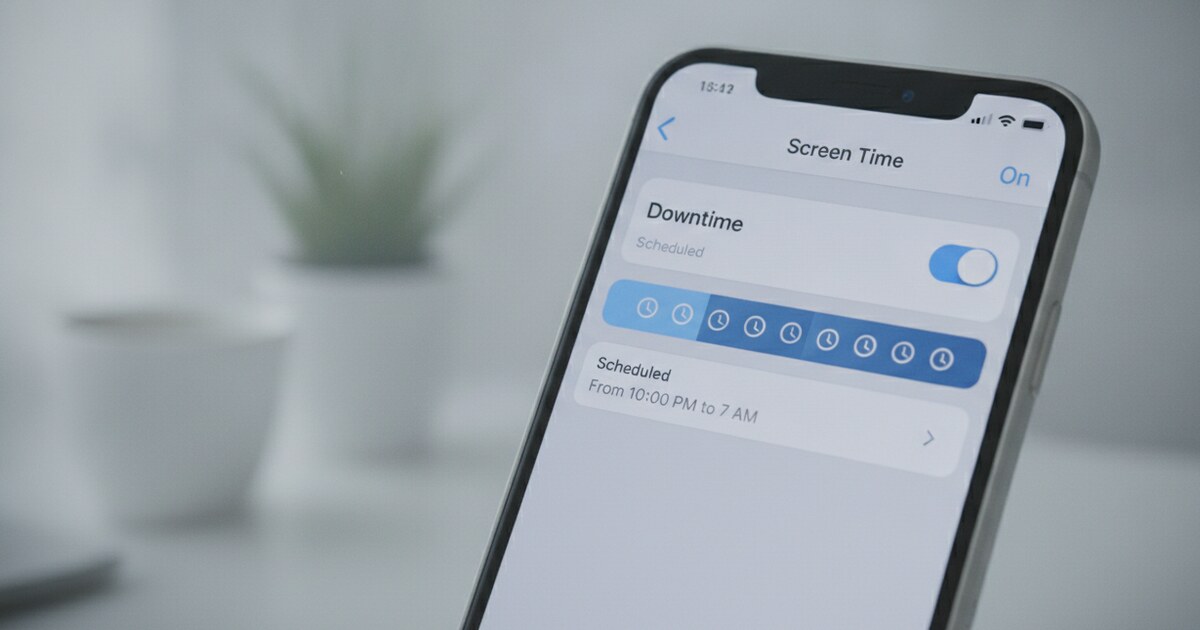
Apple added Screen Time in iOS 12 (September 2018). Downtime schedules a daily window when your iPhone locks all apps except those on your allowed list. Phone and Messages are allowed by default. You set a start time, an end time, and which days of the week it applies. App Limits, by contrast, cap total daily usage: they trigger once you’ve used an app for your daily budget, regardless of what time it is. Focus mode (iOS 15, September 2021) silences notifications and, with Focus Filters (iOS 16, September 2022), can hide app categories from your home screen during scheduled hours, but it doesn’t prevent you from opening an app the way Downtime does. For schedule-based locking where “blocked between these hours” is the goal, Downtime is Apple’s native answer. Combine it with a Screen Time passcode and the only way past it is to pick up another device.
How to set up Downtime:
- Open Settings and tap Screen Time.
- If you haven’t enabled Screen Time, tap Turn On Screen Time and follow the prompt.
- Tap Downtime, then toggle Scheduled.
- Set your From and To times. Tap Every Day to choose specific days instead.
- Tap Always Allowed and add any apps that should stay available during Downtime (Phone, Maps, Clock).
- Back in Screen Time, tap Use Screen Time Passcode and set a 4-digit code you won’t recall in a weak moment.
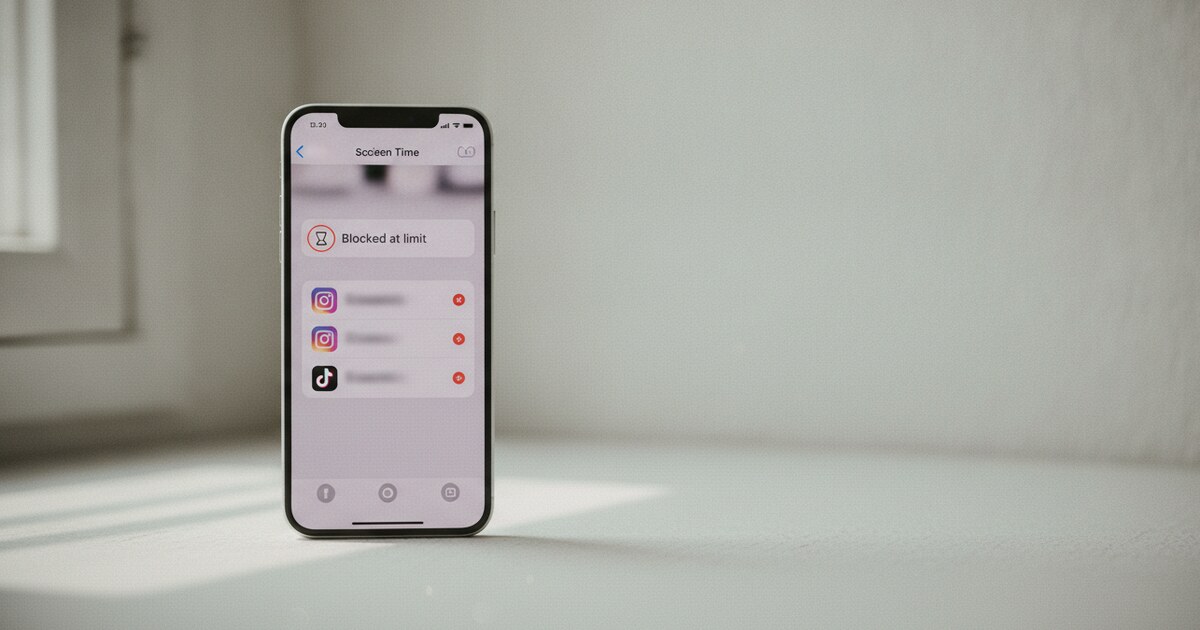
When Downtime starts, app icons dim and show a small hourglass. Tapping a blocked app shows a “Time Limit” screen with options to allow 1 more minute or 15 more minutes. Both bypass the block. That’s exactly why the passcode matters. Without one, the lock is just a suggestion.
App Limits: Block After a Daily Time Budget
App Limits and Downtime solve different problems, and this distinction trips up almost everyone who tries to set a schedule.
Downtime = blocked between specific hours. App Limits = blocked after X minutes of use today. If you set a 30-minute daily limit on Instagram, it locks once you’ve used Instagram for 30 minutes that day, whether that happens at 9am or 9pm. It then resets at midnight.
How to set App Limits:
- In Screen Time, tap App Limits then Add Limit.
- Choose a category (Social Networking, Entertainment) or expand a category and tap specific apps.
- Set the daily time budget and tap Add.
- Toggle Block at End of Limit to make the lock harder to dismiss.
The Ignore Limit option appears at the end of a limit. Without a passcode it’s one tap to bypass. With a passcode, you’d have to enter it, which is enough friction to make you pause.
Use App Limits when your goal is to cap how much time you spend in an app. Use Downtime when your goal is to keep certain hours completely phone-free.
Focus Mode: A Lighter Option
Focus isn’t a hard block. It’s designed for concentration and sleep hygiene: it silences notifications from non-priority contacts and apps, and with a Focus Filter active, it can hide certain apps from your home screen.
The key limitation: hiding an app from the home screen doesn’t prevent access. You can open Spotlight (swipe down), search for the app, and open it. Focus is a friction tool, not a lock.
Setting up a scheduled Focus:
- Go to Settings then Focus and choose or create a Focus (Work, Personal, Sleep).
- Tap Add Filter then Home Screen to select which pages appear during that Focus.
- Tap Set a Schedule and configure the hours and days.
Focus works well for low-stakes goals: you want Instagram off your home screen during work hours, but you’re not worried about pulling up Spotlight. For anything stricter, Downtime is the better tool.
Block Apps at Set Hours With a Scripture Gate
Screen Time Downtime blocks apps completely. If you’d rather intercept the habit by making yourself pause before opening a blocked app, a verse gate on a schedule works differently.
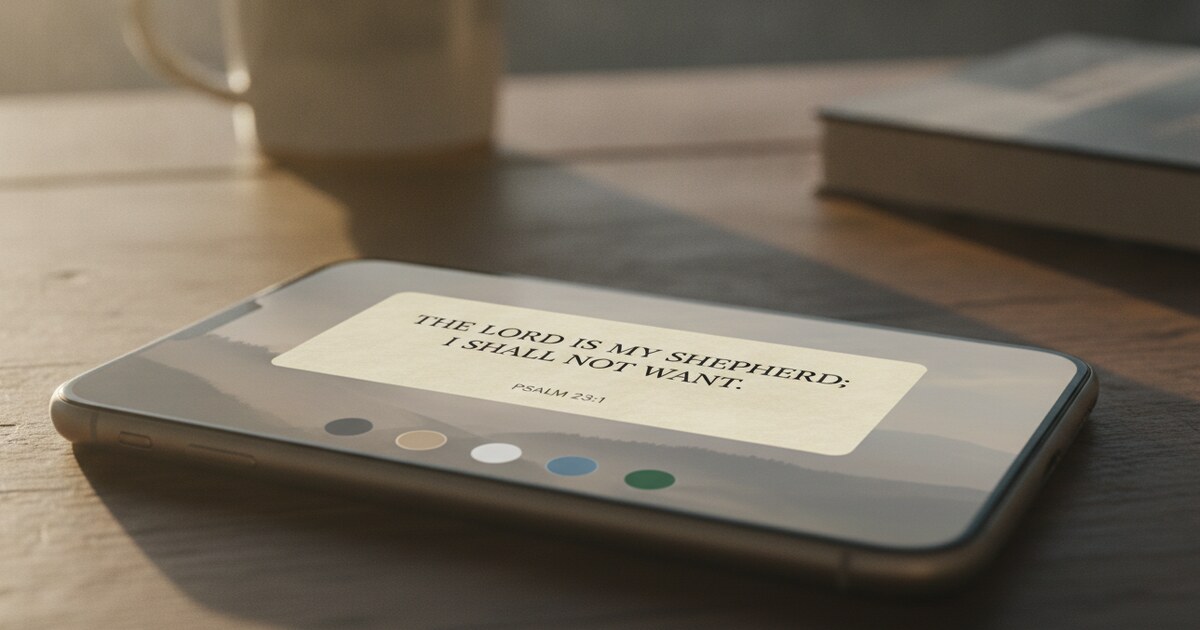
Psalmo lets you pick any apps to block, then set a schedule: start time, end time, and which days. When you tap a blocked app during scheduled hours, Psalmo opens first. You read a Bible passage (1 verse, 3 verses, 10 verses, or a full chapter) and then the app opens for an unlock window you choose: 15 minutes, 30 minutes, 1 hour, 2 hours, or 4 hours. After the window closes, the block is back in place automatically.
On iPhone, Psalmo uses Apple’s Screen Time permission to do the blocking. Setup takes about 3 minutes:
- Download Psalmo (free on iOS and Android).
- Open the app and tap Bible Verse Lock, then Add Apps.
- Select the apps you want to gate.
- Tap Schedule, then set a start time, end time, and days.
- Set your Unlock Window to match how long you realistically need the app open.
One honest note: Psalmo blocks the full app. If you want to block YouTube but keep YouTube Music, you’d need to block YouTube and leave YouTube Music off the list. Psalmo can’t block just YouTube Shorts inside the YouTube app. For anyone who’s tried every iOS setting and still finds themselves opening YouTube on autopilot, see how other readers handle it: apps that block YouTube until you read the Bible.
You can also run Psalmo alongside Screen Time: Downtime for your hard sleep hours (11pm to 7am), and Psalmo’s schedule for the daytime hours where you want friction instead of a full lockout.
Which Method Should You Use?
| Goal | Best method |
|---|---|
| No apps between specific hours, every day | Screen Time Downtime + passcode |
| Cap how long you use an app per day | App Limits |
| Silence notifications during work or sleep | Focus mode |
| Pause before opening a distracting app, read Scripture first | Psalmo schedule mode |
| Limit several social apps at once | apps to limit social media |
A practical combination: Downtime for late-night hours (hard lock while you sleep), and Psalmo’s schedule for daytime hours where you want to reduce mindless scrolling without cutting yourself off entirely. The two tools work independently and don’t conflict.
If your goal is to reduce phone use more broadly rather than just blocking apps during certain hours, the approach in christian app for phone addiction covers the habit-change layer that settings alone don’t address.
Frequently Asked Questions
Can I block just one specific app at a certain time, not all apps? Downtime blocks all apps except your allowed list, so there’s no built-in per-app scheduling by time in iOS. For per-app schedule blocking, a third-party app like Psalmo lets you add specific apps to a timed gate. App Limits handle per-app restrictions by daily budget rather than clock time.
What happens if I tap Ignore Limit during Downtime? With a Screen Time passcode set, tapping Ignore Limit asks for the code. Without a passcode, anyone can bypass the block in one tap. Set a code that’s not your regular PIN, or give it to someone you trust and don’t memorize it yourself.
Does Downtime block all apps including built-in Apple apps? Downtime blocks third-party apps and most built-in apps. Phone calls, Messages, and any app on your Always Allowed list remain available. The Clock app always works. You can customize which built-in apps stay accessible through the Always Allowed list in Screen Time.
Does the Screen Time schedule sync across my iPhone and iPad? If you use the same Apple ID on both devices and enable Screen Time on each, the Downtime schedule can be applied per-device or family-wide through Family Sharing. Third-party apps like Psalmo are phone-specific: the iOS app blocks apps on that iPhone; the Android app on that Android device.
Will Psalmo’s schedule conflict with Screen Time Downtime? They work independently. If Downtime is active, you can’t open a blocked app at all, so Psalmo doesn’t get a chance to show. Outside Downtime hours, Psalmo’s gate runs normally. Running both together lets you have a hard lock at night and a softer verse gate during the day.
Downtime is the fastest fix if you want specific hours locked: 5 minutes, a passcode, and you’re set. App Limits handle daily budgets. Focus mode handles quieter notifications. And Psalmo’s schedule adds a moment of Scripture for people who want intention behind the pause rather than just a timer. Psalmo is free to download on iOS and Android. Set a morning schedule and see whether reading one verse changes whether you open Instagram first thing.