
Want a verse on every screen? Psalmo is free.
How to Block Social Media on iPhone
You opened Instagram to check one thing and 30 minutes disappeared. It happens on nearly every unlock. Apple’s Screen Time has four distinct tools for blocking social media on iPhone, each built for a different kind of limit. Most people only know the first one.
This guide covers all four methods: a daily time cap, a schedule-based hard lock, a website-level block, and a third-party gate that adds a required pause before any blocked app opens. Use one, or layer several together.
To block social media on iPhone, go to Settings → Screen Time → App Limits, tap Add Limit, select Social Networking, and set a daily cap. Enable “Block at End of Limit.” For a time-of-day block, use Downtime under the same Screen Time menu. Both options work on any iPhone running iOS 12 or later.
Method 1: Set a Daily Cap with App Limits
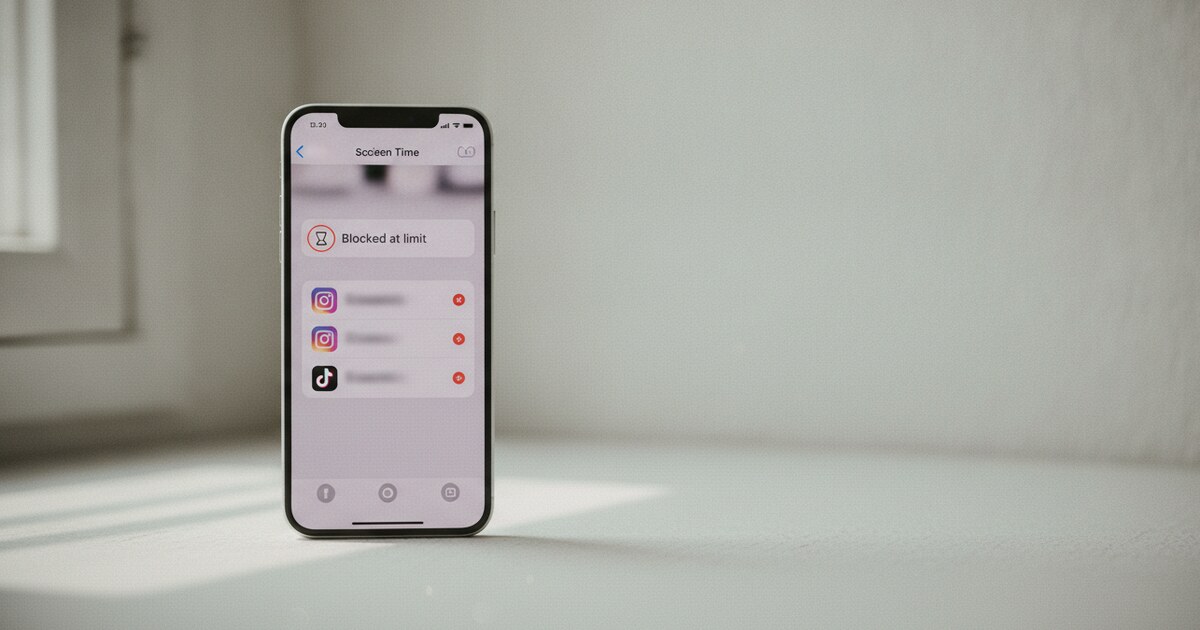
App Limits in Screen Time let you set a maximum daily time for any app or category. When the cap runs out, the app grays out with a lock screen.
Here’s the setup:
- Go to Settings → Screen Time. If Screen Time isn’t on, tap “Turn On Screen Time” and follow the prompts.
- Tap App Limits → Add Limit.
- Select Social Networking to cap all social apps at once. Instagram, TikTok, Snapchat, X, Facebook, and YouTube all fall under this category. Or expand the category and pick individual apps.
- Set the time. One minute per day works as an effective block.
- Toggle on Block at End of Limit.
- Tap Add.
A pop-up appears when the limit runs out, offering a one-tap “Ignore Limit” button. For most people, that tap comes fast.
To bolt on a harder stop: go to Settings → Screen Time → Use Screen Time Passcode and set a code you won’t use casually. That strips the instant override and requires the passcode to extend time.
iPhone Screen Time launched with iOS 12 on September 17, 2018. App Limits let you set a daily cap per app or category; when the time runs out, the app grays out behind a block screen. The Social Networking category bundles Instagram, TikTok, Snapchat, X, Facebook, and most other social apps, so a single limit covers all of them at once. Setting the cap to one minute blocks an app effectively from the first use. Downtime, introduced alongside App Limits in iOS 12, schedules a window when all apps except an “Always Allowed” list are locked regardless of usage time. DataReportal’s 2025 report found US adults average 4 hours 37 minutes of daily screen time. A peer-reviewed PNAS study found people opened target apps 57% less often after six weeks of using a friction-based delay. Neither Downtime nor App Limits can be bypassed without a Screen Time passcode once one has been configured.
Method 2: Schedule a Block with Downtime
Downtime is the stricter option. It locks apps by the clock, not by how much you’ve used them. Set a window and every app outside your Always Allowed list is blocked until the window ends.
Setup:
- Settings → Screen Time → Downtime.
- Toggle on Scheduled and set your hours. Common setups: 9 PM to 7 AM for an overnight block, or 8 AM to noon for a morning focus window.
- Tap Always Allowed on the main Screen Time page and check what stays accessible. Phone and Messages are on by default. Remove anything else you don’t want available during Downtime.
- Back in Downtime, toggle on Block at Downtime. This requires the Screen Time passcode to override rather than a single tap.
Focus filters pair well with Downtime. Focus doesn’t block apps from opening, but it silences their notifications and can hide them from your home screen during scheduled hours. Go to Settings → Focus, choose or create a mode, and add social apps to the silenced list. Focus reduces the visual pull of social apps between Downtime windows, while Downtime handles the hard block at night or in the morning.
Method 3: Block Social Media Websites in Safari
App Limits and Downtime block the installed apps. They don’t stop someone from opening instagram.com in Safari. Closing that gap is a separate step.
- Settings → Screen Time → Content & Privacy Restrictions (turn it on if it’s off).
- Tap Content Restrictions → Web Content → Limit Adult Websites.
- Scroll to Never Allow and tap Add Website.
- Add each domain:
instagram.com,tiktok.com,twitter.com,x.com,facebook.com,snapchat.com,youtube.com.
This works in Safari. Third-party browsers like Chrome or Firefox aren’t bound by Screen Time’s website list. If you use another browser, either switch to Safari or use “Allowed Websites Only” in the same Content Restrictions menu to restrict which browsers can open at all.
Method 4: Add a Friction Gate with a Third-Party App
Screen Time blocks share a weakness: the override is one tap away. A third-party gate puts something between the impulse and the app, and makes that something effortful by design.
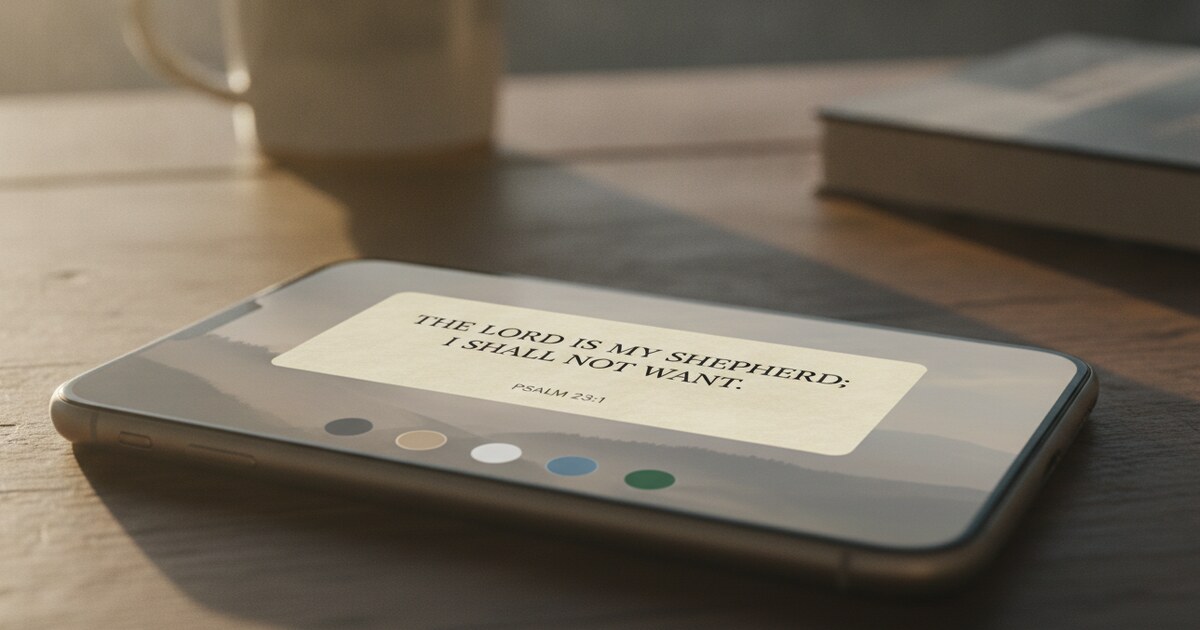
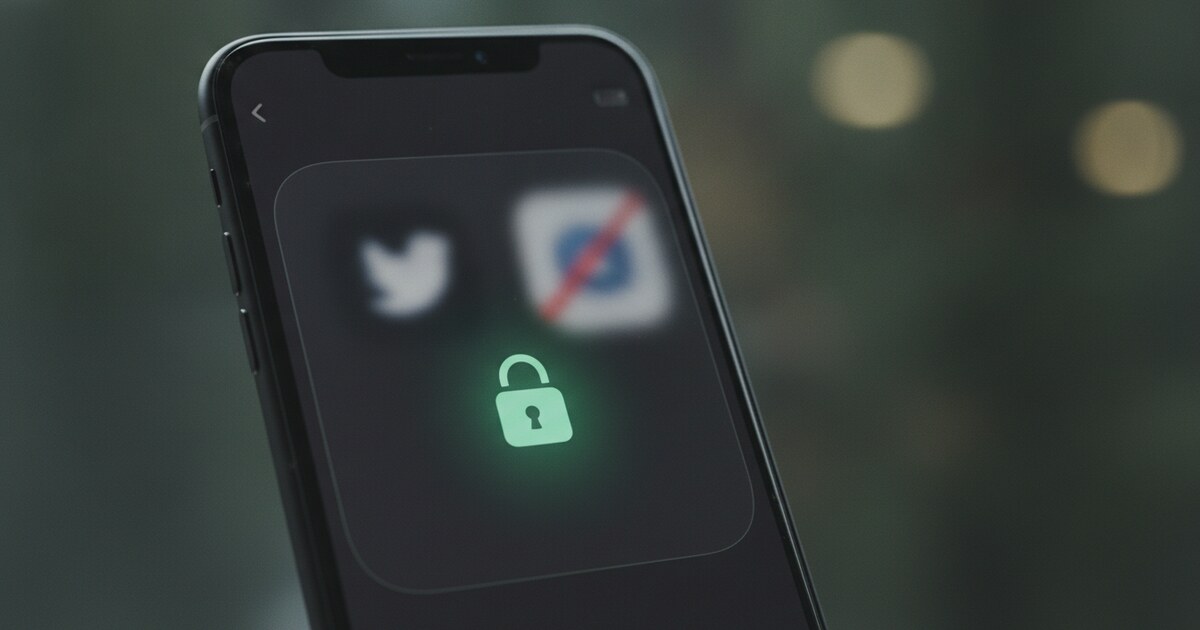
Apps that block Instagram and require you to read a Bible verse use this model. Psalmo blocks the apps you pick and shows a Scripture passage every time you try to open one. Read the passage (one verse, three verses, or a chapter), tap “I’ve read it,” and the apps unlock for the window you chose: 15 minutes, 30 minutes, or up to 4 hours. Then they lock again automatically. App blocking is on the free tier, and it’s available on both iOS and Android.
Other third-party gates use different mechanics: ScreenZen adds a breathing pause before an app opens, One Sec inserts a brief delay and a reflection prompt. The difference from Screen Time’s built-in tools is structural. Screen Time’s limits require you to actively resist the override. A gate app builds the resistance into the opening sequence.
See the full app to limit social media comparison for how these gate types differ and which fit different situations.
Which Method Fits Your Goal?
| If your goal is… | Use this |
|---|---|
| Track and limit daily usage | App Limits |
| Block apps during specific hours | Downtime |
| Stop bypassing Screen Time in one tap | Screen Time passcode + Block at End of Limit |
| Block social platforms in Safari too | Web Content Restrictions |
| Add a pause or habit-building gate | Third-party app (Psalmo, ScreenZen, One Sec) |
For most people, one method isn’t enough. A practical combination: 30 minutes of App Limits on Social Networking with Block at End of Limit, Downtime from 9 PM to 7 AM, and website restrictions for the social domains. That covers the app, the schedule, and the Safari workaround.
The how to block apps at certain times on iPhone guide goes deeper on the timing logic. It covers when Downtime fits better than App Limits and how to set up a scheduled gate in Psalmo as an alternative.
Frequently Asked Questions
Does blocking the social media app also block the website? No. App Limits in Screen Time block the installed app only. Instagram’s app and instagram.com in Safari are separate. To block the website, go to Settings → Screen Time → Content & Privacy Restrictions → Content Restrictions → Web Content → Limit Adult Websites and add the social media domains to the “Never Allow” list.
Can I block social media for just part of the day? Yes. Downtime lets you schedule exact hours. For example, set it to 8 AM to noon for a morning focus block, or 9 PM to 7 AM overnight. Go to Settings → Screen Time → Downtime → Scheduled, set your start and end times, and toggle on “Block at Downtime.” Apps blocked during Downtime show a lock screen until the window ends.
Can I bypass my own Screen Time block? App Limits include an “Ignore Limit” button that dismisses the block with one tap by default. To remove it, go to Settings → Screen Time → Use Screen Time Passcode and set a passcode. Once set, bypassing a block requires entering it, which adds enough friction to interrupt most impulse overrides.
Does this work for YouTube? Yes. YouTube falls under the Social Networking category in App Limits. You can also add youtube.com to the Never Allow list in Web Content Restrictions to block it in Safari. On some iOS versions YouTube may appear under Entertainment rather than Social Networking, so check which category it shows under when you set your App Limit.
What’s the difference between Downtime and Focus? Downtime blocks apps entirely during scheduled hours; they gray out and show a lock screen. Focus silences notifications and can hide app icons from your home screen, but apps stay accessible if you search for them. For actual blocking, Downtime is the right tool. Focus works as a complement that reduces the visual pull of social apps during hours when they aren’t fully locked.
If you want the block to build a habit rather than just enforce a limit, Psalmo pairs app gating with a daily Scripture passage. Pick the social apps you want to pause (Instagram, TikTok, X, or any app you add), and every unlock starts with today’s verse. Psalmo is free to download on iOS and Android.