Want a verse on every screen? Psalmo is free.
Scripture Widget: What It Is and How to Add One
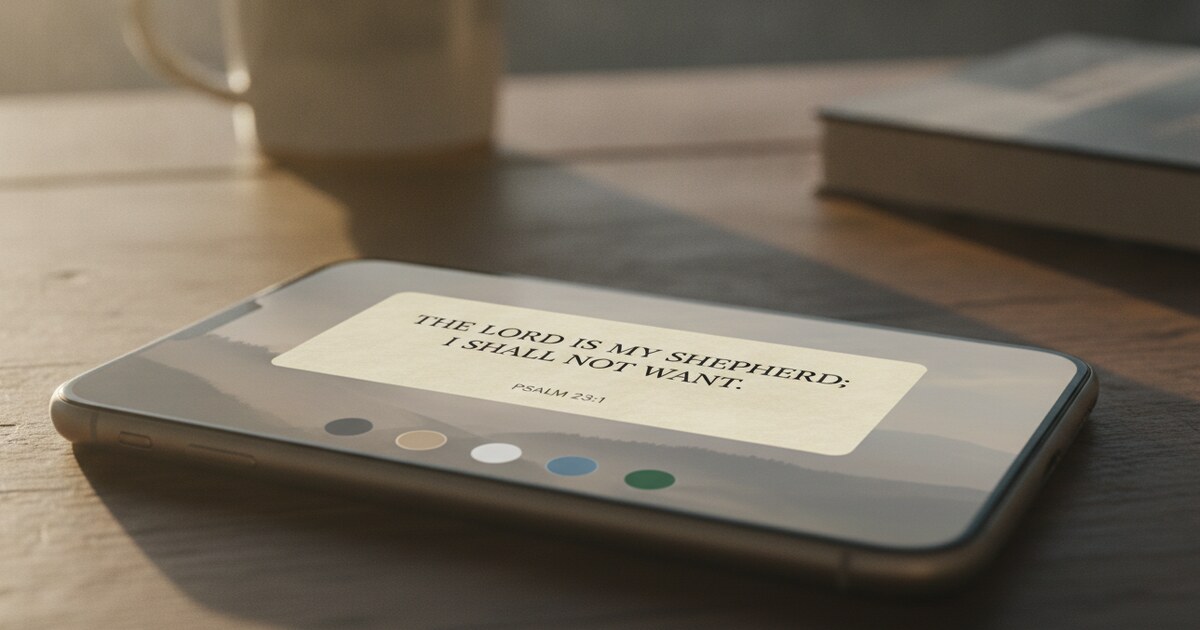
Most people reach for their phone within minutes of waking up. A scripture widget puts a Bible verse at that exact moment, visible on your home screen or lock screen before you’ve opened a single app. You don’t have to search for a reading plan or remember to check. The verse is just there.
This guide covers what a scripture widget is, the types available on iPhone and Android, and how to set one up step by step.
A scripture widget is a live tile on your phone’s home screen or lock screen that shows a daily Bible verse from an installed app. On iPhone, you get three home screen sizes and three lock screen shapes on iOS 16 and later. Android supports home screen widgets on any version. Setup takes about two minutes.
What Is a Scripture Widget?
A scripture widget is a dynamic tile connected to a Bible app on your phone. The app prepares a verse each day and the widget displays it on your screen without you opening anything. The verse changes daily, the translation follows whatever you’ve set inside the app, and the visual style comes from your chosen theme.
Home screen widgets come in three sizes on both iOS and Android. The small widget fits one phrase or the opening line of a verse, which works well on a crowded screen. Medium fits a complete short verse with its reference. Large handles longer passages well, including anything from Psalms or Proverbs.
iPhone added lock screen widgets in iOS 16, released September 12, 2022. You get three shapes: a rectangular strip below the clock (the most readable option) that shows the verse text and reference, a circular badge above the clock that shows an icon, and an inline string inside the clock row that shows the book, chapter, and verse number only. Android removed lock screen widget support in Android 5.0 (November 2014), after introducing them in Android 4.2 (October 2012). Scripture widgets on Android run on the home screen only. Both platforms support three home screen sizes: small, medium (a complete verse with reference), and large (longer passages from Psalms or Proverbs). Three settings control what the widget shows: verse topic, translation, and theme. Change any inside the app and the widget reflects it on the next update. If the widget shows an older verse, opening the app once refreshes it.
Scripture Widget on iPhone: Home Screen
iPhone’s home screen supports scripture widgets in all three sizes. Here’s how to add one using Psalmo:
- Download Psalmo from the App Store and open it. The app walks you through picking a verse topic and translation on first launch. Both settings drive what the widget shows.
- Long-press an empty area on your home screen until the icons start jiggling and a + button appears in the top-left corner.
- Tap the + button to open the widget gallery.
- Search for Psalmo in the search bar, then tap the result.
- Swipe through the three sizes (small, medium, large) and tap “Add Widget” on the one you want.
- Drag the widget to your preferred spot on the screen, then tap Done.
The widget shows today’s verse right away. If you want a deeper walkthrough of sizing and layout options, the iPhone home screen Bible verse widget guide covers all three sizes in detail.
One common question: can you add two scripture widgets, each pulling from a different topic? At the moment, all widgets on a screen show the same verse from the topic you’ve selected in the app. A separate topic per widget is planned for a future update but isn’t available yet.
iPhone Lock Screen Scripture Widget (iOS 16+)
Apple added lock screen widgets in iOS 16, so this option works on any iPhone running iOS 16 or later. Once you’ve set up the home screen widget, the lock screen version takes about 30 seconds to add.
- Long-press your lock screen until the Customize button appears at the bottom.
- Tap Customize, then tap Lock Screen (not the home screen option).
- Tap the rectangular widget zone below the clock.
- Scroll through the app list, select Psalmo, and pick Rectangular.
- Tap Done, then tap Set as Wallpaper Pair if prompted.
The rectangular shape is the right choice for most setups. It shows the verse text and the reference, readable at a glance without unlocking. The circular shape shows an icon only — more decorative than practical. The inline shape places just the reference in a smaller slot above the clock.
Lock screen widgets display text on top of your wallpaper. The theme you’ve chosen in Psalmo doesn’t carry over to the lock screen; the text color adapts automatically to contrast against your background.
Scripture Widget on Android
Android widgets live on the home screen. Lock screen placement isn’t available.
- Download Psalmo from Google Play and open it to complete the initial setup.
- Long-press an empty area on your home screen. On Samsung One UI, a menu appears at the bottom; tap Widgets. On Pixel with Android 12 or later, the widget picker opens directly.
- Find Psalmo in the widget list. If the list is long, use the search bar or scroll to the P section.
- Long-press the widget size you want, then drag it onto your home screen. On Pixel, a resize handle appears after you drop it so you can adjust dimensions.
- Tap outside the widget to exit edit mode.
If the widget doesn’t show a verse immediately after placing it, open the Psalmo app once. For a breakdown of which scripture widget apps include their widgets on the free plan, the free Bible widget guide compares your options by cost and features.
How to Customize Your Scripture Widget
Three settings inside the app control what the widget shows.
Verse topic. Open Psalmo, go to Settings, and choose your topic. The free plan includes 6 categories: General, Love, Faith, Jesus Christ, Prayer, and Hope. Premium unlocks 50 or more. The widget draws from whichever topic is active. Switch topics and the widget shows a verse from the new category starting the next day.
Translation. Psalmo includes 19 translations in 13 languages. English options include KJV, ASV, BBE, BSB, and Douay-Rheims. Spanish, French, German, Portuguese, Russian, Chinese, Korean, Tagalog, Vietnamese, Polish, Dutch, and Hungarian are also included. One translation setting drives the reader, the daily verse, the widget, and the unlock passage. Change it in Settings and it applies everywhere.
Theme. The widget uses whichever theme is active in the app. Three themes are free: Classic (cream background, serif font), Dark (black background, light text), and Minimal (white background, simple typography). Premium adds 23 more, including Watercolor, Vintage Paper, Gold Leaf, Marble, and Rose Gold. Lock screen widgets show text only, so the theme background doesn’t apply there. For detailed guidance on matching themes to wallpaper styles, the Christian widget theme guide covers each aesthetic in detail.
Size. Medium is the right starting point for most people: it fits a complete verse with the reference in a space that doesn’t crowd the rest of your screen. Small works on a packed layout. Large is worth using when your wallpaper is simple and you want a verse readable at arm’s length.
Frequently Asked Questions
What is the best Bible verse app?
For widgets specifically, Psalmo covers the most ground: home screen and lock screen placement on iPhone, home screen on Android, six verse topics on the free plan, 19 translations in 13 languages, and theme customization. YouVersion is the most widely used Bible app and also includes a daily verse widget. The two pair well: YouVersion for reading and study, Psalmo for a persistent verse on your home and lock screen throughout the day.
What is a good Bible verse for today KJV?
The verse depends on which topic you’ve chosen in the app. With Psalmo set to KJV, today’s verse comes from your active category: General draws from across the whole Bible, while Faith, Hope, Love, Prayer, and Jesus Christ each narrow to that theme. If you want the same verse on your widget, your lock screen, and in the full Bible reader, set the translation to KJV in Psalmo’s Settings and it applies everywhere at once.
How do you make a Bible verse widget?
Download a scripture widget app like Psalmo, open it to complete the initial setup (translation and verse topic), then long-press your home screen and add the widget from the gallery. On iPhone running iOS 16 or later, you can also add a lock screen widget by long-pressing the lock screen and tapping Customize. The whole process takes about two minutes on either platform.
Is there a Bible verse of the day widget on iPhone?
Yes. Several apps offer a daily verse widget for iPhone, including Psalmo, YouVersion, and Bible Widgets by Monkey Taps. Psalmo’s widget works on the home screen in small, medium, and large sizes, and on the lock screen in three shapes on iOS 16 and later. The daily verse widget is included on the free plan, with no subscription required.
If you want a scripture widget on iPhone or Android with no account required, download Psalmo free and the daily verse will be on your home screen in a couple of minutes.