Want a verse on every screen? Psalmo is free.
Bible Home Screen: Add a Verse Widget in 3 Sizes
Most people check their phones around 96 times a day, and the home screen is what they see every single time. That’s a lot of small moments where a Bible verse could land. Phone habits are largely automatic. You reach for the device before you’ve made a conscious decision to. Putting Scripture where that habit already points you is about the simplest intervention there is. Getting a Bible home screen set up takes about two minutes. This guide shows you how to do it on iPhone and Android, in all three widget sizes, and which verses are worth putting there.
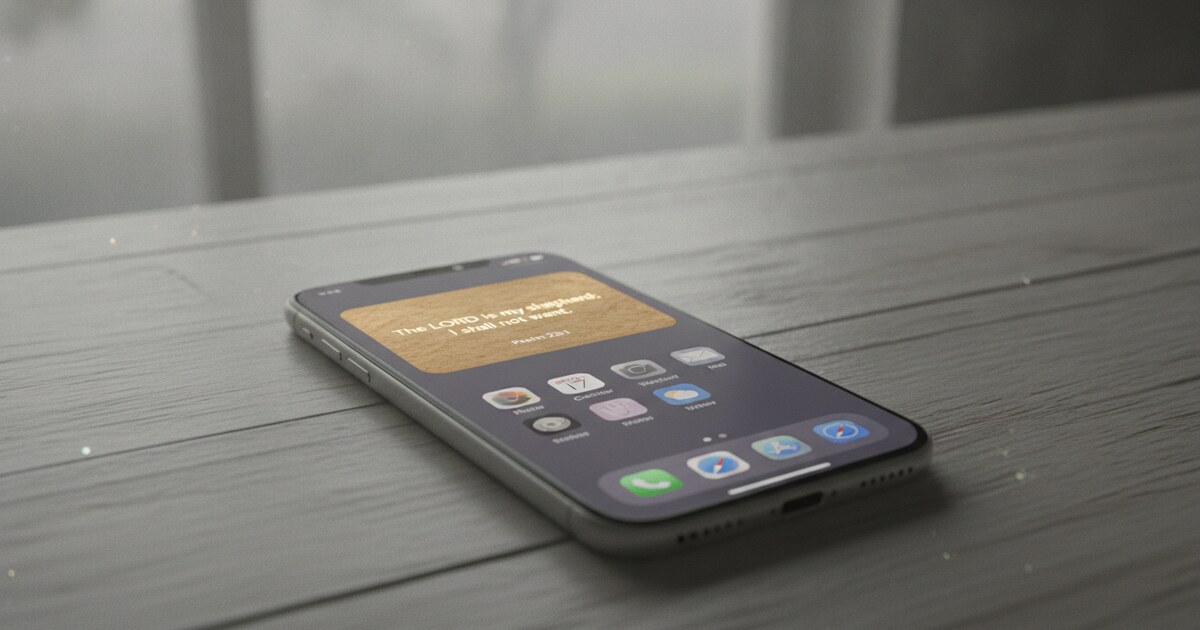
To set up a Bible home screen, download Psalmo and open the app once to pick your verse topic. Then long-press your home screen, tap the ”+” button on iPhone (or “Widgets” on Android), search for Psalmo, choose a size (small, medium, or large), and place it. The widget updates to a new verse daily with no action required.
What a Bible Home Screen Widget Shows
A Bible home screen widget shows today’s verse, pulled from the topic you’ve selected inside the app. Psalmo has 6 topics on the free plan (General, Love, Faith, Jesus Christ, Prayer, and Hope) and 50+ on Premium. The widget follows your active topic and changes the verse each day automatically.
Three sizes let you decide how much of your screen goes to Scripture:
- Small (2×2): shows a short verse or key phrase with the Scripture reference below
- Medium (4×2): shows the full verse for most passages, with reference and app icon
- Large (4×4): shows longer passages in full, with more room for the text
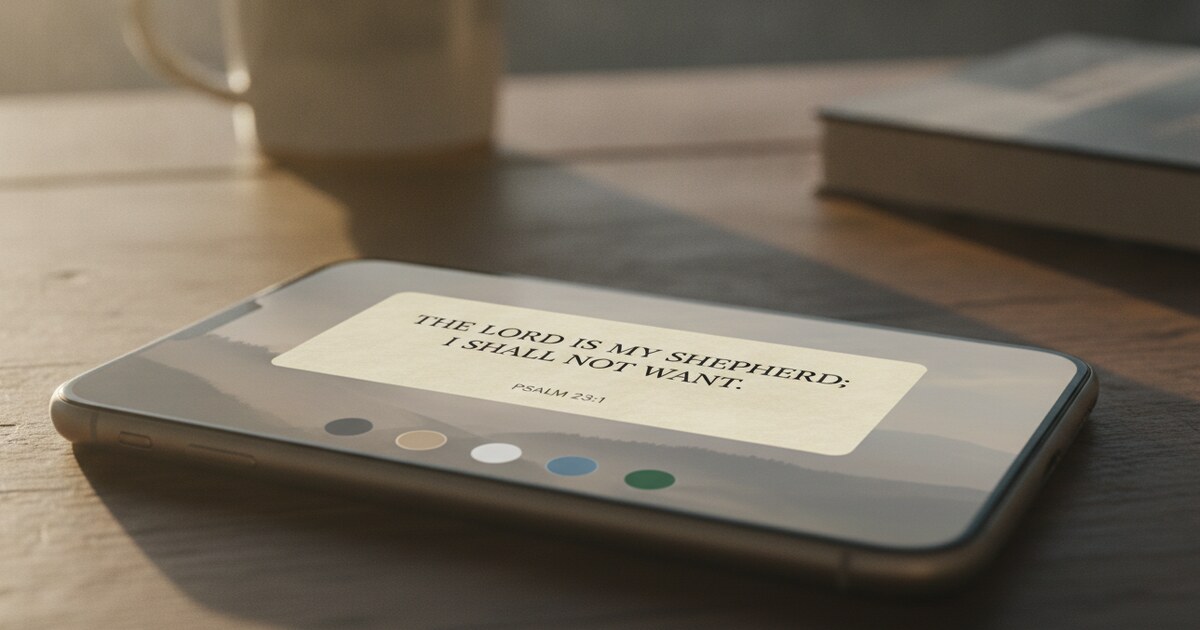
The theme you’ve set in Psalmo carries over to the widget: Classic, Dark, and Minimal on the free plan, 23 more on Premium. The translation follows your in-app setting: KJV by default, or whichever of the 19 available translations you’ve picked.
Widgets work differently from app shortcuts. A shortcut takes you to the app; a widget shows the content directly on your screen, without you opening anything. The verse is just there each morning, in the same spot your thumb lands.
The home screen is where most phone use begins. Asurion’s 2023 smartphone survey found U.S. adults unlock their phones an average of 96 times per day. DataReportal’s 2025 data puts global average daily screen time at 4 hours and 37 minutes, most of it flowing through the home screen.
A Bible verse placed there doesn’t add screen time. It’s already in your line of sight when you reach for the phone. Widgets hold their position regardless of whether you open the app: a notification gets dismissed, a widget stays put.
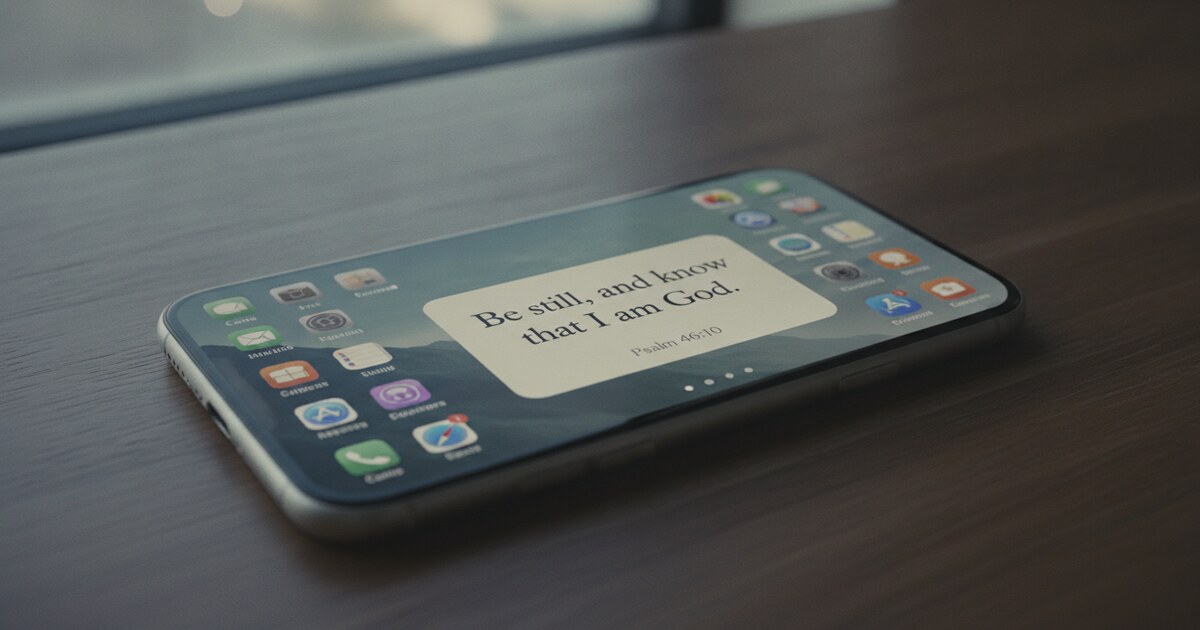
The small 2×2 size fits in a corner alongside other apps without displacing them. The medium 4×2 centers well above a dock row, showing the full verse for most passages. The large 4×4 turns an entire home screen panel into a daily Scripture display with room for longer texts.
All three update daily without any action from you. If the widget shows an older verse, open Psalmo once to refresh it.
How to Set Up a Bible Home Screen on iPhone
Step 1. Download Psalmo from the App Store. Open it and choose your verse topic during onboarding. No account needed.
Step 2. Long-press any empty area of your home screen until the icons jiggle. On iOS 16 or later you can also long-press the wallpaper directly.
Step 3. Tap the ”+” icon in the top-left corner (iOS 16 and later) or top-right on older versions.
Step 4. Type “Psalmo” in the widget search bar and tap the Psalmo result.
Step 5. Swipe through the three size previews. Each preview shows a real verse so you can see how much text fits at each size before you commit.
Step 6. Tap “Add Widget,” drag it to your preferred spot, then press “Done.”
For the lock screen: on iPhone with iOS 16 or later, long-press the lock screen and tap “Customize.” Select the lock screen, tap the widget area below the clock, and add a Psalmo accessory widget. Three shapes are available: rectangular (verse text with reference), circular (app icon), and inline (reference only).
For a full walk-through of each home screen size shown side by side, see How to Add a Bible Verse Widget to Your iPhone Home Screen.
How to Set Up a Bible Home Screen on Android
The setup varies slightly by manufacturer, but the pattern is consistent across most Android phones.
On Pixel:
- Long-press an empty area of your home screen.
- Tap “Widgets.”
- Scroll to or search for Psalmo.
- Press and hold the widget size you want, then drag it to your home screen.
- Lift your finger and tap “Apply.”
On Samsung One UI:
- Pinch the home screen with two fingers (or long-press an empty spot).
- Tap “Widgets” at the bottom.
- Find Psalmo, tap it to expand the available sizes.
- Long-press your chosen size and drag it onto the screen.
- Tap outside the widget to confirm.
On other Android phones (OnePlus, Motorola, Nothing Phone): the same long-press pattern applies. Some launchers label the option “Add Widget” instead of “Widgets,” and a few prompt you to confirm placement separately after the drag. Psalmo appears in the standard widget library on any Android launcher that supports app widgets.
All three sizes work on Android. The theme set inside the app applies to Android widgets too.
One honest note: Android doesn’t have a dedicated lock-screen widget space the way iPhone has had since iOS 16. You can get a Bible verse visible on your Android lock screen through a daily notification, but it isn’t the same as a pinned widget. For the full breakdown of what’s possible on Android, including the notification workaround, see Bible Verse Widget for Android: Home Screen Setup.
Which Bible Verses Work Best on a Home Screen
The practical answer comes down to length. Short verses display in full even on the small 2×2 widget: Psalm 46:10 (“Be still, and know that I am God”), John 11:35 (“Jesus wept”), Proverbs 4:23. Longer verses like Romans 8:28 or John 3:16 need a medium or large widget to show the complete text without cutting off.
Inside Psalmo, you set the active verse topic and the widget pulls from that topic’s daily rotation. The free plan covers General, Love, Faith, Jesus Christ, Prayer, and Hope. Premium opens 50+ categories in total. You can switch your active topic any time in the app’s settings, and the widget picks up the change the same day.
If you want a specific verse on your screen, the best path is to set the topic that matches it, then use Psalmo’s Bible reader for the chapter itself when you want to go deeper. The widget functions as a daily reminder across a topic, not a verse picker. Seeing whichever verse the day sends you, rather than one you’d already chosen, is part of the value.
For the full list of which topics are available without a subscription, see Free Bible Widget: No Subscription Required.
Frequently Asked Questions
What is John 17:17 saying?
In John 17:17, Jesus prays, “Sanctify them through thy truth: thy word is truth” (KJV). Spoken the night before the crucifixion, it’s part of the High Priestly Prayer. Jesus asks the Father to set his disciples apart through Scripture itself, framing God’s word as the active means of sanctification, not a supplement to it.
What is a good Bible verse to read every day?
Proverbs 4:23 (“Keep thy heart with all diligence; for out of it are the issues of life,” KJV) works well as a daily home-screen verse: short enough to fit on the small widget and specific enough to act on every day. Philippians 4:8, Romans 12:2, and Psalm 119:105 are popular daily choices for the same reason. Each addresses how you live, not only what you believe.
What is Proverbs 4:23?
Proverbs 4:23 reads, “Keep thy heart with all diligence; for out of it are the issues of life” (KJV). The Hebrew word for “keep” (natsar) means to guard or watch as a sentry. The verse frames the heart as the origin of all conduct and decisions, making it a fitting verse to see first thing each morning.
How to get Bible widget on lock screen?
On iPhone with iOS 16 or later: long-press your lock screen, tap “Customize,” select the lock screen, tap the widget area below the clock, and add a Psalmo accessory widget. Three shapes are available: rectangular (verse and reference), circular (icon), and inline (reference only). On Android, a dedicated lock-screen widget space isn’t available in the standard launcher; a daily notification is the closest equivalent.
Psalmo is free to download on iOS and Android. The home-screen widget in all three sizes, and six verse topics, are included on the free plan with no account required.