Want a verse on every screen? Psalmo is free.
How to Put Your Phone in Bible Mode (iPhone + Android)
Most people unlock their phone 96 times a day. The first tap usually lands on Instagram, the news, or an inbox that hasn’t changed in three hours. “Bible mode” is a setup that replaces those defaults: a verse on your home or lock screen, a Scripture gate before your most-distracting apps open, and a daily reminder at the time you choose.
To put your phone in bible mode, add a Bible verse widget to your home or lock screen, set your most-distracting apps to unlock only after reading a passage of Scripture, and turn on a daily verse reminder. Psalmo handles all three steps on both iPhone and Android. The full setup takes about five minutes.
This guide walks through each layer in order, with separate instructions for iPhone and Android where the steps differ.
What “Bible Mode” Means for Your Phone
“Bible mode” describes a three-layer phone setup: a passive verse widget on the home or lock screen, an active gate that requires reading Scripture before opening distracting apps, and a daily reminder at a fixed time. Each layer targets a different moment. The widget meets you at the glance, before you unlock. The gate meets you at the reflex, the moment you tap a familiar app. The reminder meets you at the routine, the same time each day. On iPhone, the gate runs through Apple’s Screen Time permission; on Android, it uses the Accessibility permission. Reading one verse (roughly 15 seconds) satisfies either. DataReportal’s 2025 Global Overview reports 4 hours 37 minutes of average daily screen time; Asurion’s 2023 survey counted 96 unlocks per day. Phillippa Lally’s 2010 UCL study, tracking 96 participants over 12 weeks, found that pairing a new action with an existing trigger is one of the most reliable ways to build a daily habit. Bible mode applies that mechanism to every phone check.
The three layers are independent, so you can start with one. Most people add the widget first because it’s the fastest change and the least disruptive. The gate and reminder can follow once the habit takes hold.
Step 1: Add a Bible Verse Widget
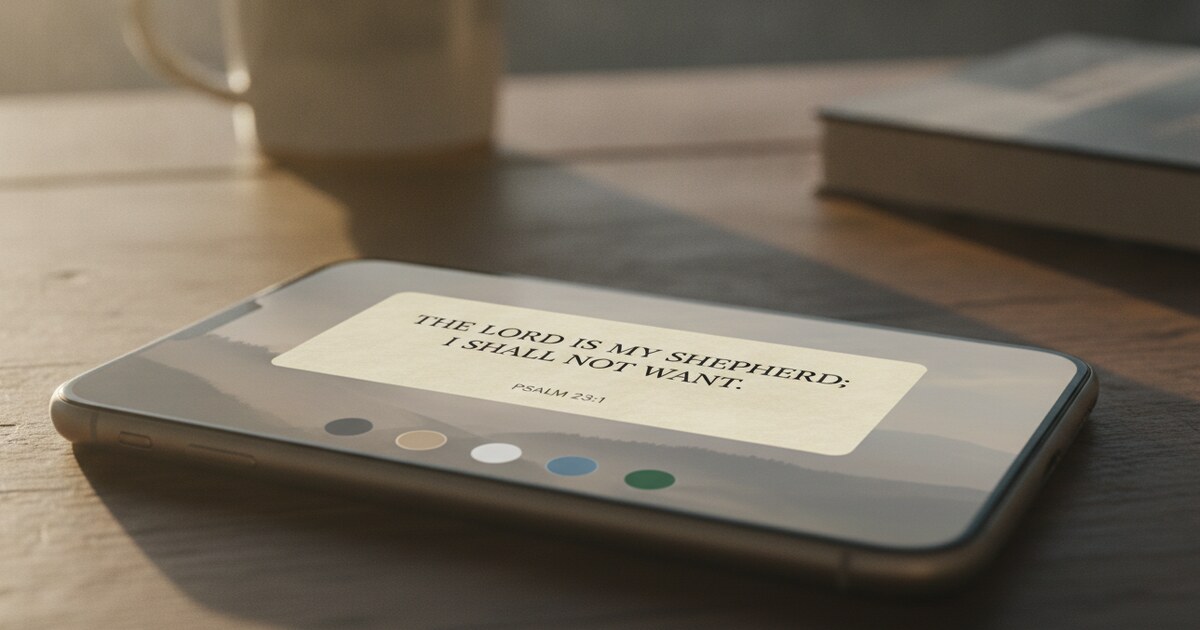
The widget is the passive layer. It puts today’s verse somewhere visible on your phone without requiring any action from you.
On iPhone
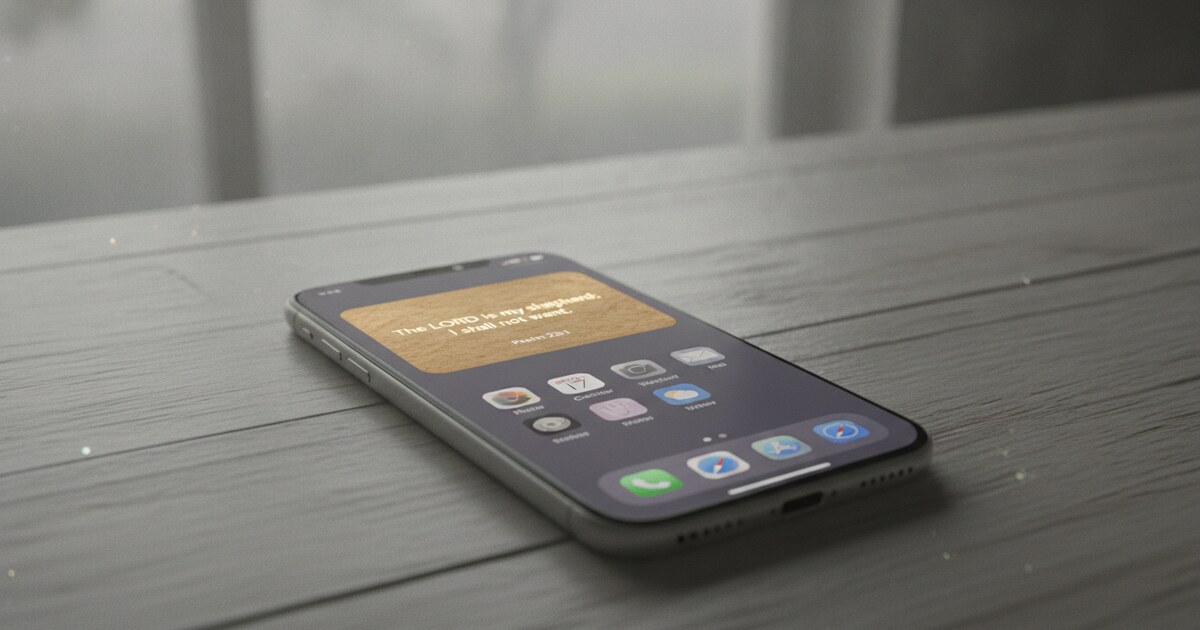
Download Psalmo from the App Store and open it once to load your verse. Long-press any empty area on your home screen to enter jiggle mode, then tap the ”+” in the top-left corner. Search for “Psalmo,” pick your widget size (small, medium, or large), and tap “Add Widget.”
For the lock screen: press and hold your current lock screen, tap “Customize,” then “Lock Screen.” Tap the widget area just below the clock. Psalmo offers three lock-screen shapes: a rectangular bar (verse text plus reference), a circular icon, and an inline slot (reference text only). Tap any shape to add it. Lock-screen widgets require iOS 16 or later.
If the widget area doesn’t appear when editing your lock screen, go to Settings > General > Software Update to check your iOS version.
The medium or large home-screen widget shows the full verse text at a glance. The rectangular lock-screen widget is the most visible option when your phone is sitting face-up on a desk.
On Android
Long-press an empty area on your home screen and tap “Widgets.” Scroll to Psalmo in the list, then drag the widget onto the screen. Small, medium, and large sizes are available. Android home-screen widgets are your primary verse placement; lock-screen widgets aren’t available on most Android devices.
If the widget shows an older verse, open Psalmo once to refresh it.
Step 2: Gate Your Distracting Apps Behind Scripture
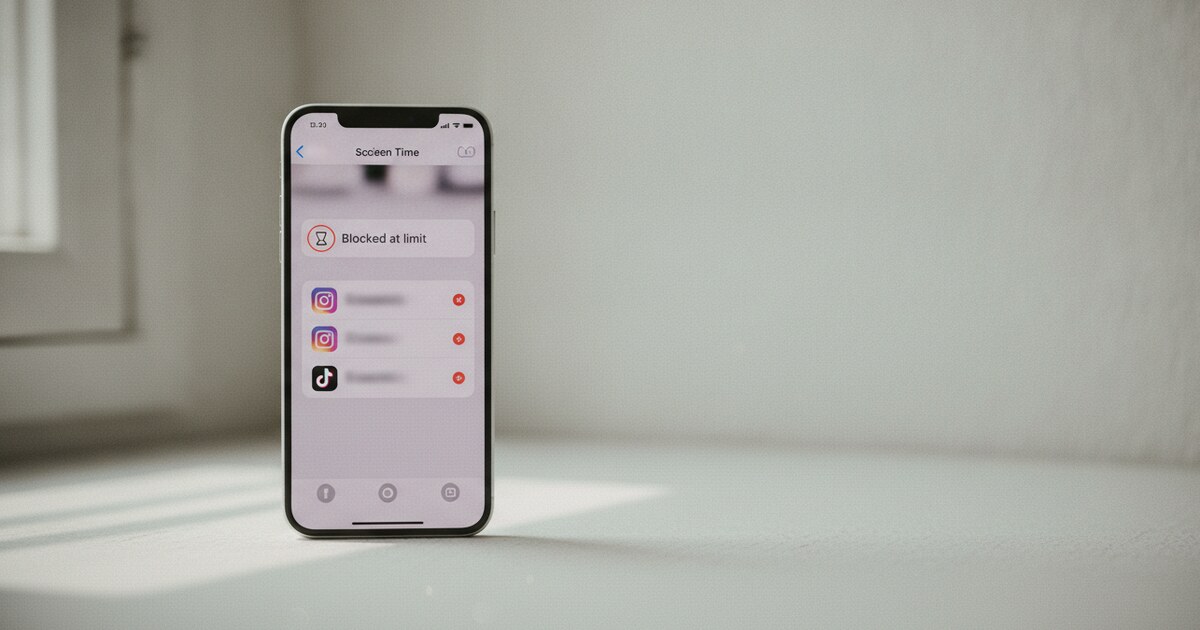
The gate is the active layer. Every time you try to open a blocked app, Psalmo opens first and shows you a passage. You read it, tap the unlock button to confirm, and the app opens.
Open Psalmo and tap “App Blocking” at the bottom of the screen. Tap “Add Apps” and choose which apps to gate. Social media, streaming services, and news apps are the most common choices. The free plan lets you add up to 3 apps; Premium removes that limit.
Choose your reading amount. Four options are available:
- 1 verse (roughly 15 seconds)
- 3 verses (about 45 seconds)
- 10 verses (2 to 3 minutes)
- A whole chapter (5 to 10 minutes)
Start with 1 verse if you’re new to this. It’s enough to interrupt the automatic reflex without feeling like a barrier. You can increase it once the habit is established.
Set your unlock window next: how long apps stay open after you read. Options run from 15 minutes to 4 hours. Once the window closes, the gate resets and you’ll read again the next time you tap a blocked app. One hour is the default, but 30 minutes creates more frequent reading touchpoints if that fits your goal.
You can also schedule the gate. Set a start time, an end time, and the days it’s active. This lets you run bible mode only during your highest-distraction windows, like evenings or weekend mornings, without gating apps during work hours.
For more on how app-gating behind Scripture works and what other options exist, see bible apps that lock your phone until you read Scripture.
Step 3: Set a Daily Verse Reminder
Open Psalmo and go to Settings > Preferences > Daily reminder. Enable it and pick the time. From that point on, Psalmo sends you today’s verse as a notification at that time every day.
Pair the reminder with something you already do: morning coffee, the commute, or the ten minutes before bed. Consistency matters more than which time you pick. A reminder anchored to an existing routine is easier to sustain than one set for an arbitrary hour.
Once these three steps are done, Scripture shows up at three different points in your phone day without you having to seek it out.
How to Do Bible Mode on iPhone
iPhone gives you four places where Scripture appears without any extra steps.
First, add the Psalmo lock-screen widget (iOS 16+). The rectangular shape fits below the clock and shows the verse text and reference. This is the first thing you see before you even unlock your phone.
Second, add a home-screen widget on your first page. A medium or large widget shows the full verse. You’ll see it every time you return to the main screen.
Third, enable app blocking on your two or three highest-distraction apps. Start with 1 verse and a 1-hour unlock window.
Fourth, set a daily reminder for the time you’re most likely to pause and read.
For complete lock-screen widget instructions including placement options, widget shapes, and troubleshooting tips, see the guide to putting a Bible verse on your iPhone lock screen.
Bible Mode on Android
Android bible mode uses the home-screen widget as the primary verse placement. Put a medium or large Psalmo widget on the first page you see after unlocking. That way the verse is visible within the first second of picking up your device.
App blocking on Android runs through the Accessibility permission. Psalmo will prompt you to grant it during the App Blocking setup. The reading experience is the same as on iPhone: Psalmo opens first before the blocked app loads.
Scheduling works on Android too. Use it to run the gate during specific windows rather than all day.
For a four-layer setup covering widget placement, lock-screen Scripture alternatives, the app gate, and a faith app stack for both platforms, see the christian phone setup guide.
Frequently Asked Questions
How to make a Bible app read to you?
Psalmo includes a full text Bible reader but doesn’t have text-to-speech. On iPhone, use the built-in Speak Screen feature: go to Settings > Accessibility > Spoken Content and turn on “Speak Screen.” Swipe down from the top of the screen with two fingers in any app to have your phone read the text aloud. This works inside Psalmo’s Bible reader as well as any other reading app.
How do I take the Bible off my phone?
To remove a Bible app, long-press its icon and tap “Remove App” on iPhone or “Uninstall” on Android. To remove a Bible widget from your home screen, long-press the widget and select “Remove Widget.” Neither action affects your other apps or phone settings.
How do I set up Bible mode on iPhone?
Open Psalmo and complete three steps: add a verse widget to your lock screen and home screen, enable app blocking on your most-used distracting apps, and set a daily reminder in Settings > Preferences. Lock-screen widgets require iOS 16 or later. The app gate uses Apple’s Screen Time permission, which takes about 30 seconds to authorize during setup.
How to put a Bible verse on your lock screen using Bible chat?
On iPhone, add the Psalmo lock-screen widget first (requires iOS 16+). The widget automatically shows today’s verse based on the topic you’ve selected in the app. Psalmo’s AI Bible chat (Premium) can suggest verses for your specific situation. To align your lock-screen verse with a theme from that conversation, select the matching topic category in Psalmo; the next day’s widget verse will reflect it.
Download Psalmo free on iPhone and Android. The widget, app gate for up to 3 apps, and daily reminder are all on the free plan.