Want a verse on every screen? Psalmo is free.
Setting up a Bible verse widget on a Samsung Galaxy sounds like it should be identical to any other Android phone. In practice, One UI adds a few wrinkles: a different widget picker layout, an aggressive battery saver that blanks your widget if you skip one setting, and some genuinely useful Samsung-only features you won’t find on Pixel. This guide covers the full setup for Galaxy devices specifically — the installation, the battery fix you can’t skip, and the One UI extras worth actually using.
To add a Bible verse widget to a Samsung Galaxy, install Psalmo from Google Play, long-press your home screen, tap Widgets in the One UI launcher menu, find Psalmo, and drag your preferred size onto the screen. Then go to Settings, Apps, Psalmo, Battery, and set it to Unrestricted to stop One UI from clearing the widget’s daily refresh.
That battery step is the part most general Android guides leave out. On Pixel, it’s optional. On Samsung, it’s required.
How Samsung One UI Handles Bible Verse Widgets
One UI runs a tighter battery management policy than stock Android, and that directly affects how Bible verse widgets refresh. Here’s what’s happening under the hood.
Android Bible verse widgets use WorkManager, a system API that schedules background tasks across all Android manufacturers. On a Pixel phone, WorkManager runs largely uninterrupted. On Samsung Galaxy devices running One UI, the battery optimizer classifies apps that aren’t opened daily as “sleeping” or “deep sleeping” and restricts their background activity. A sleeping app’s WorkManager jobs can be delayed by hours. A deep-sleeping app’s jobs may not run at all.
The fix is a single permission change. In Settings, open Apps, find your Bible widget app, tap Battery, and switch from Optimized to Unrestricted. This tells One UI to let the app’s WorkManager jobs run on schedule. Psalmo’s widget refreshes once daily at midnight by default (there’s also an hourly option in Settings). After setting Unrestricted, most Samsung users report zero missed refreshes. Galaxy S23, S24, and S25 all exhibit the same behavior under One UI 5, 6, and 7 respectively, so this fix applies across the full recent range.
One UI 6 and 7 also support Smart Widget stacks, which let you rotate between multiple widgets in a single home screen slot. More on that below.
How to Add a Bible Verse Widget on Samsung Galaxy
The steps below work on One UI 5, 6, and 7 across the Galaxy S-series, A-series, and Z-series foldables.
Step 1: Install Psalmo. Search “Psalmo Bible Verse Widget” on Google Play. It’s free, installs in under a minute, and doesn’t require an account to start showing daily verses.
Step 2: Long-press your home screen. Press and hold any empty grid space. One UI’s launcher menu slides up from the bottom, showing options for Wallpapers, Themes, Widgets, and Settings. Tap Widgets.
Step 3: Find Psalmo in the widget tray. The tray lists all installed apps with available widgets. Scroll down to Psalmo or use the search bar at the top. Tap the Psalmo row to expand it and see all three size options.
Step 4: Drag and place. Long-press your chosen size until it lifts off the tray. Drag it to an empty grid area on your home screen. A green highlight marks valid placements. Drop when you find the right spot.
Step 5: Pick verse categories. Open Psalmo, go to Categories, and toggle on the verse types you want the widget to draw from. There are 15 categories: Faith, Peace and Anxiety, Strength and Courage, Gratitude, Healing, Wisdom, Family, Love, Forgiveness, Hope, Prayer, Protection, Work and Purpose, Morning Verses, and Evening Verses. Choosing 3 to 5 gives the daily rotation enough variety without drifting from your focus.
Step 6: Fix battery optimization. Settings, Apps, scroll to Psalmo, Battery, Unrestricted. Done.
For a comparison of the same setup process on Pixel and OnePlus devices, the Bible Verse Widget for Android guide covers the differences across launchers.
The Three Widget Sizes on Samsung
Samsung’s default home screen grid is 4x5 (columns by rows), slightly taller than Pixel’s 4x4 default. That extra vertical space gives more placement flexibility.
Small (2x2): Fits in a corner or alongside app icons. Shows the verse reference and the first line or two of text. Works well for users who want scripture visible but prefer a compact footprint.
Medium (4x2): The most common choice. A full-width, two-row widget that shows the complete short verse, the reference, and the category label. It sits cleanly above the app dock on most Galaxy home screens without crowding anything.
Large (4x4): Shows the full verse text for longer passages. Best when the widget is the centerpiece of the screen. On Samsung’s bigger models (S24 Plus, S25 Ultra), the large widget reads well at a glance without squinting.
Samsung lets you tighten the grid to 5x6 in Settings, Display, Home Screen, Home Screen Grid. That finer grid gives more precise control over widget placement and spacing around it.
Samsung One UI Features Worth Using With Bible Widgets
Three Samsung-specific features improve the Bible verse widget experience beyond what stock Android offers.
Smart Widget stacks. One UI supports stacking multiple widgets in a single grid slot and rotating between them automatically or on tap. You can stack a Psalmo Bible verse widget with a weather widget and a calendar widget all in one 4x2 space, and Samsung handles the rotation. To create a stack: add Psalmo to your home screen, then drag a second widget directly on top of it. One UI asks if you want to create a stack. Tap Create Stack. Repeat to add more.
Edge Panels. Samsung’s Edge Panel is a sidebar that slides in from the right edge of the screen, reachable from any app or from the lock screen area. Adding Psalmo to an Edge Panel gives you a one-swipe read of today’s verse without fully unlocking your phone. It’s not a lock-screen widget in the traditional sense (Android dropped those in 2014), but it’s the closest thing available on Galaxy. To set it up: pull out the Edge Panel handle, tap the pencil icon, select Add Panels, then choose Widgets and add Psalmo.
Daily verse notification. In Psalmo’s Settings under Notifications, you can schedule the daily verse notification for any time you want it. That notification appears on your Galaxy lock screen with the full verse text. It’s not interactive the way a widget is, but it means you see scripture before you swipe in.
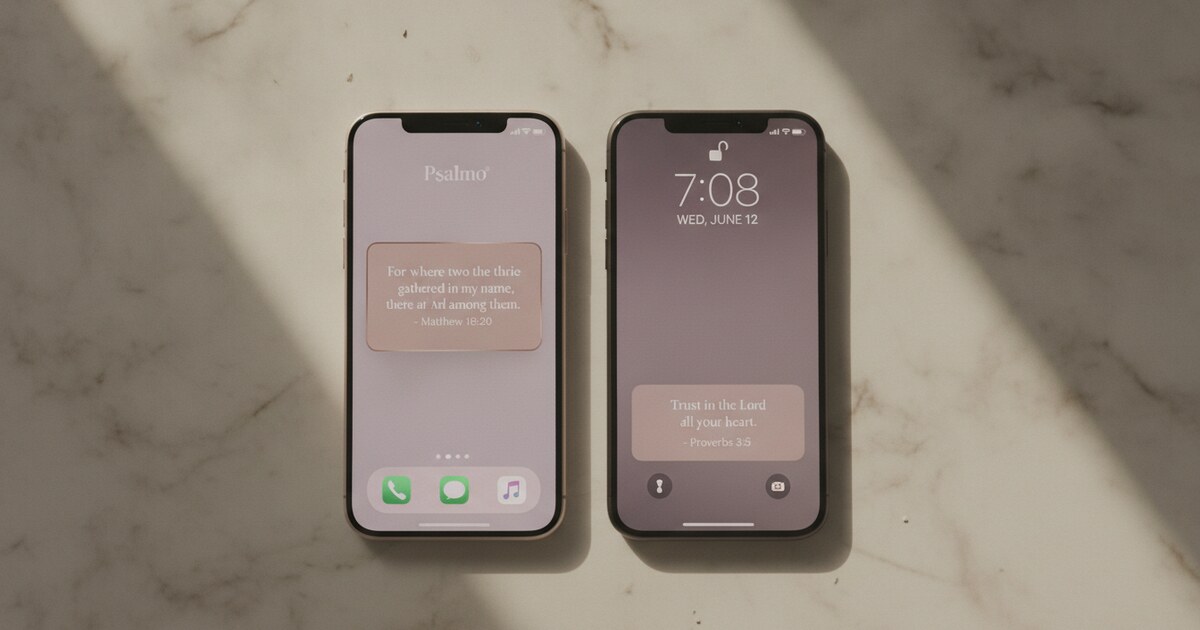
For theme options that work well with One UI’s visual style, the aesthetic bible widget guide covers all 16 Psalmo themes and which ones photograph cleanly against Samsung’s typical dark and light wallpapers.
Best Bible Verse Widget App for Samsung in 2026
Four apps cover most of the Android Bible widget market. Here’s how they compare on Samsung Galaxy specifically.
| App | Samsung Compatibility | Free Tier Widget | Lock-Apps Feature | Themes |
|---|---|---|---|---|
| Psalmo | Full (all sizes, Edge Panel, Smart Stack) | Yes, 3 themes, all 3 sizes | Yes | 16 themes (3 free) |
| YouVersion | Full | Yes, 1 style | No | None |
| Daily Verses | Full | Yes | No | 4-6 themes |
| Bible Widgets (HRD) | Full | Partial (ads) | No | 20+ themes |
For most Samsung users: Psalmo. The free tier covers all three widget sizes, three themes, app blocking, and works on both Galaxy and iPhone without needing two separate accounts.
For theme depth: Bible Widgets by HRD has a wider theme library than Psalmo’s free tier, but the free version shows banner ads inside the widget itself, and there’s no lock-apps feature.
For translation variety: YouVersion supports NIV, ESV, and 50 or more other translations in its widget. Psalmo uses KJV and WEB only (both public domain). If your translation isn’t KJV or WEB, YouVersion is the better fit.
For detailed test results from a Galaxy S25, including widget reliability data and One UI-specific notes, see the Best Bible Widget App for Android guide.
Frequently Asked Questions
What is the best Bible verse widget app for Samsung Galaxy?
Psalmo is the strongest fit for Samsung Galaxy users in 2026. It supports all three home screen widget sizes, 16 aesthetic themes, 15 verse categories, Smart Widget stacks, and Edge Panel integration. The free tier includes the full widget plus the lock-apps feature, which lets you pause Instagram, TikTok, or any app you choose until today’s verse is read. For users who prioritize translation variety, YouVersion supports 50+ translations at no cost.
Why does my Samsung Bible widget keep going blank?
One UI’s battery optimization kills background refresh for apps you don’t open daily. To fix it: go to Settings, then Apps, find Psalmo (or your Bible widget app), tap Battery, and change it from Optimized to Unrestricted. This allows the WorkManager background refresh to run on schedule. Most blank-widget issues on Galaxy phones resolve with this one change.
Can I put a Bible verse on my Samsung Galaxy lock screen?
Not as a traditional widget. Android removed third-party lock-screen widget support in Android 5.0 (2014) and Samsung never restored it. Two workarounds: set a daily verse notification in Psalmo (it appears on your lock screen via the standard notification system), or add Psalmo to Samsung’s Edge Panel for one-swipe access from any screen.
Does the Bible verse widget work on Samsung Galaxy S24, S25, and older models?
Yes. Psalmo runs on any Samsung Galaxy with Android 7.0 or later, which covers all Galaxy S-series phones from the S8 (2017) onward. One UI 6 and 7, shipped on Galaxy S24 and S25 respectively, offer the best experience, including Smart Widget stacks and Edge Panel support. Older One UI versions work too, without the stack feature.
Can I customize the Bible verse widget theme on my Samsung phone?
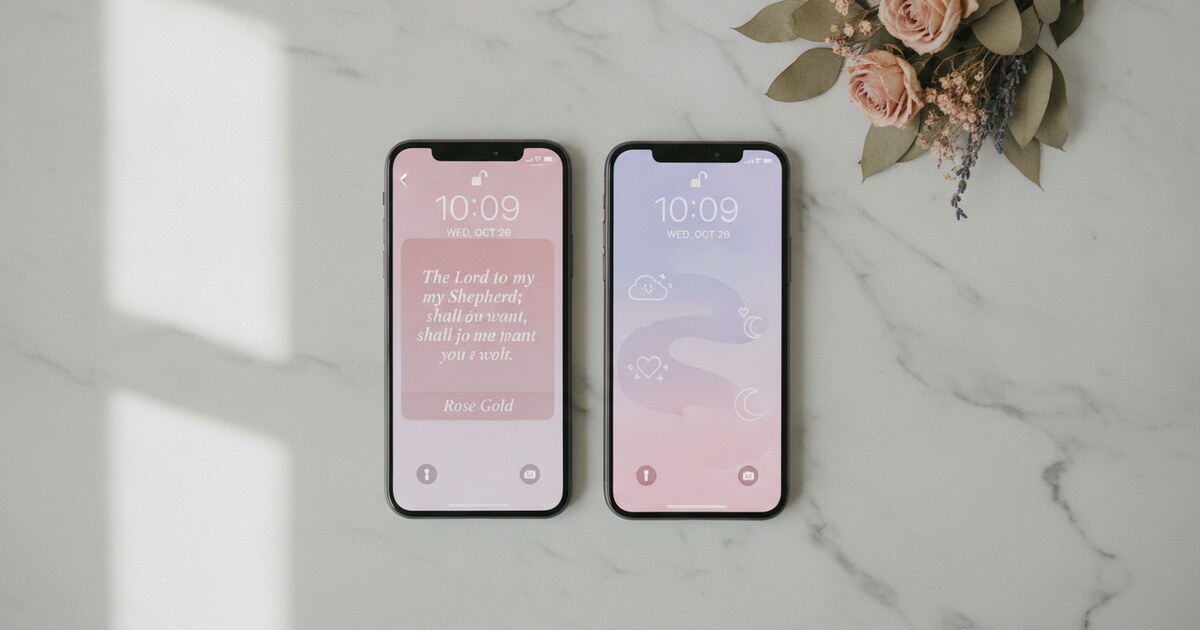
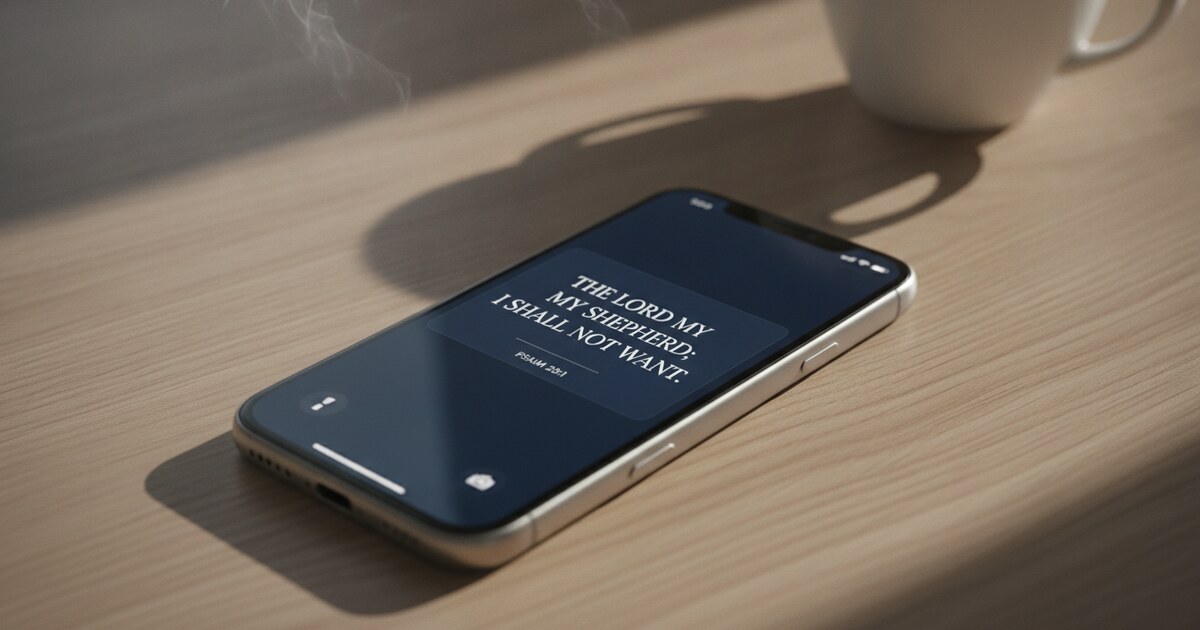
Yes. Psalmo includes 16 themes across five visual families. The free tier covers Classic (warm parchment, serif), Dark (deep navy, light text), and Minimal (clean white, sans-serif). Premium unlocks 13 more themes including Sunrise, Ocean, Forest, Marble, Rose Gold, Night Sky, Watercolor, Vintage, Pastel, Gold Leaf, Modern, Chalkboard, and Stained Glass, plus custom photo backgrounds.
The Bible verse widget Samsung setup takes about five minutes total, and 30 of those seconds are the battery permission fix. After that, your Galaxy home screen shows a fresh verse every morning without opening an app or thinking about it.
Psalmo is free on Google Play. The widget, daily verse, lock-apps feature, and three themes are all on the free tier. Download it, add the widget, and see how it fits into your home screen.