Want a verse on every screen? Psalmo is free.
Your Bible widget has been showing the same verse for 3 days. You know the refresh is automatic. You’ve opened the app, closed it, maybe restarted your phone, and nothing changes. Bible widget not updating is one of the most common support questions for any widget app, and the fix is rarely complicated once you know where to look. Both iPhone and Android use background scheduling systems that widget apps depend on: WidgetKit Timeline on iOS, WorkManager on Android. Either one can get stuck or throttled by the phone’s battery controls without any visible warning. This guide walks through every cause and the exact setting to fix each one, from Low Power Mode on iPhone to Samsung’s Adaptive Battery on Android.
A Bible widget stops refreshing when the phone’s background scheduling system gets blocked. On iPhone, Low Power Mode or a disabled Background App Refresh setting suspends WidgetKit updates. On Android, battery optimization throttles the WorkManager job that delivers new verses. Turn off Low Power Mode on iPhone, or set the app to Unrestricted battery on Android.
Here’s a full breakdown of every fix, grouped by platform, starting with the fastest ones.
Why Bible Widgets Stop Updating
Bible widgets depend on background scheduling APIs to refresh automatically. On iPhone, Psalmo uses Apple’s WidgetKit Timeline Provider, which pre-loads upcoming daily verses into a queue and hands the full schedule to iOS before midnight. iOS controls how often that queue can refresh based on battery level and usage patterns. When Low Power Mode is active, iOS suspends all WidgetKit background refreshes entirely. When Background App Refresh is off for the app, the Timeline can’t receive new entries. On Android, Psalmo uses Google’s WorkManager API, a scheduling system designed to survive device restarts and battery optimization cycles. Samsung’s Adaptive Battery, Pixel’s battery saver, and similar systems on other Android phones can mark a low-use app as infrequently used and suspend its WorkManager job, which stalls the daily verse delivery. Both issues look identical from the outside: the widget shows a verse that’s days old and won’t move.
2 conditions cause most “widget not updating” reports. Low Power Mode on iPhone and battery optimization on Android account for the vast majority of cases. The rest splits between Background App Refresh being disabled, a stale WidgetKit cache that needs clearing, or the widget placed on the home screen before the app was ever opened to seed its Timeline.
Fix Bible Widget Not Updating on iPhone
These fixes run in order from fastest to most involved. Try each one and give it a few minutes before moving to the next.
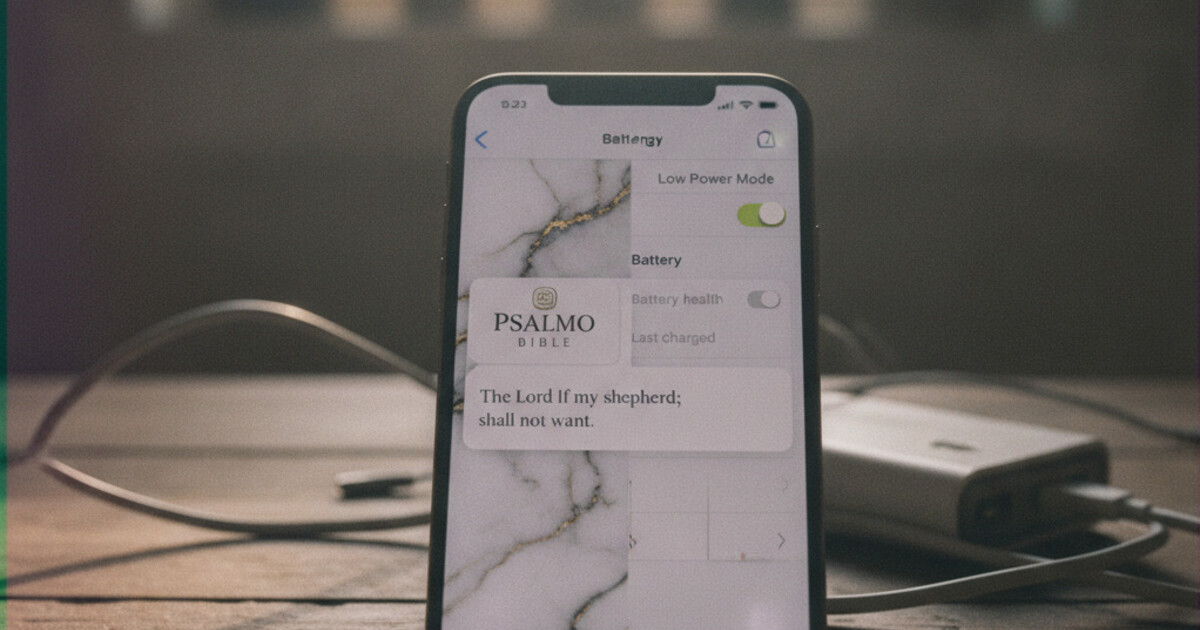
1. Turn off Low Power Mode. Go to Settings > Battery and toggle Low Power Mode off. When Low Power Mode is active, iOS suspends WidgetKit Timeline refreshes for all widget apps without exception. Turn it off and the widget resumes its normal refresh cycle within a few minutes.
2. Enable Background App Refresh for Psalmo. Go to Settings > General > Background App Refresh. Confirm the top-level toggle is set to Wi-Fi & Cellular, not Off. Scroll down to Psalmo and confirm its individual toggle is on. If either is disabled, the WidgetKit Timeline can’t pull in new verses.
3. Open Psalmo once. If you just installed Psalmo or restored your phone from a backup, the WidgetKit Timeline needs at least 1 foreground session to initialize. Open Psalmo, let it load your verse categories, then return to your home screen. The widget should update on the next scheduled cycle.
4. Remove the widget and re-add it. Long-press the widget on your home screen, tap Remove Widget, then confirm. Tap the + button to open the widget gallery, search for Psalmo, and add it again. Re-adding forces a fresh Timeline initialization and clears any stale cache entries. This fixes stuck widgets that aren’t caused by Low Power Mode.
5. Restart your iPhone. Hold the side button and volume down until the power slider appears, slide to power off, wait 30 seconds, then turn it back on. A restart clears OS-level scheduling anomalies that can build up after software updates or failed syncs.
6. Check your iOS version. Psalmo’s WidgetKit integration targets iOS 16 and later. The lock-screen accessory widgets require iOS 16+. If you’re on an older version, the home-screen widget should still function, but updating to iOS 16+ gives you the most reliable refresh behavior and access to all 3 lock-screen widget shapes.
For a full walkthrough of every widget size and placement option, the how to add a Bible verse widget to iPhone guide covers home screen, lock screen, and Smart Stack placement in detail.
Fix Bible Widget Not Updating on Android
Android has more variables than iPhone because each manufacturer layers its own battery optimizer on top of Android’s core Doze mode. These fixes cover the most common Android configurations.
1. Set Psalmo to Unrestricted battery (all Android phones). Go to Settings > Apps > Psalmo > Battery. Change from Optimized or Restricted to Unrestricted. This is the single most effective fix on any Android phone. “Optimized” lets the OS suspend WorkManager jobs for apps not opened recently. “Unrestricted” tells the OS to run the scheduled verse refresh on schedule, regardless of how long ago you last opened the app.
2. Samsung One UI: disable Adaptive Battery for Psalmo. On Samsung Galaxy phones, Adaptive Battery can throttle apps even when the individual battery setting looks correct. Go to Settings > Battery > More Battery Settings and look for the Adaptive Battery toggle, or check Settings > Battery > Background Usage Limits. The Samsung Galaxy Bible widget setup guide has exact navigation paths for One UI 6 and One UI 7, including the specific screen where this setting lives.
3. Enable background data for Psalmo. Go to Settings > Apps > Psalmo > Mobile Data and enable Allow Background Data Usage. If Psalmo can’t access the network in the background, it can’t fetch upcoming verse content, and the widget stays pinned to whatever it last received.
4. Force stop Psalmo, then reopen it. Go to Settings > Apps > Psalmo and tap Force Stop. Wait 10 seconds, then open Psalmo from your home screen and let it load fully. Force stopping clears any hung WorkManager process, and reopening re-initializes the daily refresh job from scratch.
5. Remove and re-add the widget. Long-press the widget on your home screen and drag it to the Remove area at the top. Then long-press an empty area on your home screen, tap Widgets, find Psalmo in the list, and place it again. Re-adding on Android triggers a fresh WorkManager registration, which is the equivalent of the iPhone’s Timeline re-initialization.
How Psalmo Keeps Its Widget Refreshing Reliably
Psalmo uses platform-native scheduling on both iOS and Android rather than a custom background service. On iPhone, the WidgetKit Timeline Provider pre-loads verse data into a forward-looking queue so iOS knows exactly when to display each entry without waking the app. On Android, WorkManager handles scheduling in a way that’s built to survive Doze mode, device restarts, and standard battery optimization passes. The default schedule on both platforms is once per day at midnight. An hourly rotation option is available in Psalmo’s settings for anyone who wants a fresh verse throughout the day, not just one fixed verse from morning to night.
Psalmo’s verse library (KJV and WEB, both public domain) is bundled in the app. The widget doesn’t need a network connection to display the next verse since upcoming content is pre-cached locally. Network is only used when Psalmo fetches new content after a longer offline period or when a reinstall clears the local cache.
If your widget is still stuck after trying all the fixes above, reinstalling Psalmo resets everything: the Timeline cache on iOS, the WorkManager registration on Android, and all category and theme settings. You’ll reconfigure your verse categories and theme choice after reinstalling, but the widget starts completely fresh.
Frequently Asked Questions
Why is my Bible widget not updating on iPhone?
The most common cause is Low Power Mode. When it’s active, iOS suspends WidgetKit Timeline refreshes for all widget apps. Go to Settings > Battery and toggle Low Power Mode off. If the widget still doesn’t update, check that Background App Refresh is on for the app under Settings > General > Background App Refresh. If both are already correct, remove the widget and re-add it to clear a stale cache.
Why is my Bible widget stuck on the same verse?
On iPhone, a stale WidgetKit cache can pin the widget to an old verse even after Low Power Mode is off. Remove the widget from your home screen and re-add it from the widget gallery to force a fresh Timeline initialization. On Android, battery optimization suspending the WorkManager refresh job is the most common cause. Set the app to Unrestricted battery in Settings > Apps > Psalmo > Battery.
How do I force a Bible widget to refresh?
On iPhone, remove the widget and re-add it from the widget gallery. Re-adding forces WidgetKit to generate a new Timeline starting from today. Open the app first to seed the new Timeline with fresh data. On Android, go to Settings > Apps > Psalmo > Battery, switch to Unrestricted, then force stop and reopen Psalmo to restart the WorkManager job.
Why does my Bible widget not update on Samsung Galaxy?
Samsung’s Adaptive Battery system can suspend WorkManager jobs for apps the phone considers infrequently used. Go to Settings > Apps > Psalmo > Battery and set it to Unrestricted. You may also need to go to Settings > Battery > More Battery Settings and disable Adaptive Battery for Psalmo specifically. The Samsung-specific navigation is in the Samsung Galaxy Bible widget guide.
Does Psalmo’s widget update automatically without opening the app?
Yes, after the first launch. Opening Psalmo once seeds the WidgetKit Timeline on iPhone and registers the WorkManager job on Android. After that, the widget updates daily at midnight with no app interaction needed. On Android, setting Psalmo to Unrestricted battery keeps the WorkManager job from being suspended on days you don’t open the app.
A stuck Bible widget usually takes less than 2 minutes to fix once you identify which battery setting is blocking it. If you’re not using Psalmo yet and want a widget that handles daily refresh reliably on both iPhone and Android, download it free from the App Store or Google Play. It uses WidgetKit on iOS and WorkManager on Android, shows 15+ aesthetic themes, and keeps all KJV and WEB scripture available on the free tier with no paywall on scripture.