
Want a verse on every screen? Psalmo is free.
How to Restrict Instagram on iPhone (4 Methods)
“Restrict Instagram on iPhone” covers two very different things. Screen Time’s App Limits and Downtime tools cut how many minutes the app gets each day, or block it entirely during certain hours. Instagram’s own Restrict feature does something unrelated: it quietly limits what one specific person can do on your posts and messages without blocking them outright. A fourth option replaces the timer-bypass button with a reading requirement.
This guide walks through all four methods so you can choose the one that matches what’s actually bothering you about Instagram.
To restrict Instagram on your iPhone, go to Settings → Screen Time → App Limits → Add Limit → select Instagram → set a daily cap. The app locks when time runs out. Instagram’s Restrict feature (Settings and privacy → Privacy) is different: it limits what one specific person sees on your content, not how much time you spend in the app.
Method 1: Restrict Instagram With App Limits (Daily Time Cap)
App Limits put a daily ceiling on how many minutes Instagram gets. When the cap runs out, the app shows a blocked screen and stays locked until midnight, when the limit resets.
Step 1: Open Screen Time
Go to Settings → Screen Time. If it’s off, tap “Turn On Screen Time” and follow the prompts. When asked whose phone it is, choose “This is My iPhone.”
Step 2: Add a Screen Time Passcode (Recommended)
Tap “Use Screen Time Passcode” and set a 4-digit code. This is optional but it matters. Without it, the blocked screen shows an “Ignore Limit” button that extends time by one hour with a single tap. The passcode means bypassing the limit requires entering a code, slowing down the impulse tap.
Step 3: Create an App Limit
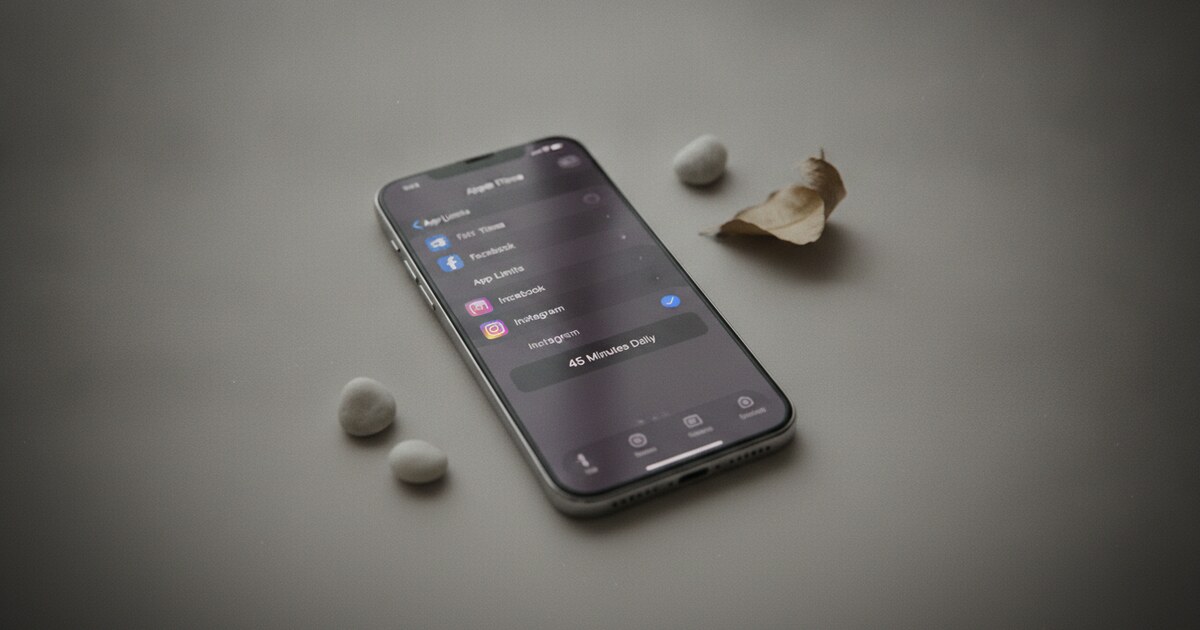
Tap App Limits → Add Limit. You’ll see a list of categories. Tap “Social Networking” to cap all social apps together, or tap the disclosure arrow next to Social Networking to find Instagram individually and select only that.
Step 4: Set the Daily Cap
Tap the hour and minute fields and pick a limit. 30 to 45 minutes is a common starting point. Tap Add in the top right.
Instagram now tracks your daily foreground use. A 1-minute warning appears before the cap hits. After that, the app shows a blocked screen with the option to “Ignore Limit” or “Get One More Minute.”
Apple introduced Screen Time with iOS 12 in September 2018, giving iPhone users the first native app timer built directly into the operating system. According to DataReportal’s January 2025 Global Overview, the average person spends 4 hours and 37 minutes on their phone each day; Instagram accounts for roughly 30 minutes of that globally, though individual use often runs higher. Screen Time’s App Limits work at the OS level: iOS tracks foreground use, fires a soft warning 1 minute before the daily cap expires, and presents a blocked screen when time runs out. The passcode requirement meaningfully changes compliance. Without it, bypassing the limit takes one tap and about 2 seconds. A 2018 randomized controlled trial published in the Journal of Social and Clinical Psychology found that participants who capped social media use at 30 minutes per day reported significantly lower loneliness and depression scores at 3 weeks compared to a control group with no limits.
If you want the same Screen Time steps applied to Facebook, TikTok, and Snapchat all at once, how to block social media on iPhone covers the Social Networking category approach and all four native iPhone methods in one pass.
Method 2: Restrict Instagram With Downtime (Schedule-Based Block)
Downtime is different from App Limits. Instead of a daily minute budget, it locks Instagram during specific hours on specific days, regardless of how much time you’ve already used.
Settings → Screen Time → Downtime → toggle it on. Choose “Every Day” for a consistent block window, or tap “Customize Days” to set different start and end times per weekday.
Common schedules people find useful:
- Morning block (5 a.m. to 8 a.m.): reach for something else before the feed
- Evening block (10 p.m. to 7 a.m.): clear the last hour before bed and first hour of morning
- Weekend schedule: longer block on Saturday and Sunday, shorter on weekdays
During Downtime, tapping Instagram opens the same blocked screen as App Limits. Apps you’ve added under “Always Allowed” (Settings → Screen Time → Always Allowed) stay open regardless. Phone and Messages are on by default.
One note: Instagram can still send notifications during Downtime; they appear in the notification center, but tapping them hits the blocked screen instead of opening the app. To stop notifications entirely, go to Settings → Notifications → Instagram and toggle them off separately.
Downtime is usually the better pick when you want Instagram gone during specific windows of the day rather than tracking a total daily budget. If your goal is keeping mornings or evenings clear, use Downtime. If you want a rolling daily cap, use App Limits.
Method 3: Use Instagram’s Built-In Restrict Feature
Instagram’s Restrict feature has nothing to do with Screen Time. It limits what one specific user can do on your account, without them knowing they’ve been restricted.
When you restrict someone:
- Their comments on your posts are hidden from other followers until you approve them. The restricted person can still see their own comment and assume it posted normally.
- Their direct messages go to your message requests folder, not your main inbox.
- They can’t see your active status or whether you’ve read their messages.
To restrict someone from their profile:
- Go to their Instagram profile on your iPhone.
- Tap the three-dot menu in the top right corner.
- Tap “Restrict.”
To see all accounts you’ve restricted: Instagram → your profile → three-line menu → Settings and privacy → Privacy → Restricted Accounts.
To undo a restriction: go back to their profile → three-dot menu → Unrestrict.
This feature is built for situations where blocking feels too harsh (a coworker, a classmate, someone in your extended family) but you want their comments off your posts and their messages out of your main inbox. It’s an Instagram-level tool, not a phone-level one, and it works the same way regardless of which iPhone you’re on.
Method 4: Add a Scripture Gate for Harder Friction
Screen Time’s blocked screen has a built-in exit: “Ignore Limit.” Without a Screen Time passcode, one tap extends your session by an hour. Even with a passcode, the block itself is just a number you enter in Settings. That makes App Limits a soft nudge for most people.
A faith-based app gate replaces that one-tap exit with a reading requirement.
Psalmo uses Apple’s Screen Time permission to block the apps you choose (Instagram included). When you try to open Instagram, Psalmo opens first. You read a Bible passage: one verse, three verses, ten verses, or a chapter, depending on your setting. After reading, Instagram opens for a window you set in advance: 15 minutes, 30 minutes, 1 hour, 2 hours, or 4 hours. When that window closes, the gate resets.
You can run the gate on a schedule (mornings only, evenings only, specific days) or always on. You can turn it off at any time. There’s no strict or parental-control mode.
Psalmo’s free plan includes app blocking for up to 3 apps with one schedule. Unlimited blocking (more apps, categories, and websites on iPhone) is on Premium.
Setup takes about 2 minutes: download Psalmo, open it, go to Bible Verse Lock, tap the + button, pick Instagram from the app picker, and grant the Screen Time permission when prompted.
For a full comparison of Screen Time, Psalmo, and harder-block methods including Content & Privacy Restrictions and deleting the app, how to block Instagram on iPhone covers four approaches in one guide.
Frequently Asked Questions
How do I make my Instagram account private on my iPhone?
Open Instagram, tap your profile icon in the bottom right, then tap the three-line menu → Settings and privacy → Account privacy → toggle on “Private Account.” Only followers you approve can see your posts and stories. This is an in-app privacy setting, separate from any iPhone Screen Time restrictions, and it doesn’t affect how much time the app gets.
How do you know if a person has restricted you on Instagram?
You won’t receive a notification. Signs that you’ve been restricted: your comments on their posts are only visible to you until they approve them, your DMs go to their message requests rather than the main inbox, and their active status and read receipts disappear from your view. From your side, everything looks normal; you can still follow them and see their posts.
How do I block the Instagram app on my router?
Log into your router’s admin panel (commonly at 192.168.1.1 or 192.168.0.1), find Parental Controls or Website Blocking, and add instagram.com. This blocks Instagram across every device on the network. The Instagram app also uses its own API endpoints, so domain-level blocking may not fully stop all app traffic depending on your router’s filtering capability. For reliable per-device mobile blocking, iPhone Screen Time App Limits or Downtime are usually more effective and easier to set up.
How do I stop someone from accessing my Instagram account?
Change your password immediately: Instagram → Settings and privacy → Account Center → Password and security → Change password. Then turn on two-factor authentication from the same screen. Under “Where you’re logged in,” review all active sessions and tap “Log out” on any device you don’t recognize.
Screen Time handles usage limits at the phone level. Instagram’s Restrict controls what one person sees on your content. For a complete block without an easy bypass, Content & Privacy Restrictions or deleting the app are the harder routes.
Psalmo is free to download on iOS and Android. App blocking, including Instagram, is included on the free plan.