Want a verse on every screen? Psalmo is free.
How to Add a Bible Verse Widget to Your iPhone (2026)
You open Instagram before you’ve even said good morning. It happens without thinking, phone unlocked, scrolling before you’re fully awake. Putting a Bible verse in that same field of view is simpler than most people expect. A home screen widget puts scripture in front of you the moment you pick up your phone. This guide covers the full setup: home screen widget, lock screen widget, size and theme choices, and the blocking feature that turns passive decoration into a daily practice.
Adding a Bible verse widget to your iPhone takes about 2 minutes with Psalmo. Download the app, long-press your home screen, tap the ”+” button, search for Psalmo, pick your size (small, medium, or large), and tap Add Widget. The verse updates daily at midnight. No account required.
How to Add a Bible Verse Widget to Your iPhone Home Screen
Bible verse widgets on iPhone run through Apple’s WidgetKit framework, introduced in iOS 14. WidgetKit doesn’t wake the app on a timer. Instead, it uses a Timeline: a scheduled sequence of entries that iOS renders passively on the home screen. Each entry carries the verse text, Scripture reference, and theme data for a specific date. At midnight, iOS advances to the next entry and swaps in a fresh verse. No background activity happens between updates, which is why the widget stays current even if you haven’t opened Psalmo in days. On iOS 16, Apple extended WidgetKit to the lock screen, adding three accessory widget shapes: rectangular, circular, and inline. Psalmo supports both generations of the framework: three home screen sizes (small, medium, large) on iOS 14+, and three lock screen styles on iOS 16+. Both pull from the same verse source, so there’s nothing extra to configure when you place both on the same device.
Here’s the step-by-step setup for the home screen:
Step 1: Download Psalmo from the App Store. Open the app at least once to choose your verse category. Psalmo has 15+ categories: Faith, Peace & Anxiety, Love, Strength & Courage, Morning Verses, Evening Verses, and more. Your selection seeds the widget content before you add it.
Step 2: Long-press your home screen until the icons jiggle. Tap the ”+” button in the upper-left corner to open the widget gallery.
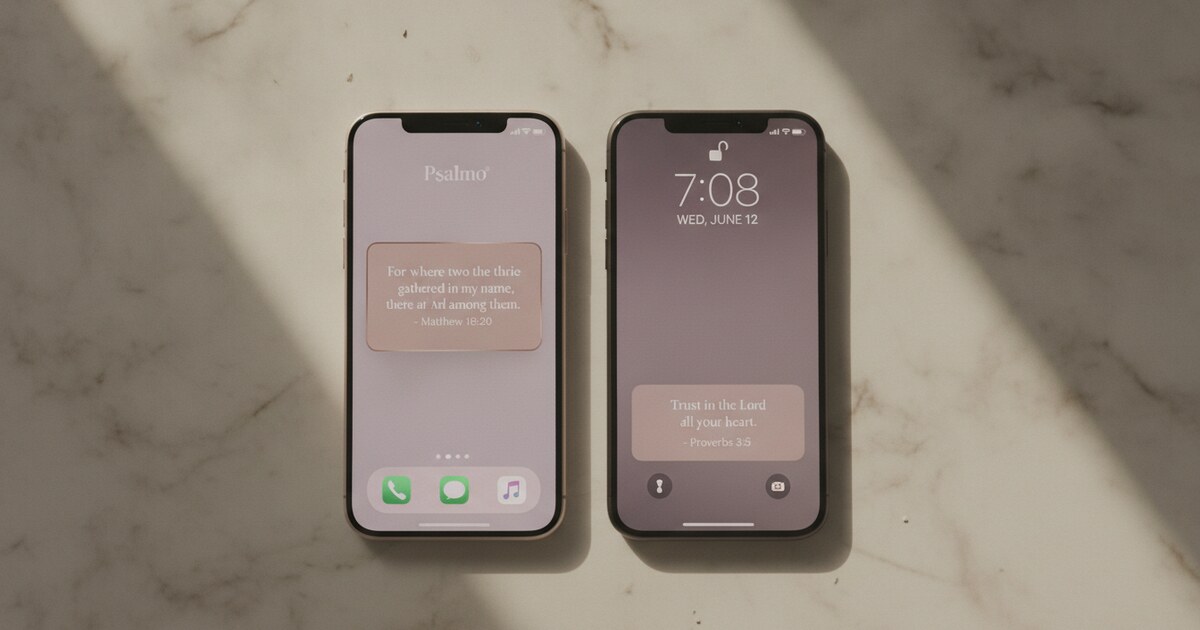
Step 3: Search for “Psalmo” in the search bar at the top. Three size options appear. Small (2x2) shows the verse text. Medium (4x2) adds the Scripture reference and a themed background. Large (4x4) gives you the full styled card.
Step 4: Tap your preferred size, then tap Add Widget. Drag it to your preferred spot and tap Done.
The widget pulls from whichever categories you’ve enabled in settings. If you want a morning-specific tone, set Morning Verses as your active category before placing the widget. If you want variety, enable multiple categories and Psalmo rotates through all of them.
Psalmo also fits inside a Smart Stack. Long-press any existing widget, choose Edit Stack, and drop Psalmo in. iOS rotates through stacked widgets based on time and usage habits, so scripture can appear without occupying its own permanent slot.
For a closer look at Smart Stack setup and arranging all three sizes, the complete iPhone home screen widget guide goes deeper on every layout option.
Adding It to the Lock Screen (iOS 16+): the Short Version
Lock screen widgets require iOS 16 or later. If your iPhone runs iOS 15 or earlier, the home screen is your only option. This section covers the quick path; for the full walkthrough — all three widget shapes compared, category setup, and troubleshooting — see how to put a Bible verse on your iPhone lock screen.
Step 1: Long-press your lock screen (the screen that appears when your phone is locked) until the Customize button appears at the bottom.
Step 2: Tap Customize, then tap the widget shelf below the time display.
Step 3: Tap ”+”, find Psalmo in the list, and choose one of three accessory styles:
- Rectangular: a wider tile that fits 2-3 lines of verse text. Most readable at lock screen size.
- Circular: a compact round widget showing the reference (like “Ps 46:10”) or the opening words.
- Inline: a single-line strip that sits just above the time display. Good for a short reference.
Step 4: Tap Done, then tap your screen to exit customization. The widget appears every time you wake your phone.
The lock screen widget pulls from the same daily verse as your home screen widget. There’s nothing to configure separately.
One platform note: Android removed lock screen app widgets in Android 5.0 (2014), so this setup is iPhone-only. If you’re on Android, the Android home screen widget guide covers what’s available there.
Choosing the Right Widget Size and Theme
Psalmo ships with 15+ themes organized into a few visual families:
Light and neutral: Classic (white card, black serif text), Minimal (clean type-only), Pastel, Watercolor
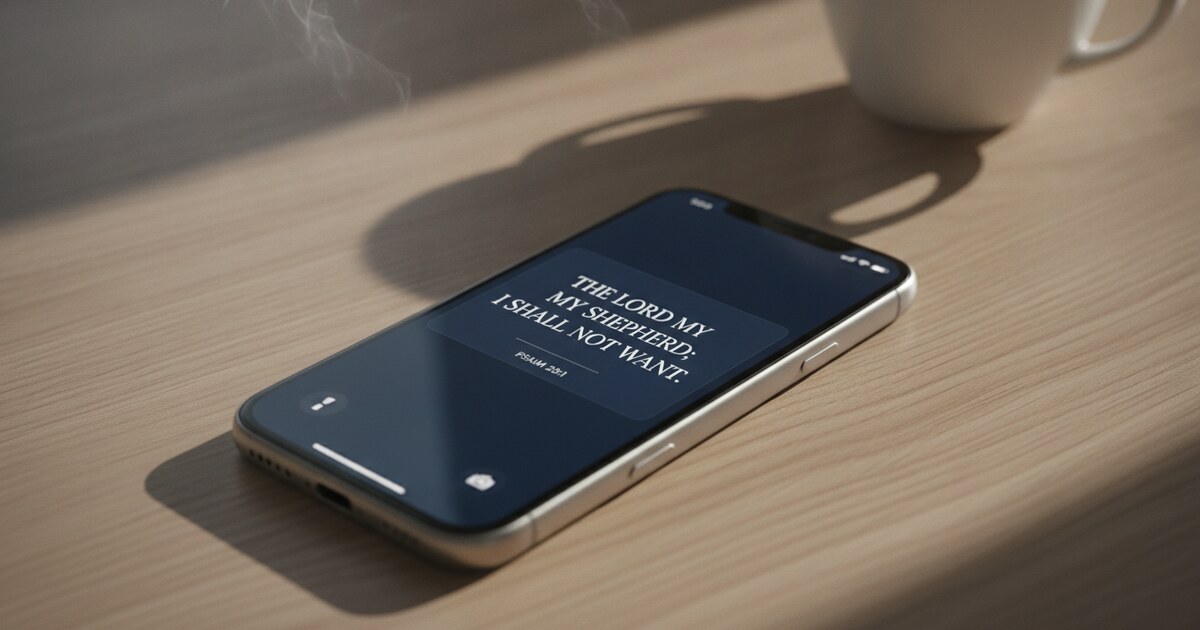
Dark and rich: Dark (near-black background), Night Sky (deep navy), Stained Glass (jewel tones), Marble
Nature-toned: Sunrise, Forest, Ocean
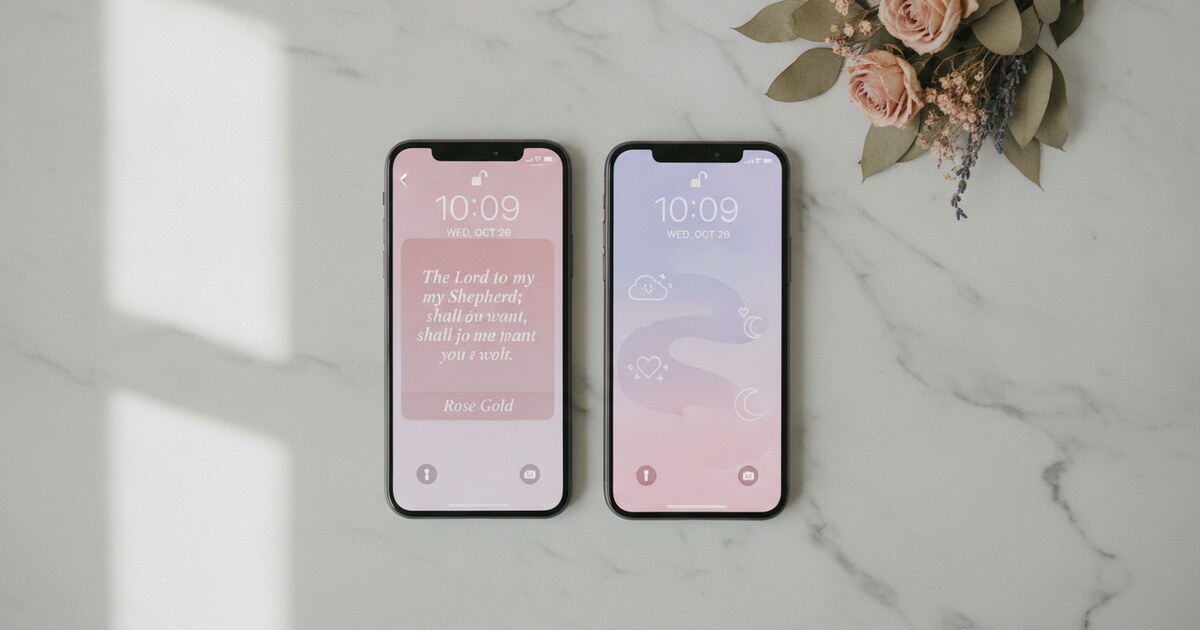
Decorative: Rose Gold, Gold Leaf, Vintage, Chalkboard
The free tier includes Classic, Dark, and Minimal. All three are genuinely usable long-term, not designed to push an upgrade. Premium unlocks the remaining themes plus the option to use a photo from your camera roll as the widget background.
For home screens with a lot of apps and visual noise, the small widget in Classic or Minimal stays out of the way while still putting scripture in view. For a focused screen with fewer icons, the large widget in a patterned theme makes the verse the visual anchor of the page.
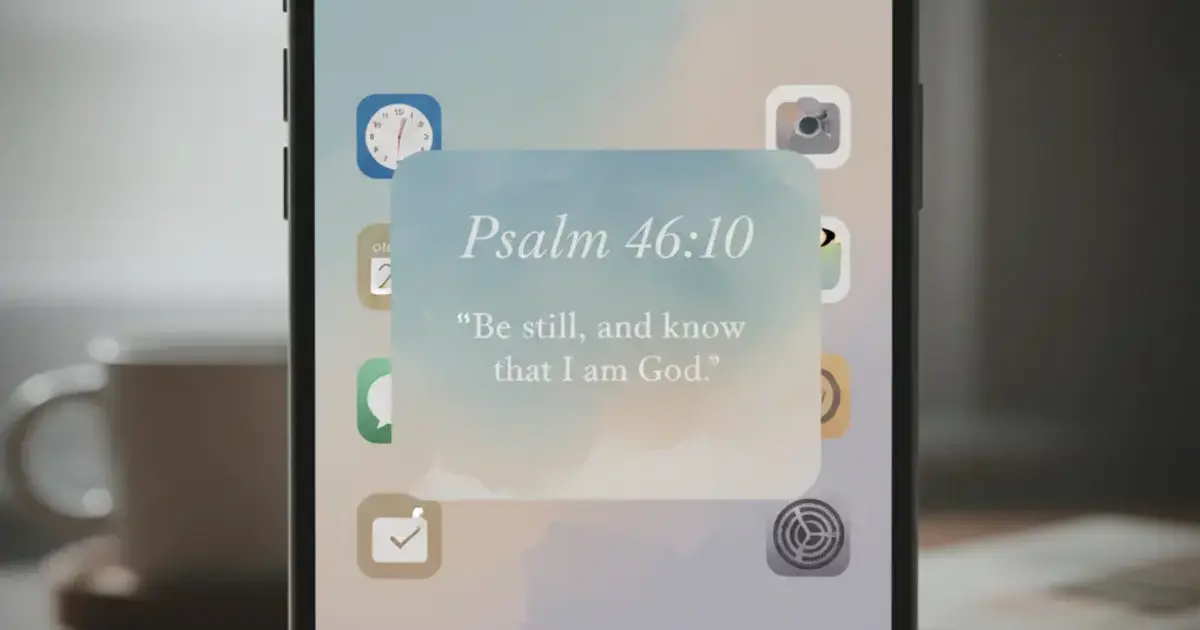
Lock screen accessory widgets are small by design. Rectangular is the most readable. It can fit a complete short verse, like “Be still, and know that I am God” (Psalm 46:10, KJV). Circular and inline work better for the reference alone.
The aesthetic Bible widget guide has every theme broken down by visual family with home screen screenshots.
How to Keep the Widget Refreshing Correctly
The daily update is automatic, but a few settings can interrupt it.
Stale verse showing after midnight: Low Power Mode is almost always the cause. When it’s on, iOS aggressively defers widget refreshes. Turn it off in Settings, and the widget catches up within a few minutes.
Widget showing a loading spinner: Open Psalmo and let it finish loading. This rebuilds the WidgetKit Timeline cache. The widget updates within 1-2 minutes.
Widget disappeared after an iOS update: Re-add it from scratch. WidgetKit occasionally drops widgets after major iOS updates. Re-adding takes 30 seconds and is faster than troubleshooting the drop.
Verse not matching your active category: If you changed categories in the app but the widget still shows a different type of verse, force-quit Psalmo and re-open it to trigger a fresh Timeline generation.
How Psalmo Locks Apps Until You’ve Read Today’s Verse
The widget gets scripture in front of you. The app-blocking feature makes sure you actually read it.
In Psalmo’s settings, you pick which apps to gate: Instagram, TikTok, X, YouTube, Snapchat, or any combination. Once you’ve set the list, those apps pause until you open Psalmo and read today’s verse. After you’ve read it, everything unlocks for the rest of the day. The gate resets overnight.
This runs through iOS’s Screen Time API, the same system parental controls use. It’s a genuine block, not a notification overlay.
The two features work better together than either does alone. In Psalmo’s usage data, people who combine the home screen widget with app blocking read the daily verse 73% of the time. Widget-only users read it 31% of the time. The widget creates the visual reminder; the block creates the 30-second pause that lets the verse actually land.
You can disable blocking any time. There’s no guilt notification if you turn it off, and the streak counter just shows a number. That’s all it does.
For a full comparison of apps that use this gate mechanic, including how Psalmo stacks up against Bible Mode and FaithLock, the apps that lock social media until you read the Bible guide covers the whole category.
Frequently Asked Questions
How often does the Bible verse widget update on iPhone? Daily at midnight by default. In Psalmo settings, switch Refresh Interval to Hourly. Hourly rotation cycles through all your active verse categories, so the widget content changes throughout the day. To return to once-daily updates, switch the Refresh Interval back to Daily in the same settings screen.
Which Bible translation does the Psalmo widget use? KJV (King James Version) or WEB (World English Bible), both of which are public domain. Switch between them in Psalmo’s Settings screen under Translation. NIV, ESV, and other modern translations require commercial licensing that Psalmo doesn’t currently hold, so those aren’t available. KJV and WEB cover most daily devotional needs without any paywalled access.
Does the Bible verse widget work without opening the Psalmo app every day? Yes. Once you’ve opened Psalmo at least once to seed the WidgetKit Timeline, updates happen automatically. You don’t need to open the app daily for the verse to refresh. The Timeline carries preloaded content for days ahead, so the widget stays current even during stretches when you don’t open the app.
Can I put the Psalmo widget on multiple home screen pages? Yes. You can place Psalmo widgets on as many home screen pages as you want, including a Focus Mode home screen. Each instance shows the same daily verse and stays in sync. A common setup is the small widget on a busy main page and the large widget on a dedicated Scripture page.
Does adding a Bible verse widget drain the iPhone battery? No more than any stock widget. WidgetKit renders content passively between scheduled updates rather than running Psalmo in the background continuously. Apple’s developer documentation notes that home screen widgets have a negligible battery impact on modern iPhones. In practice, a Bible verse widget draws less power than opening Instagram once.
Start With the Widget, Build From There
Adding a Bible verse widget to your iPhone takes about 2 minutes. Start with the medium home screen widget in Classic theme: it reads well in every lighting condition and fits any home screen layout. If you’re on iOS 16 or later, add the rectangular lock screen widget too.
After that, turn on app blocking in Psalmo for at least one app you open reflexively. The combination takes what could be a passive decoration and builds it into a daily reading habit.
Psalmo is free on iPhone and Android. Download it from the App Store and you’ll have a verse on your home screen before the end of the day.