Want a verse on every screen? Psalmo is free.
Daily Bible Verse Lock Screen Widget: iPhone Setup Guide
Most people reach for their phone within a few minutes of waking up. The lock screen is the first thing they see. A daily Bible verse lock screen widget means the first words you read are Scripture, not a notification.
Apple added lock-screen widget support with iOS 16 in September 2022. A handful of Bible verse apps have offered lock-screen widgets since then, and the setup takes under 2 minutes if you know where to tap. This guide covers every step, plus how to pick the right verse topic and widget shape for your lock screen.
A daily Bible verse lock screen widget shows a fresh Scripture passage on your iPhone lock screen each morning. To add one: long-press your lock screen, tap Customize, tap the widget area below the clock, and add a Psalmo widget. Three shapes: rectangular, circular, and inline. The verse refreshes daily; open Psalmo once if it hasn’t updated.
Here’s everything else worth knowing before you set one up.
What a Daily Bible Verse Lock Screen Widget Actually Does
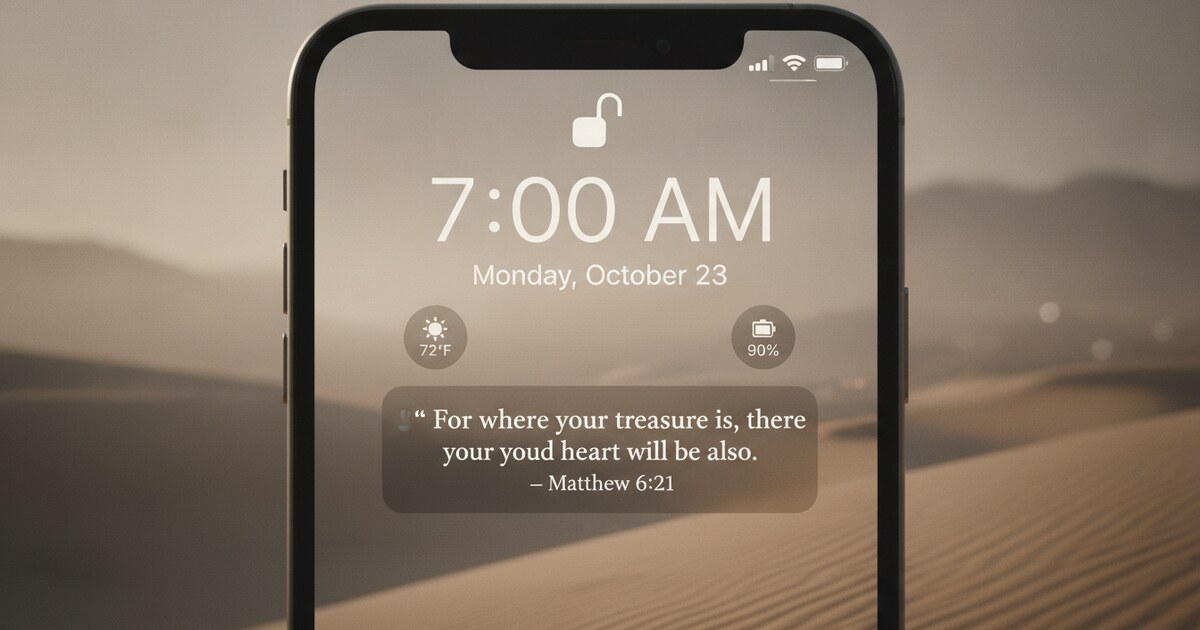
A daily Bible verse lock screen widget is an accessory widget that sits below or above the clock on your iPhone lock screen and displays today’s Scripture passage. Apple introduced lock-screen widget support in iOS 16 (September 12, 2022), opening a slot that was previously limited to the clock and date. Three accessory widget shapes fit in that zone: rectangular (the widest, shows a short verse and its reference), circular (icon-sized), and inline (a single line of text sitting above the clock, showing the verse reference). The widget reads from whichever verse topic you’ve selected in the app. On the free plan, 6 topics are available: General, Love, Faith, Jesus Christ, Prayer, and Hope. Premium opens 50+ categories. The verse displayed on the lock screen matches the one inside the app and on the home-screen widget for that day. No account is required to use it.
The rectangular shape is the most useful for reading. It fits shorter verses in full, along with the book, chapter, and verse reference. The inline shape layers nicely above a full-bleed wallpaper if you’d rather show an image than text. The circular shape works better as part of a multi-widget row than alone.
Lock-screen widgets are an iPhone feature. On Android, there’s no equivalent accessory widget zone in the standard launcher, so a daily verse shows up on the home screen as a widget instead.
How to Add a Daily Bible Verse Widget to Your iPhone Lock Screen
You need an iPhone with lock-screen widget support (the accessory zone Apple added in iOS 16). Here are the exact steps:
- Download Psalmo from the App Store. No account or sign-in required.
- Pick your verse topic. Open Psalmo and go to Settings. Under Verse Topics, choose the category you want: General, Love, Faith, Jesus Christ, Prayer, or Hope (free plan). This controls which pool of Scripture your daily verse comes from.
- Long-press your lock screen until the edit mode appears with a Customize button at the bottom.
- Tap Customize, then tap your current lock screen (the lock screen option, not Home Screen).
- Tap the widget area directly below the clock. A widget picker slides up from the bottom.
- Find Psalmo in the picker and tap it. The widget drops into the zone.
- Switch shapes. Tap the widget thumbnail to cycle between rectangular, circular, and inline. Rectangular is the default and the most readable.
- Tap Done, then tap Set as Wallpaper Pair.
Your daily Bible verse now appears each time you wake your iPhone.
One practical note: lock-screen widgets are attached to a specific lock screen, not the whole phone. If you use multiple lock screens with different Focus modes, add the Psalmo widget to each one separately.
For a full breakdown of the lock screen setup with screenshots of each step, the iPhone lock screen Bible verse guide covers the process in more detail.
Choosing Your Daily Verse Topic
The verse topic determines which category of Scripture the daily verse comes from. You’re not picking individual passages; you’re choosing the theme of the pool it draws from.
The free plan includes 6 topics:
- General
- Love
- Faith
- Jesus Christ
- Prayer
- Hope
Premium adds 50+ additional topics covering categories like Comfort, Courage, Gratitude, Healing, and specific books of the Bible.
To change your topic at any time: open Psalmo, go to Settings, tap Verse Topics, and select the one you want. The next day’s verse comes from that category.
One thing worth knowing upfront: all Psalmo widgets (lock screen and home screen) pull from the same single topic setting. There’s no way to show a different topic on each widget yet. Per-widget topics and hourly rotation are planned for a future update.
Picking a Widget Shape and Theme
The three lock-screen widget shapes serve different use cases:
| Shape | What it shows | Best for |
|---|---|---|
| Rectangular | Verse text + book:chapter:verse reference | Reading the verse on the lock screen |
| Circular | Psalmo icon | Minimal layouts, multi-widget rows |
| Inline | Verse reference (e.g., Psalm 23:1) above the clock | Wallpaper-forward setups |
For most people, rectangular is the right pick. You can actually read the verse without unlocking.
On themes: the lock-screen widget inherits the theme you’ve set in the app, but lock-screen accessory widgets display text on a transparent background rather than the full theme art. Classic and Minimal are the cleanest choices for most wallpapers because they use neutral text that reads over photos. Dark works well on dark wallpapers.
Three themes are free: Classic, Dark, and Minimal. All 26 themes, including Rose Gold, Watercolor, Gold Leaf, Night Sky, and Old Parchment, are available on Premium.
If you want to see how different themes look across all widget types and sizes, the Christian widgets guide for iPhone maps each theme style to specific aesthetics.
What to Do When Your Daily Verse Hasn’t Updated
The lock-screen widget shows today’s verse. If it’s still showing yesterday’s passage: open Psalmo once. The widget updates when the app runs. No separate refresh setting exists; opening the app is the only step needed.
This is standard iOS widget behavior. Apps can’t run freely in the background on iPhone; they get time when the system grants it or when you open them. A few seconds in the app each morning keeps the widget current, and it lines up well with a morning reading habit anyway.
If the widget shows a blank space or nothing at all: remove it from the lock screen using the Customize flow, then re-add it. That resolves most display glitches.
How Psalmo Puts a Daily Verse on Your Lock Screen
Psalmo is a daily Bible verse and Scripture-gating app for iPhone and Android. Its lock-screen widget is on the free plan, available in all 3 accessory shapes, with no account needed.
The app pairs well with the widget. Inside Psalmo, you can read the full Bible offline in 19 translations across 13 languages, save favorite verses with a heart, and set a daily reminder notification at a time you choose. For people who want to go further than seeing a verse passively, the app-blocking feature gates distracting apps behind Scripture: to open a blocked app, you read 1 verse, 3 verses, 10 verses, or a full chapter first. After reading, the app stays open for an unlock window you pick (15 minutes to 4 hours), then gates again.
The lock-screen widget is the passive layer of that stack. You see Scripture whether or not you meant to open anything. The gate is the active layer, requiring a reading before distraction. Together they address both the habitual unlock and the intentional open.
There’s no subscription and no account required to use the widget. If you’re comparing free tiers across different Bible widget apps, the free Bible verse widget guide breaks down exactly what each app offers at no cost.
Frequently Asked Questions
How do I add a daily Bible verse to my iPhone lock screen?
Long-press your iPhone lock screen to enter edit mode, tap Customize, select your lock screen, then tap the widget area below the clock. Add a Psalmo accessory widget (rectangular, circular, or inline) and tap Done. The widget shows today’s verse and updates each day. Requires a device with Apple’s lock-screen widget zone (introduced in iOS 16).
Does the Psalmo lock screen widget update every day?
Yes. The widget shows today’s verse. If it’s still displaying yesterday’s verse, open Psalmo once — the widget refreshes when the app runs. The verse comes from whichever topic you’ve set inside the app.
Can I choose which Bible verses appear on my lock screen widget?
You can choose the verse topic, not individual verses. The free plan includes 6 topics: General, Love, Faith, Jesus Christ, Prayer, and Hope. Premium unlocks 50+ topics. Change your topic in Psalmo’s Settings under Verse Topics — the next daily verse comes from that category.
Is the Psalmo Bible verse lock screen widget free?
Yes. The lock-screen widget in all 3 shapes (rectangular, circular, inline) is on the free plan. No subscription and no account are required. Premium adds more themes and verse topics, but the core daily verse widget is free.
What iPhone do I need for a lock screen Bible verse widget?
You need an iPhone with Apple’s lock-screen widget zone, which Apple introduced with iOS 16. Older iPhones that can’t update to iOS 16 can still use Psalmo’s home-screen widgets in 3 sizes: small, medium, and large.
If you want a daily Bible verse on your lock screen starting today, download Psalmo free. For the devotional motivation behind putting God’s Word there — and an Android setup guide — see our article on God’s Word on your lock screen.