
Want a verse on every screen? Psalmo is free.
How to Block Instagram on iPhone (4 Methods)
Instagram averages around 33 minutes of daily use per person. That number isn’t an accident: the app is built with variable-reward mechanics, infinite scroll, and a notification system designed to pull you back in. If you’d rather spend those 33 minutes on something else, your iPhone has several ways to limit or block Instagram entirely. Here are four methods, ordered from lightest friction to hardest block, each taking about five minutes to set up.
To block Instagram on iPhone, open Settings → Screen Time → App Limits, pick Social Networking or Instagram specifically, and set a daily time budget. Add instagram.com under Content & Privacy → Web Content → Never Allow to close the Safari workaround. Set a Screen Time passcode to prevent one-tap overrides. Third-party apps like Psalmo go further, blocking Instagram until you’ve read a Bible verse first.
Method 1: Instagram’s Own Daily Limit and Quiet Mode
Instagram has two built-in controls under Settings and activity → Time management. They’re worth setting as a starting point, but they’re opt-out nudges, not hard blocks.
Instagram introduced its Time Management tools in August 2018, responding to public concern over addictive design. The Daily Limit feature sends a reminder when you hit the time you set; it doesn’t close the app, and tapping “Ignore Limit” skips the restriction until midnight. Quiet Mode, added in January 2023, silences push notifications and sends an auto-reply to anyone who DMs you during the set window. Meta reports approximately 2 billion monthly active users on Instagram as of 2024, with average daily sessions around 33 minutes. Apple’s Screen Time launched with iOS 12 in September 2018 and added per-app limits (as opposed to per-category limits) in iOS 14, released September 2020. The practical gap between the two systems: Instagram’s own limits are opt-out controls you dismiss with a tap, while Screen Time limits backed by a passcode require deliberate action through the Settings app, which is enough friction to interrupt most automatic opening habits.
Set a Daily Limit:
- Open Instagram and tap your profile photo (bottom right).
- Tap the three-line menu → Settings and activity → Time management → Daily limit.
- Set a time and tap Set.
Turn on Quiet Mode:
- Same menu: Time management → Quiet mode.
- Set start and end times (10 PM to 8 AM is a common range).
- Toggle it on.
Both controls live inside the app, which means a motivated scroller can disable them in seconds. Move to Method 2 for anything with real staying power.
Method 2: Set a Screen Time App Limit
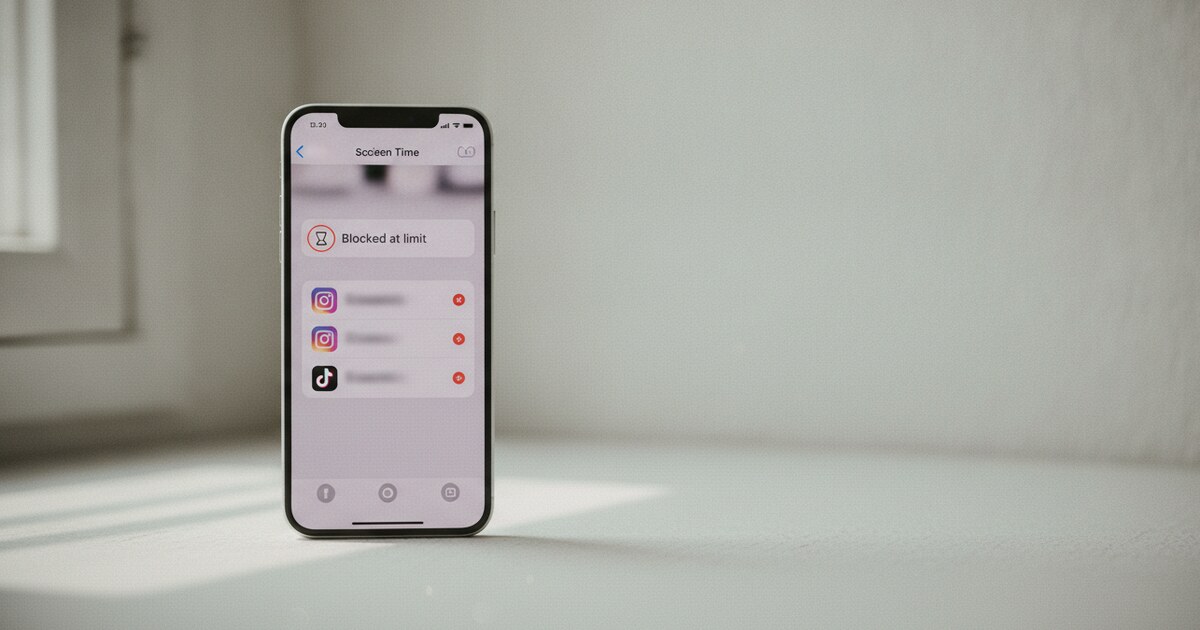
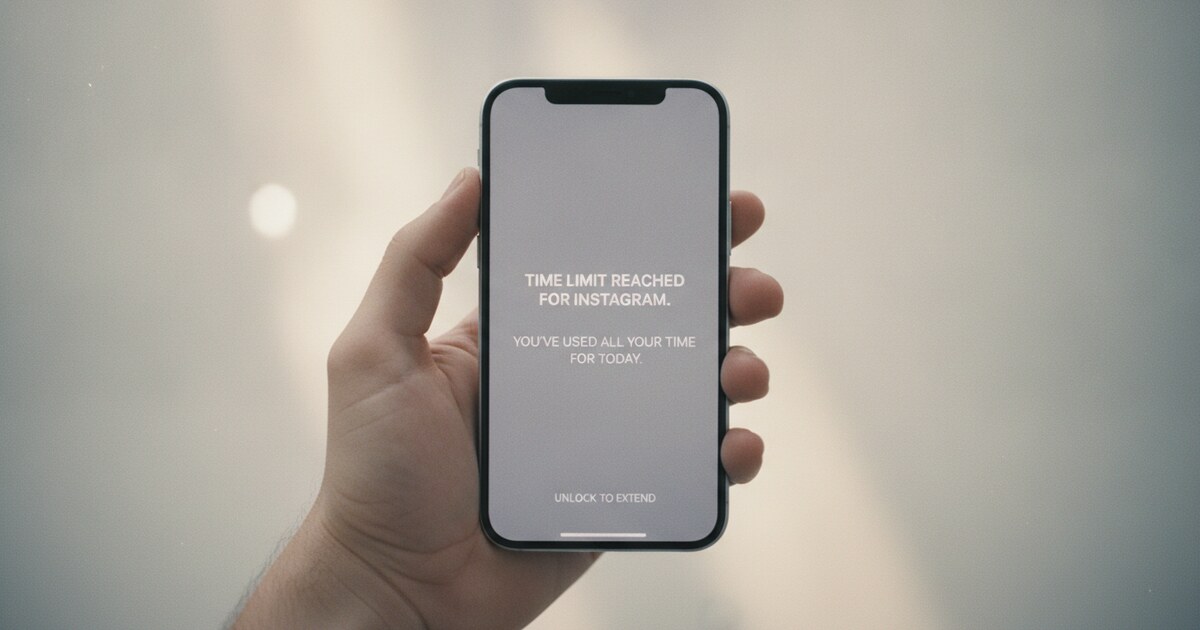
Screen Time’s App Limits assign a daily time budget per app or category. When the budget runs out, iPhone grays out the icon and shows a time-limit screen.
- Go to Settings → Screen Time. If Screen Time is off, tap Turn On Screen Time.
- Tap App Limits → Add Limit.
- Tap Social Networking, then tap the arrow next to it to expand the list. Check Instagram to target only that app instead of all social apps.
- Set a time. 15 minutes is a good starting point.
- Tap Add.
Without a Screen Time passcode, that lock screen has an “Ignore Limit” button. Tapping it bypasses the limit for the rest of the day. Set a passcode to remove the button: Settings → Screen Time → Use Screen Time Passcode.
Pick a code you won’t enter on autopilot. The goal is deliberate friction. With a passcode, overriding the limit means stopping, going into Settings, typing a code, and navigating menus. That small detour breaks the reflex.
App Limits reset at midnight each day.
Method 3: Block Instagram in Safari to Close the Web Loophole
App Limits don’t block the website. Delete Instagram, open Safari, type instagram.com, and the app limit never fires. Content Restrictions close that gap so both the app and the site are covered.
- Go to Settings → Screen Time → Content & Privacy Restrictions.
- Turn on Content & Privacy Restrictions.
- Tap Content Restrictions → Web Content → Limit Adult Websites.
- Under Never Allow, tap Add Website.
- Type
instagram.comand tap Done. - Repeat with
www.instagram.comto cover both URL formats.
Pair this with the App Limit from Method 2 and a Screen Time passcode. Together they block the app, block the website, and make both restrictions hard to undo without pausing to think.
For your child’s iPhone: the same steps apply. Set the Screen Time passcode to a code they don’t know. Under Communication Limits in the same Screen Time menu, you can control who they can contact during Downtime. Apple’s built-in Screen Time handles all parental controls on iPhone without any additional app.
Method 4: Third-Party Apps That Block Instagram on iPhone
Built-in Screen Time controls work well, but a determined habit finds workarounds. Third-party apps build a gate that can’t be dismissed with one tap.
Two approaches worth knowing:
Hard block (Freedom): Freedom lets you run blocking sessions where Instagram stays inaccessible until the session ends. Locked sessions hold even if you restart your phone. Paid plans run around $39.99 per year.
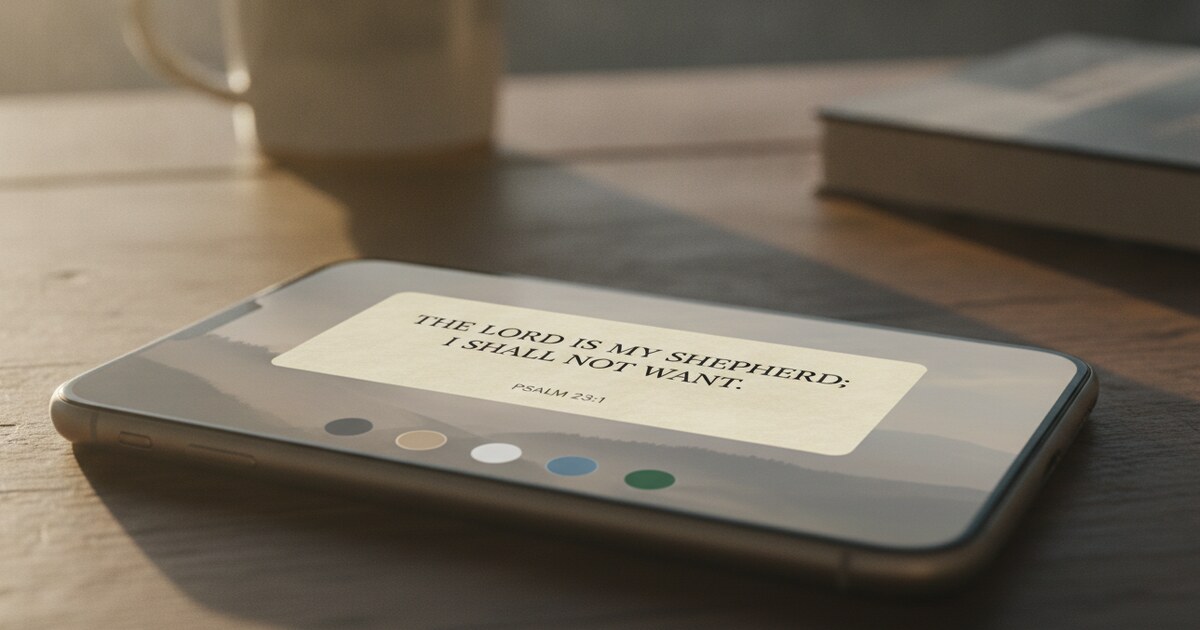
Scripture gate (Psalmo): Psalmo swaps the gray “App Limit” screen for today’s Bible verse. Opening Instagram loads Psalmo first. You read a passage (1 verse, 3 verses, 10 verses, or a full chapter; your choice), and then Instagram opens for an unlock window: 15 minutes, 30 minutes, 1 hour, 2 hours, or 4 hours. When the window closes, the gate resets.
Setup:
- Download Psalmo (free, iOS and Android).
- Open Psalmo → Blocking → tap the + button → select Instagram.
- Choose your reading amount and unlock window.
- Set the mode: always on, or a schedule with start time, end time, and the days of the week.
Psalmo’s free plan covers blocking for up to 3 apps with one custom schedule. That handles Instagram, TikTok, and one more app without a subscription. On iPhone, the app can also block websites and app categories through Apple’s Screen Time picker, which closes the Safari loophole from Method 3 at the same time.
For a comparison of all apps in this category, see apps that block Instagram and force Bible reading.
Which Method to Block Instagram Works Best
A plain comparison:
| Method | Bypassable? | Cost |
|---|---|---|
| Instagram Daily Limit | Yes, one tap | Free |
| Screen Time App Limit (no passcode) | Yes, one tap | Free |
| Screen Time + passcode + web block | Hard | Free |
| Freedom | No (during session) | ~$39.99/yr |
| Psalmo Scripture gate | Requires reading a passage | Free (up to 3 apps) |
For most people, Methods 2 and 3 combined with a Screen Time passcode is enough. Five minutes of setup and the reflex of tapping Instagram hits a wall instead of opening the feed.
If you’ve tried the built-in tools and the habit persists, a third-party gate shifts the mechanic. Instead of a passive time warning, you get a real decision point every time.
The how to block apps at certain times on iPhone guide covers Screen Time’s Downtime feature, which fully disables Instagram during scheduled hours rather than just counting minutes. Pairing Downtime with an App Limit for the remaining hours gives you two layers that cover different failure modes.
Psalmo is free to download on iOS and Android. For anyone who wants opening Instagram to mean something before it happens, a verse is a more honest exchange than a dismissed timer.
Frequently Asked Questions
How do I permanently block Instagram on iPhone?
Delete the Instagram app, add instagram.com to Screen Time’s Never Allow list under Content & Privacy Restrictions, and set a Screen Time passcode. Without the passcode, removing any of these steps takes a deliberate trip through Settings, which interrupts the automatic impulse. A third-party app like Freedom (hard block) or Psalmo (Scripture gate) makes the block harder to undo in a distracted moment.
How can I lock Instagram on my iPhone?
Go to Settings → Screen Time → App Limits, set a daily time budget, and turn on a Screen Time passcode. Psalmo adds a Scripture-reading gate so Instagram only opens after you’ve read a Bible passage. For the broader habit behind the impulse, the how to break phone addiction guide covers what works beyond just setting limits.
How do I block Instagram on my child’s iPhone?
Go to Settings → Screen Time → Content & Privacy Restrictions → Content Restrictions → Web Content → Limit Adult Websites → Never Allow, and add instagram.com. Add an App Limit for Instagram. Set a Screen Time passcode your child doesn’t know. No additional app is required; Apple’s Screen Time is the complete parental control system built into iPhone.
Can someone tell if I’ve blocked them on Instagram?
This is a different kind of block. Blocking a person on Instagram removes mutual follows, hides your profile from them, and prevents DMs. Instagram doesn’t notify them that they were blocked, but they’ll notice your profile doesn’t appear in their searches or past message threads.