Want a verse on every screen? Psalmo is free.
iOS 18 reworked how the iPhone home screen organizes icons and widgets. Free-form placement, new display modes, and a tinting system that can quietly drain an iOS 18 Bible widget of its color: a few extra steps now stand between you and a daily scripture verse on your screen. Getting set up still takes about 3 minutes once you know where to look.
To add a Bible verse widget on iOS 18, download Psalmo, long-press your home screen, tap + in the top-left, search “Psalmo” in the widget gallery, pick small, medium, or large, and drag it to your screen. For the lock screen, long-press the lock screen, tap Customize, tap the widget area below the clock, and add a Psalmo accessory widget.
The setup itself is straightforward. But iOS 18 introduced a display mode called Tinted that can wash out your widget’s colors without any warning, and the fix for a widget that stops refreshing is a bit different on iOS 18 than on older versions. This guide covers the home screen setup, lock screen setup, how to handle tinting, and what to do when the widget goes blank or stale.
What iOS 18 Changed for Bible Widgets
iOS 18 brought 3 changes that directly affect how Bible widgets behave on your iPhone. Icons and widgets can now sit anywhere on the home screen grid rather than stacking from the top-left, so you can anchor a Psalmo verse widget toward the center or bottom of your screen. iOS 18 also introduced 3 display modes: Default (full theme colors as the app designed them), Dark (dark backgrounds with adapted icons), and Tinted (a monochromatic color wash from your wallpaper that overrides every app’s color design, including Psalmo’s themes). Tinted mode is the one that surprises people: Psalmo’s Ocean blues or Sunrise golds become flat monochrome until you switch back to Default. WidgetKit itself didn’t change. Psalmo still uses Apple’s Timeline Provider to pre-load each day’s verse, so the core refresh mechanism works the same on iOS 18 as it did on iOS 16 and 17. Lock screen accessory widgets (rectangular, circular, and inline) are also unchanged in iOS 18.
One quirk worth flagging: if you used Psalmo inside a Smart Stack before upgrading to iOS 18, the new home screen intelligence may have deprioritized it in the rotation. The widget is still there. Pull it out of the stack and place it as a standalone widget for reliable daily display.
How to Add a Bible Verse Widget to Your iOS 18 Home Screen
The setup runs in 5 steps:
-
Download Psalmo from the App Store. Open it once and pick at least one verse category: Faith, Peace & Anxiety, Morning Verses, Strength & Courage, or any of the other 11+ categories. Select a theme from the gallery. The widget pulls both its scripture and its look directly from these choices.
-
Long-press any empty area on your home screen until icons enter jiggle mode. In iOS 18, you can also trigger this by pressing and holding an existing icon for a moment.
-
Tap the + button in the top-left corner. The widget gallery opens.
-
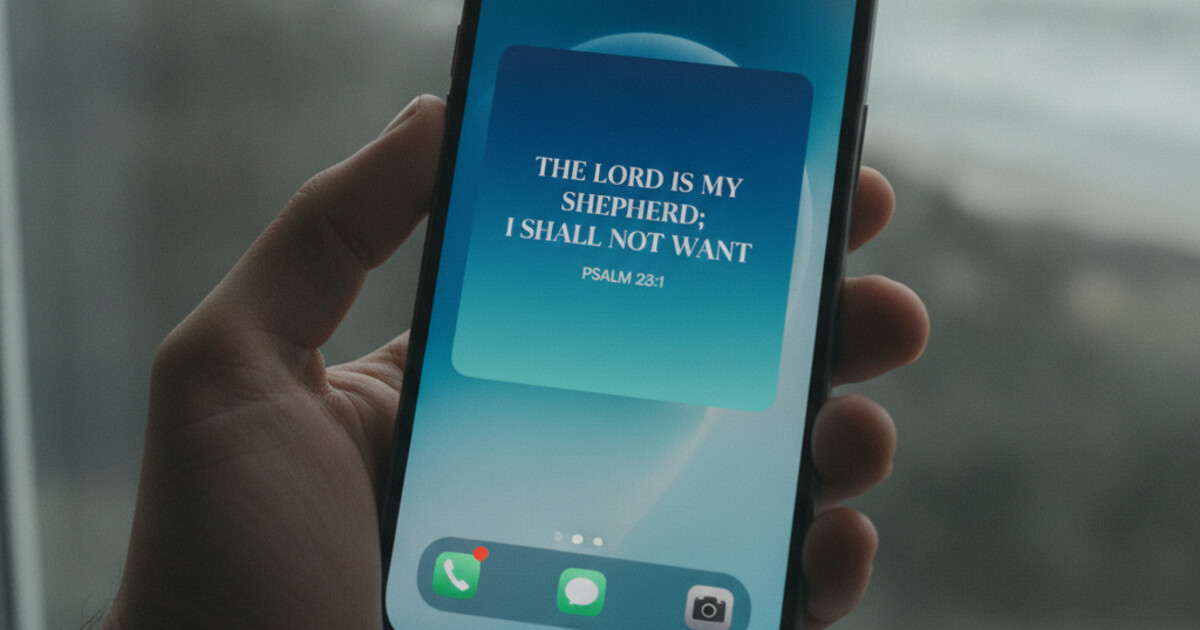
Search for “Psalmo.” Three sizes appear: small (a square tile with verse text only), medium (verse and scripture reference, rectangular), and large (verse, reference, and decorative theme art). Tap your preferred size, then tap “Add Widget.”
-
Drag it to your spot. iOS 18 lets you place the widget anywhere on the grid. Tap Done.
The medium widget is the most legible on most iPhones. Small clips longer verses mid-sentence. Large looks great on iPhone 15 Pro Max and Pro models but can feel heavy on standard-size screens (a matter of taste, not a bug).
After placing the widget, long-press it and tap “Edit Widget” to assign a specific verse category to that widget instance. Psalmo supports independent category settings per widget, so you can put Morning Verses on the home screen and Peace & Anxiety on the lock screen simultaneously.
For a deeper walkthrough covering Smart Stacks, alternative sizing, and how Psalmo compares to other Bible widget apps on iPhone, the complete Bible verse widget iPhone guide covers every setup variation back to iOS 16.
How to Set Up the Lock Screen Bible Widget on iOS 18
Lock screen setup runs separately from the home screen:
-
Wake your phone and long-press the lock screen to enter customization mode.
-
Tap Customize, then tap the widget zone below the time display (not the time clock itself, the area just beneath it).
-
Tap the + button inside the widget zone. The accessory widget picker opens.
-
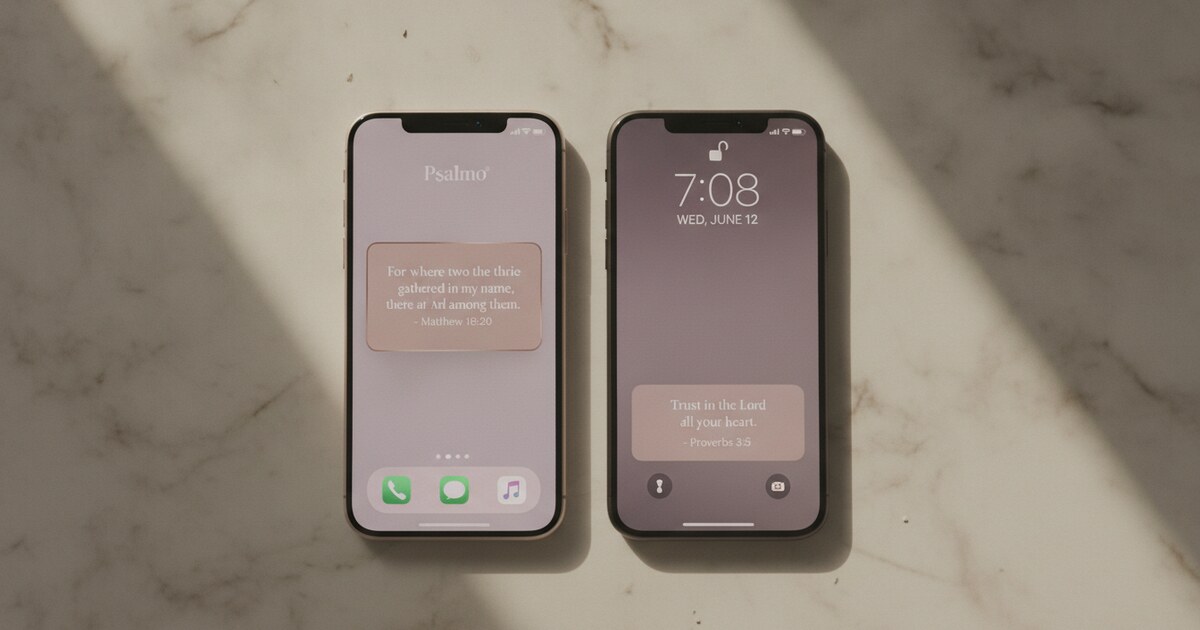
Find Psalmo. Three accessory shapes are available: rectangular (spans the full width below the clock, shows the most text), circular (a short phrase or verse reference in a round frame), and inline (a single line of text that sits just above the clock).
-
Tap your preferred shape, then tap Done.
The rectangular accessory widget is the right call for most users. It shows enough of a verse to read it properly, and it updates each day with fresh scripture. The inline shape is subtle, you only get a few words, but it’s visible every single time you check the time.
Lock screen widgets in iOS 18 behave identically to iOS 16 and 17. Apple didn’t change the accessory widget system in this release.
For the original detailed lock screen setup, including notes on which verse categories read best at accessory widget sizes, the Bible verse iPhone lock screen guide has everything covered.
iOS 18 Tinting and Your Bible Widget Themes
Tinted mode is the one iOS 18 change most people don’t realize is on until something looks off.
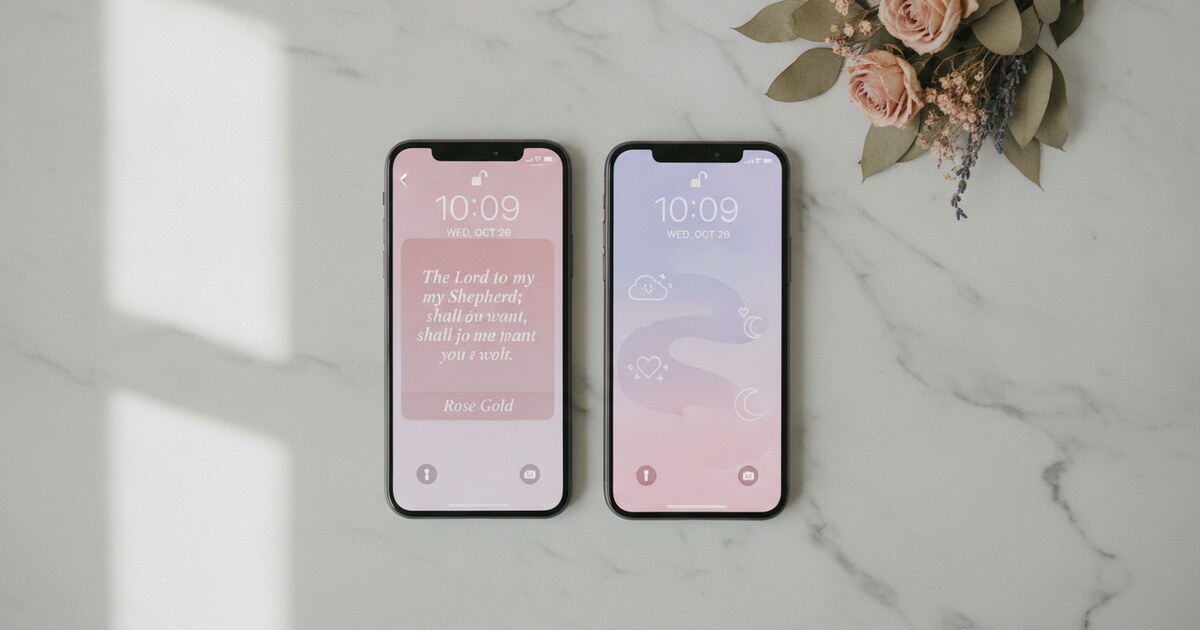
When Tinted is active (Settings > Wallpaper > Appearance), iOS pulls a color from your wallpaper and washes it over every icon and widget on the screen. Psalmo’s Ocean theme, which normally renders a blue gradient with white scripture text, can come out as flat gray-blue monochrome. Rose Gold and Stained Glass lose the most in this mode.
3 ways to handle it:
- Default mode — Full theme colors exactly as Psalmo designed them. Best for Ocean, Sunrise, Rose Gold, Marble, Forest, and Stained Glass.
- Dark mode — Psalmo’s Dark and Night Sky themes are carved out for this. Deep backgrounds, clean contrast, readable at a glance.
- Tinted mode with minimal themes — If you want the iOS 18 tinting aesthetic and still want readable scripture, choose Psalmo’s Classic or Minimal theme. Both hold enough contrast to survive a color wash.
To switch modes: long-press your home screen, tap the three dots icon in the lower center of the wallpaper preview, and choose Default, Dark, or Tinted.
The Bible widget themes guide breaks down all 16 Psalmo themes across 5 visual families, with size-by-size legibility notes for each one.
Troubleshooting: Bible Widget Not Working on iOS 18
Most iOS 18 widget problems trace back to 4 causes:
Widget shows ”—” or a loading spinner. The WidgetKit Timeline cache got corrupted during the iOS update. Fix: long-press the widget, tap Remove Widget, then re-add it from the gallery (+button). This forces a clean Timeline load from scratch.
Verse hasn’t updated since the iOS 18 upgrade. Open Psalmo and tap through the main verse view. That triggers a fresh Timeline sequence. If the problem continues, go to Settings > Psalmo > Background App Refresh and confirm it’s on.
Widget colors look washed out or wrong. Tinted mode is active. Go to Settings > Wallpaper > Appearance and switch to Default. Your theme colors return immediately.
Widget disappeared after the iOS 18 update. iOS 18 can drop widgets from the home screen when an app updates at the same time as the OS. Re-add from the widget gallery. Your previous category and theme selections are still saved inside Psalmo.
Frequently Asked Questions
Does Psalmo work on iOS 18?
Yes. Psalmo is fully compatible with iOS 18. The widget works across all 3 home-screen sizes and all 3 lock-screen accessory types on iOS 16 and later. If your widget stopped displaying after an iOS 18 update, remove it and re-add it from the widget gallery. That clears any cached timeline errors.
Why is my Bible widget showing the wrong color on iOS 18?
iOS 18 introduced a Tinted home screen mode that applies a monochromatic color wash over all app icons and widgets. If your Bible widget looks washed out or discolored, go to Settings, tap Wallpaper, and switch from Tinted to Default. That restores Psalmo’s original theme colors.
How do I add a Bible verse to my iOS 18 lock screen?
Long-press your lock screen until it enters edit mode, tap Customize, then tap the widget area below the time. Select Psalmo from the widget list and choose one of the 3 accessory types: rectangular (longest verse), circular (short phrase), or inline (a single line above the time). Tap Done to save.
How often does the Bible widget update on iOS 18?
The default setting refreshes once daily at midnight. You can switch to hourly rotation in Psalmo’s settings. iOS 18 uses WidgetKit’s Timeline Provider, so the system batches widget refreshes for battery efficiency. If your verse hasn’t changed by morning, open the app once to force a timeline reload.
Can I use the iOS 18 tinting feature with Psalmo?
Partly. iOS 18 Tinted mode applies a system-level color wash that overrides Psalmo’s theme colors. For consistent tinting, switch to Dark mode instead. Psalmo’s Dark and Night Sky themes are designed for it. For full theme control (Ocean, Rose Gold, Stained Glass, etc.), keep your home screen on Default or Dark without tinting.
If you want a Bible verse on your iOS 18 home screen or lock screen today, download Psalmo free and have it running in under 3 minutes.