Want a verse on every screen? Psalmo is free.
iOS 26 Bible Widget: Setup Guide for Home & Lock Screen
Setting up an iOS 26 bible widget looks straightforward until you unlock your phone and find your Scripture verse washed out, barely visible against your wallpaper. That’s Liquid Glass at work. Apple shipped it with iOS 26 in September 2025, and it changed how every widget renders on screen, including Bible ones.
The long-press, plus-icon steps for placing a widget are the same as iOS 16. What’s new is the glass presentation layer that replaces your widget’s background with a translucent overlay. If you didn’t know that existed, your verse could be sitting in near-invisible white text right now.
This guide covers what iOS 26 actually changed, how to fix display issues, and how to set up a Bible widget on both your home screen and lock screen.
To set up an iOS 26 bible widget, install a Bible app like Psalmo, long-press your home screen or lock screen, tap the plus icon, and select a widget size. If the verse looks washed out, go to Settings > Wallpaper > Customize and switch the presentation from glass to standard. This restores your widget’s original background color and font contrast.
What iOS 26’s Liquid Glass Does to Bible Widgets
Liquid Glass is the most visible design change in iOS 26. Apple announced it at WWDC on June 9, 2025 and shipped it in the September 15, 2025 release. It applies to widgets, app icons, and most UI surfaces.
For Bible widgets specifically, the change comes down to one new setting: the home screen’s glass presentation mode. When glass mode is active, iOS 26 replaces each widget’s custom background with a translucent, morphing surface that picks up color from whatever wallpaper is behind it. The system simultaneously tints the widget’s text and icons to white.
iOS 26, released September 15, 2025, introduced three changes that directly affect Bible widget apps on iPhone. First, Liquid Glass applies a translucent glass background to home screen widgets in glass presentation mode, replacing whatever color the app sets with a wallpaper-reactive overlay. Second, WidgetKit’s accented rendering mode tints text content to white and removes custom background colors automatically when glass is active.
Third, interactive widgets can now respond to taps without opening the app, a capability that requires individual apps to build in. Lock screen widgets use the same three accessory shapes introduced in iOS 16: rectangular, circular, and inline. No new lock screen widget slots were added in iOS 26.
The practical result for Bible widgets is that light-themed apps on light wallpapers often become unreadable, while dark-themed widgets on dark wallpapers tend to stay legible because the system’s white tinting already matches the original design.
Fixing it is simple. Go to Settings > Wallpaper, tap “Customize” under your home screen preview, and look for the presentation toggle. Switch from glass to standard. Your widget reverts to its original themed appearance: Psalmo’s Night Sky theme stays deep blue with white text, Classic stays cream with dark text, and so on. You can also choose a high-contrast theme inside the Bible widget app itself so that even in glass mode the verse stays readable.
How to Add a Bible Widget to Your Home Screen in iOS 26
The home screen setup works the same way in iOS 26 as in iOS 16 through 18:
- Install Psalmo (or another Bible widget app) from the App Store or Google Play.
- Long-press any empty area on your iPhone home screen until apps jiggle and a plus icon appears in the top-left corner.
- Tap the plus icon. In the widget picker, search for your app by name.
- Choose a size: small (one app-slot), medium (two columns wide), or large (four columns wide). A small widget shows a short verse or reference. A medium shows a full short verse with the reference. A large shows a longer verse.
- Tap “Add Widget,” then drag it to where you want it.
- After placing it, check how it looks. White text on a pale glassy background means glass mode is active. Switch to standard presentation (Settings > Wallpaper > Customize) or pick a darker theme in the app.
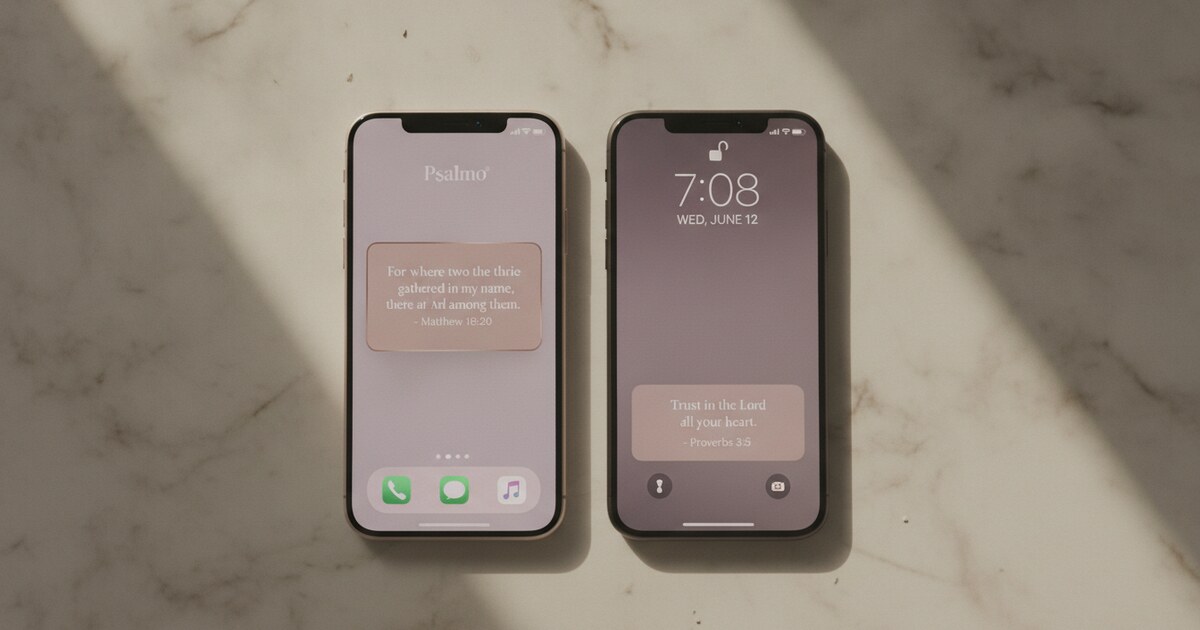
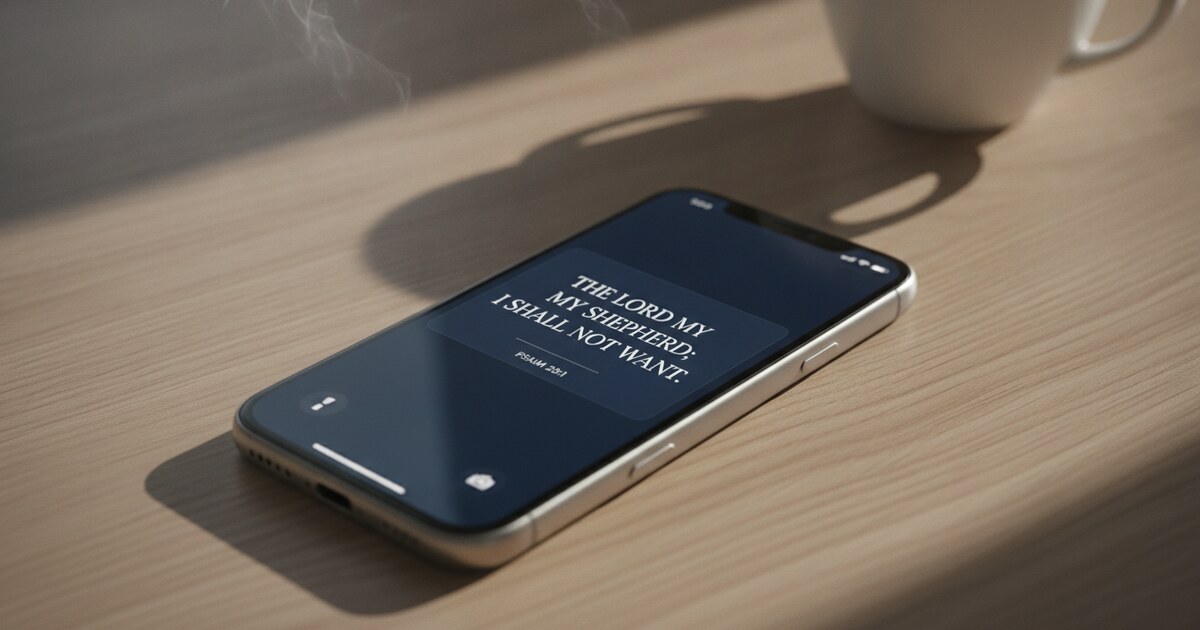
For Psalmo, Night Sky and Dark themes hold their contrast well even in glass mode because the content is already designed for dark surfaces. The Marble and Classic themes show better in standard presentation, where their lighter backgrounds stay intact.
The home screen and lock screen widget setup guide covers widget sizing in more detail, including which verse lengths fit each size.
How to Set Up an iOS 26 Lock Screen Bible Widget
Lock screen widgets behave differently from home screen ones. They’ve used a semi-transparent rendering since iOS 16, so Liquid Glass makes a smaller visual difference here than it does on the home screen.
Lock screen widget setup in iOS 26:
- Long-press your lock screen until the wallpaper gallery appears.
- Tap “Customize” on the lock screen preview (the one that says Lock Screen, not Home Screen).
- Tap the widget area just below the clock. A tray opens showing available widget shapes.
- Choose your Bible widget app, then pick a shape: rectangular (a short verse), circular (a verse reference), or inline (a brief text strip above the clock).
- Tap outside the editing area to confirm.
Lock screen widgets update on the same WidgetKit schedule as home screen ones: daily at midnight by default in Psalmo, or hourly if you set that in the app’s settings. The system batches refreshes to protect battery life, so an “hourly” refresh may arrive a few minutes late.
One important platform note: Android does not support lock screen widgets. Apple’s iOS 16 reintroduced them; Android removed lock screen app widgets in Android 5.0 (2014) and never brought them back. On Android, you can still add a Bible widget to your home screen using the same long-press-plus flow above.
The Christian widgets iPhone guide shows every lock screen accessory shape side by side with screenshots if you’re deciding which fits your setup.
The Best iOS 26 Bible Widget Apps
A few apps compete for this space in 2026. Here’s how the main ones differ:
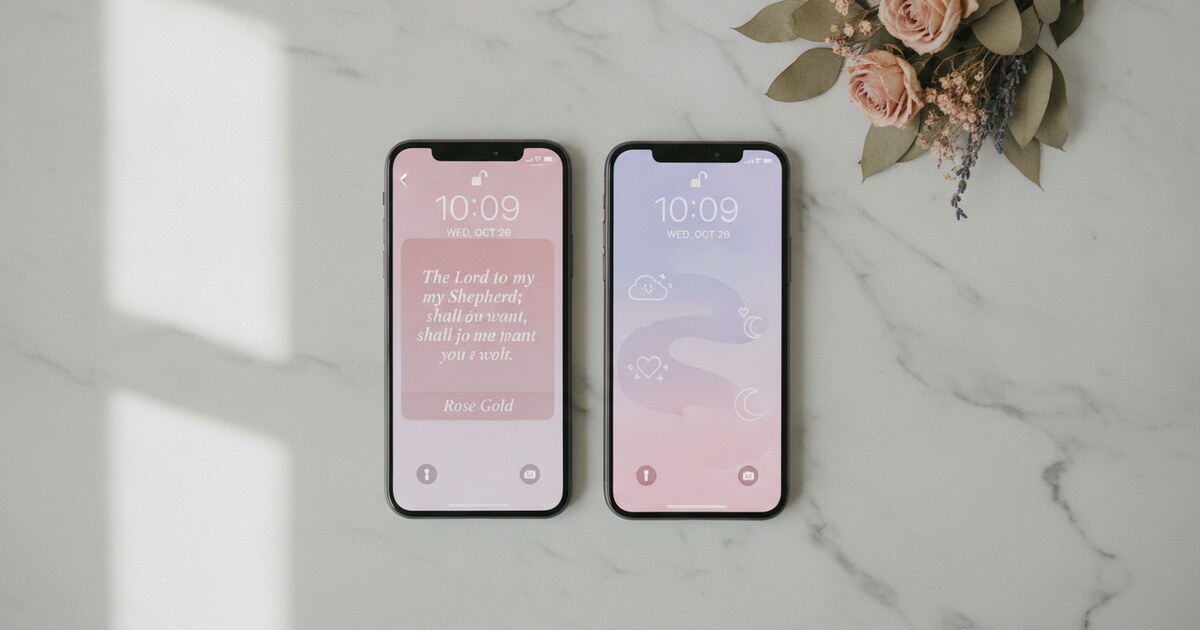
Psalmo: home screen widgets in small, medium, and large; lock screen widgets in rectangular, circular, and inline (iOS 16+). 15+ themes, including Night Sky, Dark, Minimal, Marble, Rose Gold, Watercolor, and Stained Glass. Daily auto-refresh via WidgetKit Timeline, with hourly option. 15+ verse categories (Faith, Peace, Strength, Healing, Morning, Evening, and more). Unique: locks Instagram, TikTok, X, YouTube, or Snapchat until you’ve read today’s verse. Free tier includes Classic, Dark, and Minimal themes; premium unlocks all 15+ themes and custom photo backgrounds. iOS and Android.
YouVersion: free, 500+ million installs, extremely reliable. One widget per screen type. No theme customization, no app-blocking. Solid choice if you already use YouVersion for reading plans.
Heavenly: design-focused, watercolor and nature-photo widget backgrounds. iOS only, around $6.99/month. No app-blocking, no Android.
FaithLock: stronger on the app-blocking side, weaker on widget design. Quiz-unlock mechanic (30-45 seconds of active recall). iOS only, subscription required.
For the full comparison of how these apps handle iOS 26 alongside their widget and blocking features, the Bible verse lock screen guide breaks down each app’s lock screen behavior.
Frequently Asked Questions
Does Psalmo support iOS 26? Yes. Psalmo uses WidgetKit Timeline for daily verse delivery, which Apple updated for iOS 26. The app runs on iOS 16 and later on iPhone and on Android via WorkManager. If Psalmo’s widget looks faded or shows white text on a light background after updating to iOS 26, you’re in glass presentation mode. Go to Settings > Wallpaper > Customize and switch to standard, or open Psalmo and pick Night Sky or Dark as your theme.
Why does my Bible widget look different on iOS 26? iOS 26 introduced Liquid Glass, a design system that applies a translucent glass background to home screen widgets and tints their text to white when glass presentation mode is active. If your verse widget looked fine on iOS 18 and now looks washed out, the display mode changed on update. Fix it by going to Settings > Wallpaper > Customize and switching from glass to standard presentation.
Does iOS 26 add new lock screen widget slots? No. iOS 26 keeps the same lock screen layout from iOS 16: a row below the clock for rectangular or inline widgets and circular slots on some styles. The main iOS 26 change is interactive widgets on the home screen (tap-to-action without opening the app), but this doesn’t extend to lock screen widget slots.
How often does a Bible widget refresh its verse in iOS 26? WidgetKit controls widget refresh timing on iOS 26. Psalmo refreshes daily at midnight by default, or hourly if you turn on hourly refresh in the app’s settings. The system batches widget refreshes to protect battery, so an hourly cycle may run a few minutes behind. Verses update the next time WidgetKit runs the timeline, not necessarily the instant the clock turns.
Does Liquid Glass affect Bible widgets on every iPhone? Liquid Glass applies to all iPhones running iOS 26 when the home screen’s glass presentation mode is active. The setting is device-wide, not app-specific. Older iPhones that can run iOS 26 see the same glass rendering as newer ones. If you’d rather keep your widget’s original appearance, standard presentation mode restores it and you won’t lose any other iOS 26 features.
Psalmo is free to download on iOS and Android. Set up the widget, pick a theme that reads clearly against your iOS 26 wallpaper, and add the daily verse notification for a morning or evening reminder at whatever time suits your routine.