Want a verse on every screen? Psalmo is free.
iPhone StandBy Bible Verse: Complete Setup Guide
iOS 17’s StandBy mode turns a charging iPhone into a full-screen ambient display visible from across the room. Most people put a clock or weather widget there. A better use: a rotating scripture display on your nightstand. Set it up once and the last thing you see before sleeping is a verse, the first thing when you reach for your phone in the morning is the same. The setup takes about 3 minutes and works on any iPhone running iOS 17 or later.
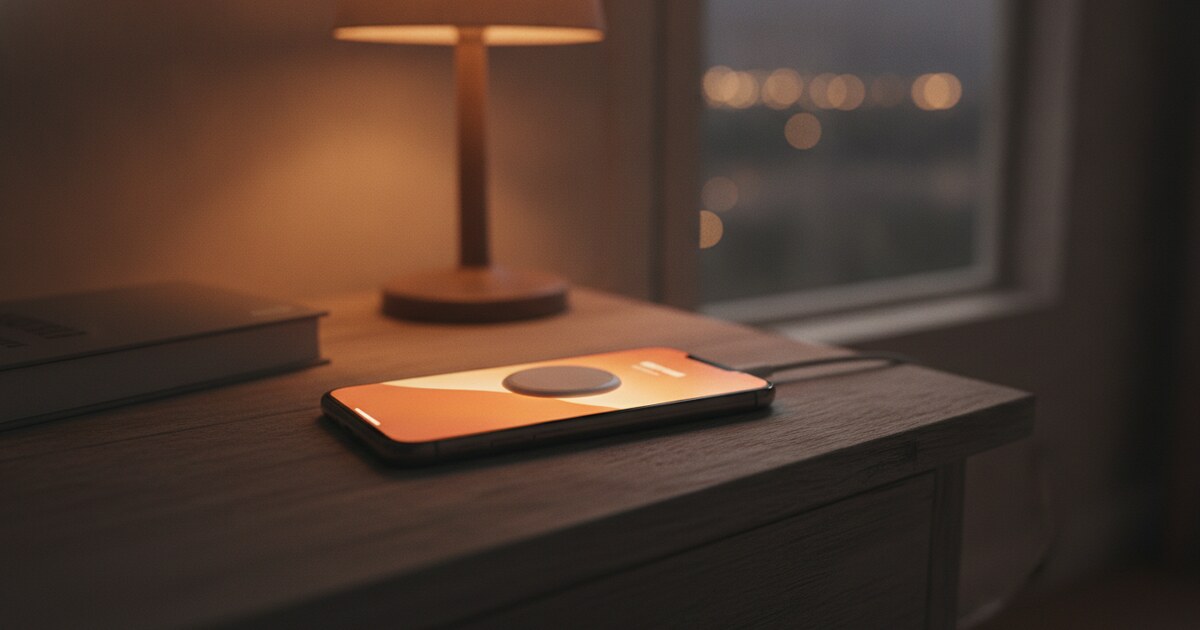
To show a Bible verse in iPhone StandBy, go to Settings > StandBy and confirm it’s on. Connect your iPhone to any charger and place it face-up in landscape. Swipe to the Widgets view, long-press a column, tap the + icon, and add a scripture widget from Psalmo. Requires iOS 17 or later.
This guide covers what StandBy requires, the exact setup steps, which widget sizes and themes work best at nightstand distance, and the most common reasons the display stops working.
What iPhone StandBy Mode Is (and What It Needs)
Apple introduced StandBy in iOS 17.0, released September 18, 2023. It activates when your iPhone is charging and held in landscape orientation, face-up. It works on any iPhone XR or later running iOS 17 or newer, and Pro models aren’t required. StandBy has three views you swipe between: Widgets (two side-by-side columns of WidgetKit widgets), Photos (a full-screen photo display), and Clock (a large-format time display). The Widgets view is where Bible verse apps live. Each column holds a Smart Stack, so you can layer multiple widgets and the phone rotates them by time of day. On iPhone 14 Pro, 14 Pro Max, 15 Pro, 15 Pro Max, 16 Pro, and 16 Pro Max, Always On Display keeps StandBy lit continuously at ambient brightness. On all other iPhone models, the screen wakes when you tap it or move nearby. Below roughly 50 lux, StandBy shifts to a warm red night mode: easy on the eyes and readable at distance.
Two things stop StandBy from activating: Low Power Mode (which disables the ambient display entirely to conserve battery) and Landscape Lock in Control Center (StandBy needs the phone to detect a true landscape rotation). If the display isn’t coming on, check both before anything else.
How to Add a Bible Verse Widget to StandBy
StandBy has its own separate widget layer. Widgets already on your home screen don’t appear there automatically. You build the StandBy layout independently, same as you’d edit any other widget area.
Here are the full steps:
-
Verify your iOS version. Settings > General > About > Software Version. You need iOS 17.0 or later. If you’re on iOS 16, the StandBy setting doesn’t appear in Settings and the mode won’t activate.
-
Enable StandBy. Settings > StandBy > toggle on. It’s on by default in iOS 17, but worth confirming if the display never appears.
-
Plug in and rotate. Connect to any charger (cable, MagSafe, or Qi stand all work). Place your iPhone face-up in landscape orientation. StandBy activates within a few seconds.
-
Navigate to the Widgets view. If Photos or Clock is showing, swipe left or right until you reach the two-column widget display.
-
Long-press the left column to enter edit mode. A widget selector panel slides up from the bottom.
-
Tap the + icon in the upper-left corner of the widget column.
-
Search for your scripture app. Type “Psalmo” or the app name. The widget appears in the results.
-
Choose a size and tap Add Widget. Medium works for most verse lengths. More on sizing in the next section.
-
Repeat for the right column if you want a second widget alongside the verse: a clock, the date, or a second scripture category.
-
Tap outside the edit area to save and exit. Your verse is now live in StandBy.
The widget refreshes automatically. Psalmo updates at midnight by default, so a fresh verse appears overnight without any action on your part. If you’ve switched to hourly refresh in the app’s settings, the widget cycles through new scripture every hour, useful for a late-night wakeup when you’d rather see something other than the morning verse.
Choosing the Right Widget Settings for StandBy
StandBy renders widgets at a larger effective size than the home screen because you’re viewing from 1-2 feet away rather than holding the phone close. Text that reads comfortably at arm’s length can look pinched at nightstand distance if the widget size is too small.
For a Bible verse widget in StandBy:
- Medium size: handles most short and mid-length KJV verses cleanly. Around 20 words per refresh cycle, which covers the majority of verses without truncation.
- Large size: fits extended passages like Psalm 23 or Isaiah 40:31 in full. Worth choosing if you lean toward longer scripture or need the complete verse without cutting mid-thought.
- Small size: truncates anything beyond 6-8 words. Fine for single keyword verses, not for full text.
Theme choice matters more in StandBy than it does on the home screen. In a dark bedroom, a bright or white background turns the phone into a lamp and wrecks the night mode benefit. Night Sky and Dark themes keep the background near-black so the verse text glows cleanly without washing out the room. For a daytime desk or kitchen counter setup, Classic, Marble, or Watercolor all render well at office-light distances.
Verse category selection is the third setting worth adjusting. Peace & Anxiety and Evening Verses fit a bedside nightstand. Morning Verses works if the charger sits on your alarm-adjacent shelf. Family suits a shared living space where anyone in the room might read it. The category you’ve toggled on in the app feeds directly into what appears on the widget.
How Psalmo Works in iPhone StandBy
Psalmo builds its home-screen widgets on Apple’s WidgetKit framework. iOS 17’s StandBy mode pulls from the same WidgetKit layer, so Psalmo’s widgets appear in StandBy automatically with no extra configuration inside the app. Add the widget the same way you’d add any other: long-press the StandBy column, tap +, search Psalmo, select, add.
The verse rotation follows whatever you’ve set in the app. If you’ve toggled on Peace & Anxiety and Evening Verses categories with the KJV translation and hourly refresh, those settings carry through to the StandBy display. Change a category in the app and the widget picks it up at the next refresh cycle.
One thing worth clarifying: Psalmo’s app-blocking feature (which gates Instagram, TikTok, X, YouTube, or Snapchat until you’ve read today’s verse) is separate from the StandBy display. Seeing the verse on your nightstand doesn’t unlock gated apps for the day. You still open Psalmo and engage with the verse in-app to clear the gate. The two features work independently: StandBy is a passive ambient display, while the gate is an active engagement check.
For the full-phone scripture setup that layers home screen widgets, lock screen, app gating, and StandBy together, the Christian phone setup guide walks through all four layers in sequence. For how iOS 26’s Liquid Glass rendering changes the look of scripture widgets in StandBy and elsewhere, see iOS 26 Bible widget setup. The step-by-step guide for adding a Bible verse widget to your iPhone home screen covers the home-screen companion to your nightstand display.
Frequently Asked Questions
Does Psalmo work with iPhone StandBy mode?
Yes. Psalmo’s home-screen widgets are built on Apple’s WidgetKit framework, and iOS 17’s StandBy mode uses the same WidgetKit layer. To add it: plug in your iPhone, place it face-up in landscape so StandBy activates, long-press a widget column, tap the + icon, search Psalmo, and add. The verse updates on whatever schedule you’ve set in the app (midnight default or hourly).
What iOS version is required for iPhone StandBy?
StandBy requires iOS 17.0 or later, released September 18, 2023. It runs on iPhone XR and any model released since. To check: Settings > General > About > Software Version. On iOS 16, the StandBy toggle doesn’t appear in Settings and the mode doesn’t activate, regardless of charger or orientation.
Why isn’t my Bible verse widget showing in StandBy?
Three common causes: (1) Low Power Mode is on, which disables StandBy entirely. Turn it off at Settings > Battery. (2) Landscape Lock is active in Control Center, so swipe from the top-right corner and check the rotation lock icon. (3) The widget hasn’t been added to StandBy specifically, since home-screen widgets don’t carry over automatically. Long-press the StandBy widget column, tap +, and add your scripture app widget there.
Does StandBy need Always On Display to work?
No. StandBy works on all iPhones running iOS 17+. Always On Display (available on iPhone 14 Pro, 14 Pro Max, 15 Pro, 15 Pro Max, 16 Pro, 16 Pro Max) keeps StandBy visible continuously, dimmed when you’re not looking at it. On all other models the screen wakes with a tap or nearby motion. Both work equally well as a nightstand scripture display. The only difference is whether it stays lit or goes dark between glances.
Can StandBy show a Bible verse without a charger?
No. StandBy activates only when your iPhone is connected to a charger and positioned face-up in landscape. It won’t run on battery alone, since continuous ambient display draws too much power for that to be practical. Any charger works: USB-C cable, MagSafe, or Qi wireless pad. The display activates automatically within a few seconds of rotating to landscape while plugged in.
A Bible verse on your nightstand takes about 3 minutes to set up. Download Psalmo free on iOS or Android and your first StandBy scripture display is ready before you go to sleep tonight.