
Want a verse on every screen? Psalmo is free.
Opal vs ScreenZen: Which App Blocker Actually Works? (2026)
Opal and ScreenZen are the two most-compared phone blockers right now. One costs nothing. One charges up to $99.99 per year. The opal vs screenzen comparison looks simple at first, but the two apps are solving different problems. One tries to interrupt a habit; the other enforces a rule.
Here’s the full breakdown, with pricing and features verified from both apps’ live listings.
ScreenZen is free and adds a 5-to-30-second delay before any blocked app opens. Opal’s free tier limits you to one rule; Pro ($99.99/year) adds Hard Mode, which prevents cancellation during a session. For daily friction at no cost, ScreenZen wins. For work or study blocks that can’t be bypassed, Opal Pro wins.
How Opal and ScreenZen Work
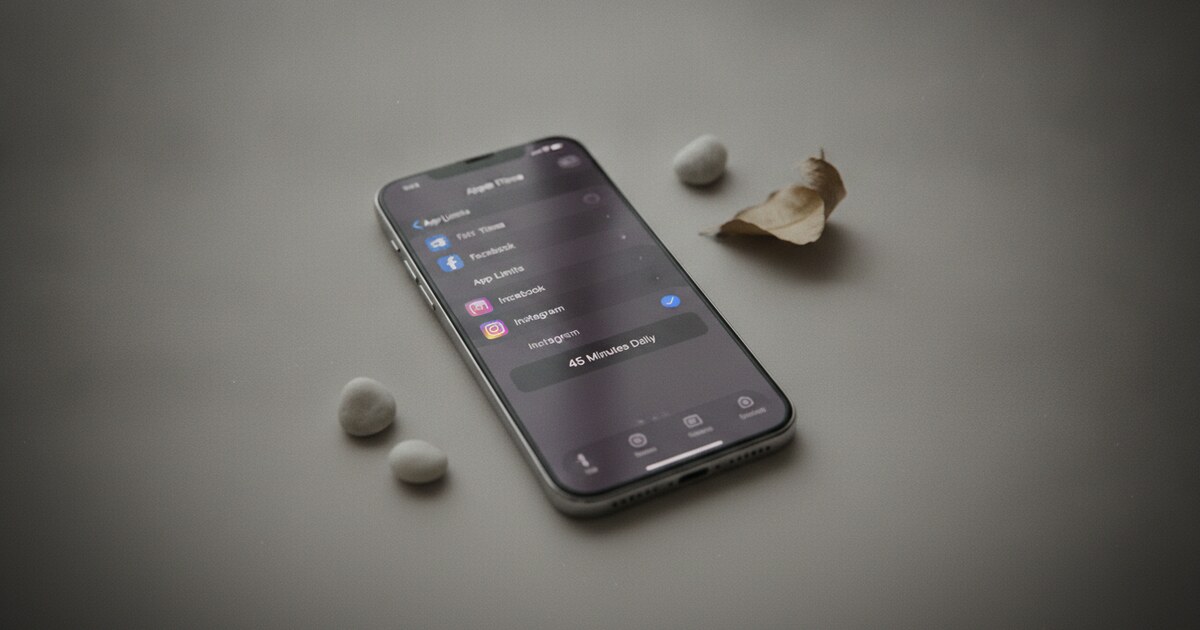
ScreenZen and Opal approach phone control differently. ScreenZen is free, donation-supported, and works by inserting a timed delay before a blocked app opens: 5, 15, or 30-plus seconds while a customizable message appears. Every feature is available to every user at no cost. Opal’s free tier gives you one scheduling rule. Opal Pro ($99.99/year, $8.29/month, or $399 lifetime) adds Deep Focus mode, which prevents cancellation for the session’s duration. Both apps run on iOS and Android; Opal also supports macOS. Opal requires iOS 18.0 or later. ScreenZen holds a 4.8-star average from 30,000-plus app ratings; Opal carries a 4.7-star average from 90,031 ratings on the App Store (Editors’ Choice). The core distinction is enforcement: ScreenZen creates friction that stops automatic tapping but won’t stop a determined user. Opal Pro’s Hard Mode creates an actual barrier for the session length you choose. Both run through Apple’s Screen Time API on iPhone.
ScreenZen’s delay mechanic is what sets it apart. Instead of locking you out, it shows a message and makes you wait. You can customize that message: a question, a goal, or anything else that makes you pause. The interruption works best for reflexive, automatic app-opening, the kind where you tap Instagram before you’ve even decided to. Five to fifteen seconds is usually enough to make you put the phone down.
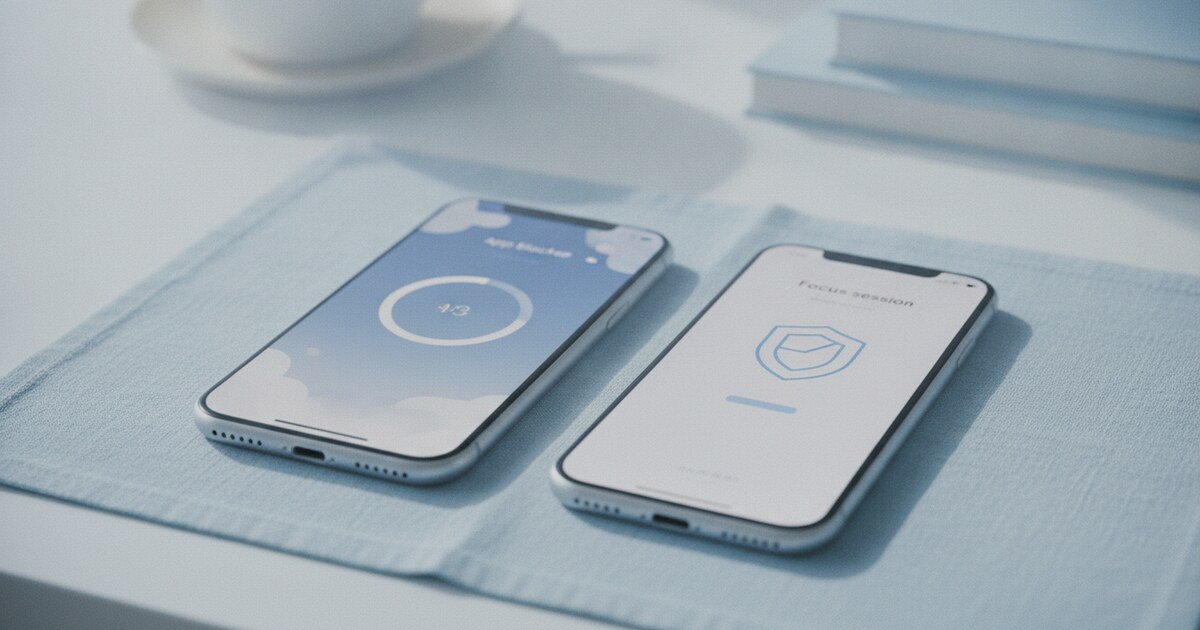
Opal’s Deep Focus is built for a different scenario. You start a session, set the duration, and Hard Mode prevents any early exit. For a focused work block or a clean sleep window, this is the option that holds. The trade-off is cost, plus the iOS 18.0 requirement that cuts out phones older than the 2018 iPhone XR.
Pricing: ScreenZen Free vs Opal Paid
ScreenZen costs nothing. Every feature is included without a subscription: delay settings, daily limits, customizable messages, and usage stats. The app accepts optional donations but requires nothing.
Opal has four tiers:
- Free: 1 rule (one app limit or focus schedule)
- Monthly: $19.99/month
- Annual: $99.99/year ($8.29/month)
- Lifetime: $399 one time
- Student: up to 50% off Pro
The free tier is genuinely limited. One rule means you can set an evening block or a morning focus window, but not both at the same time. People who need to block social media during work and again after 10pm hit the ceiling quickly.
If you’ve been comparing Opal alongside a physical device like Brick, there’s a separate dimension to consider. We covered the software vs hardware question in our Brick vs Opal comparison. The soft-block vs hard-block question is the same thread, just at different price points.
Blocking Strength: Delay vs Hard Lock
This is where the two apps diverge most, and it matters more than price for most people.
ScreenZen’s delay interrupts reflexive behavior. You tap an app, see a timer and a message, and wait. For people who drift into apps without thinking, the pause is usually enough. ScreenZen also lets you set daily caps: a maximum number of opens per app, after which it locks for the rest of the day. That combination of delay plus daily limit covers most habit-loop situations.
Opal Pro’s Hard Mode removes the choice entirely during a session. There’s no “end session early” button. The block holds until the clock runs out. For anyone who’s set their own limits in a softer app and clicked past them within an hour, the forced commitment is the whole point.
Both apps are software, not hardware. A sufficiently determined user can get around either one. Opal Pro raises the friction high enough that most people don’t follow through mid-session, especially once they’ve committed to a paid annual plan.
Platform Support
Both apps support iPhone and Android. Opal also covers Mac, which matters for anyone who switches from phone to laptop when the phone is blocked. ScreenZen offers browser extensions for desktop use as well.
For iPhone users specifically: Opal requires iOS 18.0 or later, which cuts off any phone older than 2018. ScreenZen’s minimum iOS requirement is lower, so it runs on older devices without issue.
Who Should Use ScreenZen
ScreenZen is the right choice if:
- Cost is a hard limit and a subscription isn’t on the table
- The problem is reflexive, mindless tapping rather than compulsive multi-hour sessions
- You want full per-app usage stats at no cost
- Android is your primary device
Setup takes a few minutes: select the apps you want to slow down, choose a delay length per app, write a message that will appear during the pause, and optionally add daily open caps. The daily cap feature means that even if someone pushes through the delay every time, there’s still a hard ceiling for the day.
Who Should Use Opal
Opal Pro is worth the cost if:
- You’ve already tried free friction tools and overridden them within days
- You need a work or study session that holds with no back door
- You use a Mac and want the same rules synced across devices
- The $99.99/year investment creates its own accountability
Opal also includes a scoring system that tracks daily focus over time, which some people find useful as a motivational layer on top of the blocking. The free tier is enough to test whether Opal fits before committing. One rule won’t cover most people’s full list of distractions long-term, but it’s a fair way to try before paying.
Our full Opal app review covers where Opal’s paid features actually earn their cost, and our Opal alternatives roundup covers what to try if Opal Pro doesn’t fit the budget.
A Third Option for Faith-Based Users
Opal uses enforcement. ScreenZen uses friction. Both use time as the mechanism: you wait, or you’re locked out.
Psalmo uses Scripture. Opening a blocked app shows you a Bible verse first. You read a passage (one verse, three verses, ten verses, or a full chapter, depending on your setting), and then the apps unlock for a window you set: 15 minutes, 30 minutes, up to 4 hours. After the window closes, they lock again.
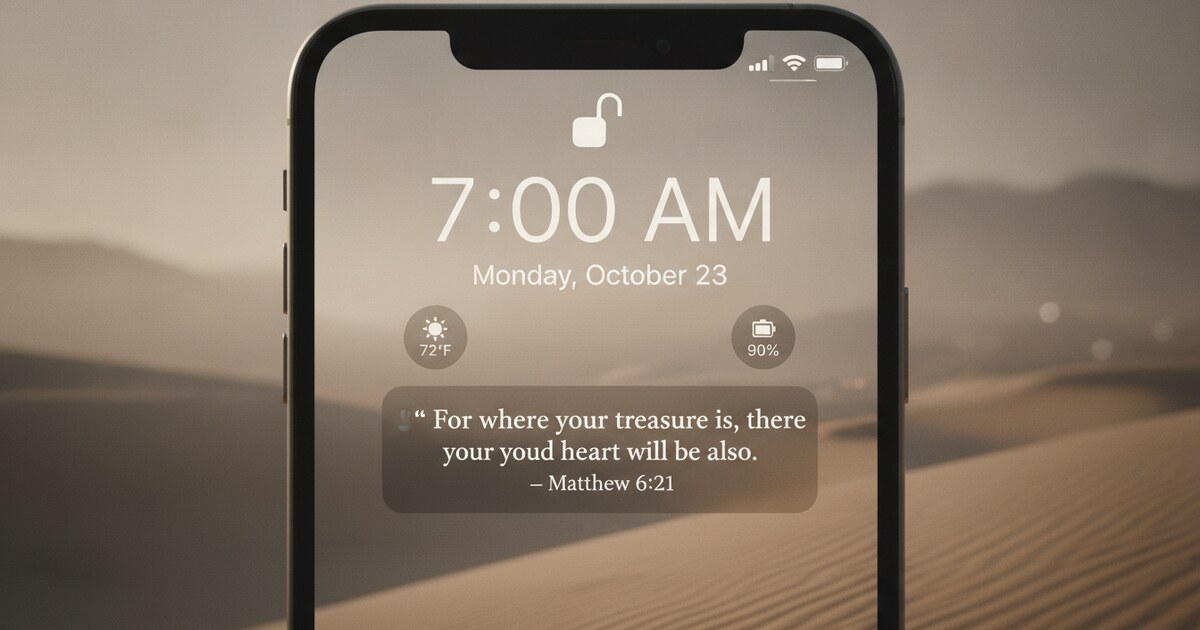
On the free plan, Psalmo blocks up to 3 apps with one custom schedule, and includes home-screen widgets on iPhone and Android plus lock-screen widgets on iPhone, all showing today’s verse, and the full Bible reader in 19 translations. Premium adds unlimited blocking, website and category blocking on iPhone, and AI Bible chat.
If you want your phone pause to mean something beyond a countdown timer, Psalmo handles the same job from a different foundation. The full category breakdown is in our best Christian app blocker guide, where Psalmo sits alongside Opal, ScreenZen, and the rest of the category.
Frequently Asked Questions
Is ScreenZen completely free?
Yes. ScreenZen is donation-supported and charges nothing for any feature. Daily limits, customizable delay messages, usage stats, and per-app settings are all available at no cost. The app accepts optional donations but doesn’t require them to unlock anything.
Can Opal Hard Mode be bypassed?
Hard Mode prevents early session cancellation inside the Opal app, but it can still be turned off through your iPhone’s Screen Time settings if you know the passcode. It’s not a parental-control lock. Most users find the extra steps enough friction to stay with the session, particularly after paying for an annual plan.
Does ScreenZen work on Android?
Yes. ScreenZen is available on both iOS and Android. On Android, the blocking mechanism runs through the Accessibility permission rather than Apple’s Screen Time API.
Which is better for stopping doomscrolling?
ScreenZen’s delay approach works better for automatic, reflexive app-opening. Opal Pro’s Deep Focus works better for longer blocks where you need the apps to stay off for hours. For most users, ScreenZen handles daily drift; Opal Pro handles structured focus sessions that need to hold.
Does either app use Scripture or prayer as the unlock?
Neither Opal nor ScreenZen uses Scripture or prayer as the unlock mechanic. Psalmo is the option in this category: it gates any app you pick behind a Bible verse, on both iPhone and Android, with a free plan that covers three apps.
Psalmo is free to download on iOS and Android. If you want your unlock prompt to mean something beyond a countdown, it handles the same job with a different foundation.